
Posted On 08 Nov 2026
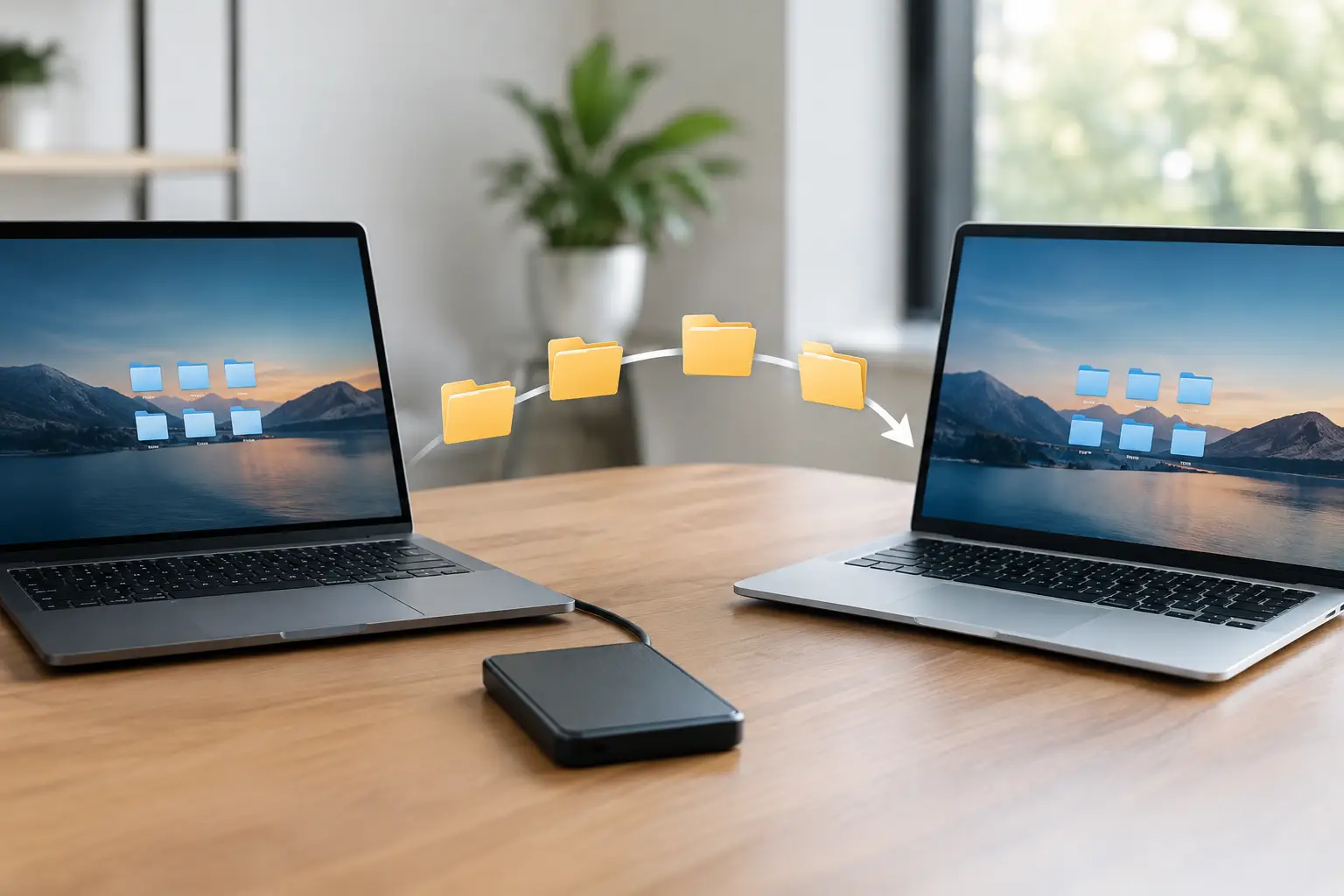
A new computer can look ready to use within minutes, but the files and settings on the old one are what make it feel like yours. When you move files to new computer, the goal is not simply copying a Documents folder. You also need to account for photos, email, browser information, financial records, work files, and anything else you would be frustrated to discover is missing next week.
A careful transfer protects your information, avoids duplicate or outdated copies, and helps your new computer start off organized. The best method depends on how much data you have, whether your old computer still works reliably, and whether the computer is used for home, school, remote work, or business.
Before You Move Files to a New Computer
Start by taking stock of what is actually stored on the old computer. Many people save files in more places than they realize. Check the Desktop, Documents, Pictures, Videos, Downloads, and any folders created for taxes, hobbies, work projects, or scanned paperwork. If you use more than one Windows user account, check each account separately.
Do not assume every file is in a cloud folder. Cloud storage can be helpful, but it only protects folders that were selected for syncing. Files saved elsewhere may exist only on the old hard drive. Also, a synced folder is not always a complete backup. If a file was deleted or replaced before you noticed, that change may sync as well.
Before transferring anything, make one current backup of the old computer’s important files to a separate external drive or a trusted backup service. This gives you a fallback if the transfer is interrupted, the old computer begins failing, or a folder is accidentally skipped. If the old computer makes clicking sounds, freezes often, reports drive errors, or will not start normally, avoid repeated attempts to copy large groups of files. Those can be signs of a failing drive, and professional data recovery may be the safer choice.
It is also a good time to remove clutter. Delete obvious duplicates, temporary downloads, and files you no longer need, but be cautious with anything you do not recognize. A clean transfer saves time and makes the new computer easier to organize.
Choose the Right Transfer Method
For a modest number of files, an external hard drive is often the simplest option. Copy your selected folders from the old computer to the drive, safely eject it, then copy them to the new computer. This method works well when the old computer is functioning properly and you want a local copy under your control.
Cloud storage is convenient when both computers have reliable internet access and the files already live in a properly synced folder. It can take a long time for large photo collections or videos to finish uploading and downloading, so do not start this process right before you need the new computer for work. Confirm the sync is complete on the old computer before assuming the files are available on the new one.
A direct transfer tool or network transfer can be useful for moving a larger collection of files between computers. It may be faster than uploading everything online, but it still requires verification afterward. Transfer tools can copy files, yet they may not fully move every application, license, email archive, or custom setting.
For homes or small businesses with a large amount of data, a damaged old computer, or important programs that must continue working, professional assistance can prevent costly mistakes. The fastest-looking option is not always the safest one when years of family records or business information are involved.
Copy Personal Files First
Begin with the files that are hardest to replace. That usually means documents, photos, videos, scanned records, school files, and work folders. Copy the folders in manageable groups rather than selecting the entire drive without checking what is included.
Keep the folder structure intact whenever possible. For example, if your tax records are organized by year or your work files are arranged by client, copy the main folder instead of moving loose individual files. This makes it much easier to find what you need after the transfer.
The Downloads folder deserves special attention. It often contains installers, attachments, forms, and one-time files that were never saved anywhere else. At the same time, it can be full of unnecessary items. Review it rather than copying it blindly.
After the files arrive on the new computer, open a sample of documents, photos, PDFs, and videos. Make sure they open correctly and that the newest files are present. Compare the number and size of major folders on both computers. A folder with 500 photos on the old computer should not have 472 on the new one without an explanation.
Do Not Forget Email, Browsers, and Passwords
Email can be easy or complicated depending on how it is set up. If your email is web-based, messages may appear once you sign in on the new computer. However, locally stored email folders, contacts, archives, or old messages may require an export and import process. Never delete email data from the old computer until you have confirmed that your needed messages and contacts are available.
Browsers may sync bookmarks, history, saved addresses, and passwords if you sign in with the same account. Check that this information appears on the new computer before relying on it. If you use a separate password manager, confirm that you can sign in and access your saved passwords. Do not send passwords through email or keep them in an unprotected document during the move.
Printers, Wi-Fi connections, and other settings may need to be set up again. This is normal. A new computer should also receive current Windows updates and security protection before it is used for banking, business, or sensitive accounts.
Applications Are Different From Files
Copying an application’s folder does not usually install the program correctly on a new computer. Most programs need to be installed again using the original installer or a current download, then activated with the proper account or license key.
This matters especially for accounting software, business databases, specialty programs, and older software that stores information in a separate location. The program files, the data files, and the license may all need attention. Before changing anything, identify where the program stores its data and make a backup. For a small business, test that invoices, customer records, reports, and shared files open correctly before the old computer is retired.
If a program is no longer supported, it may not run properly on the new computer. That does not necessarily mean your data is lost, but it may need to be converted, exported, or accessed through a different program. This is one of the situations where getting help early is far easier than trying to repair a broken transfer later.
Verify Everything Before Erasing the Old Computer
Keep the old computer and the backup drive untouched for at least a few weeks after the transfer. Use the new computer normally during that time and make note of anything missing. You may remember an old folder, saved template, contact list, or photo archive only when you need it.
Before wiping, donating, recycling, or selling the old computer, confirm that the new computer has your files, working email, needed programs, printer access, and current backups. Sign out of accounts on the old computer and remove personal information properly. Simply deleting files does not fully remove them from a drive.
For many customers, the hardest part is not moving the data. It is knowing what should be moved, what should be installed fresh, and what should be checked before the old system is gone. Computer Tech Pro can help Central Florida homeowners and small businesses transfer data, set up a new Windows computer, verify important files, and protect the information that matters most.
A new computer should bring relief, not a lingering worry that something important was left behind. Take the transfer one careful step at a time, keep a backup until you are confident, and ask for help when the data is too valuable to risk.