
Posted On 09 Nov 2026
A new computer should feel like an upgrade, not a gamble with years of photos, tax records, work documents, and email files. The best way to transfer files safely is to plan the move before copying anything, keep an untouched backup, and verify that your files actually open on the new system.
Many data-transfer problems are not caused by complicated technical failures. They happen when someone assumes every file copied, deletes the original too soon, uses an unprotected drive, or overlooks folders stored outside the usual Documents and Pictures locations. A careful approach prevents those avoidable problems.
Start With a Backup Before You Move Anything
A file transfer is not a backup. It is a move or a copy from one location to another, and interruptions can happen. The old computer may have a failing hard drive, the power may go out, a transfer cable may disconnect, or the new computer may run out of storage space.
Before beginning, make a separate backup of the files you cannot replace. For many households, that includes family photos, financial records, scanned documents, saved passwords, and personal projects. For a small business, it may include customer files, accounting data, contracts, inventory records, and shared office documents.
An external drive is often a practical choice for a full local backup. A reputable cloud backup service can add another layer of protection, especially for important documents that need to be available if a computer is lost, stolen, or damaged. The right option depends on the amount of data, your internet connection, and how quickly you need to restore files if something goes wrong.
Do not erase, donate, recycle, or reset the old computer until the new one has been used successfully for a while. Keeping the original intact gives you a safety net if you later discover a missing folder or an older file that did not transfer.
Decide Which Transfer Method Fits Your Situation
There is no single best method for every transfer. The safest choice depends on how much data you have, whether the old computer is working reliably, and how sensitive the information is.
External drives work well for large transfers
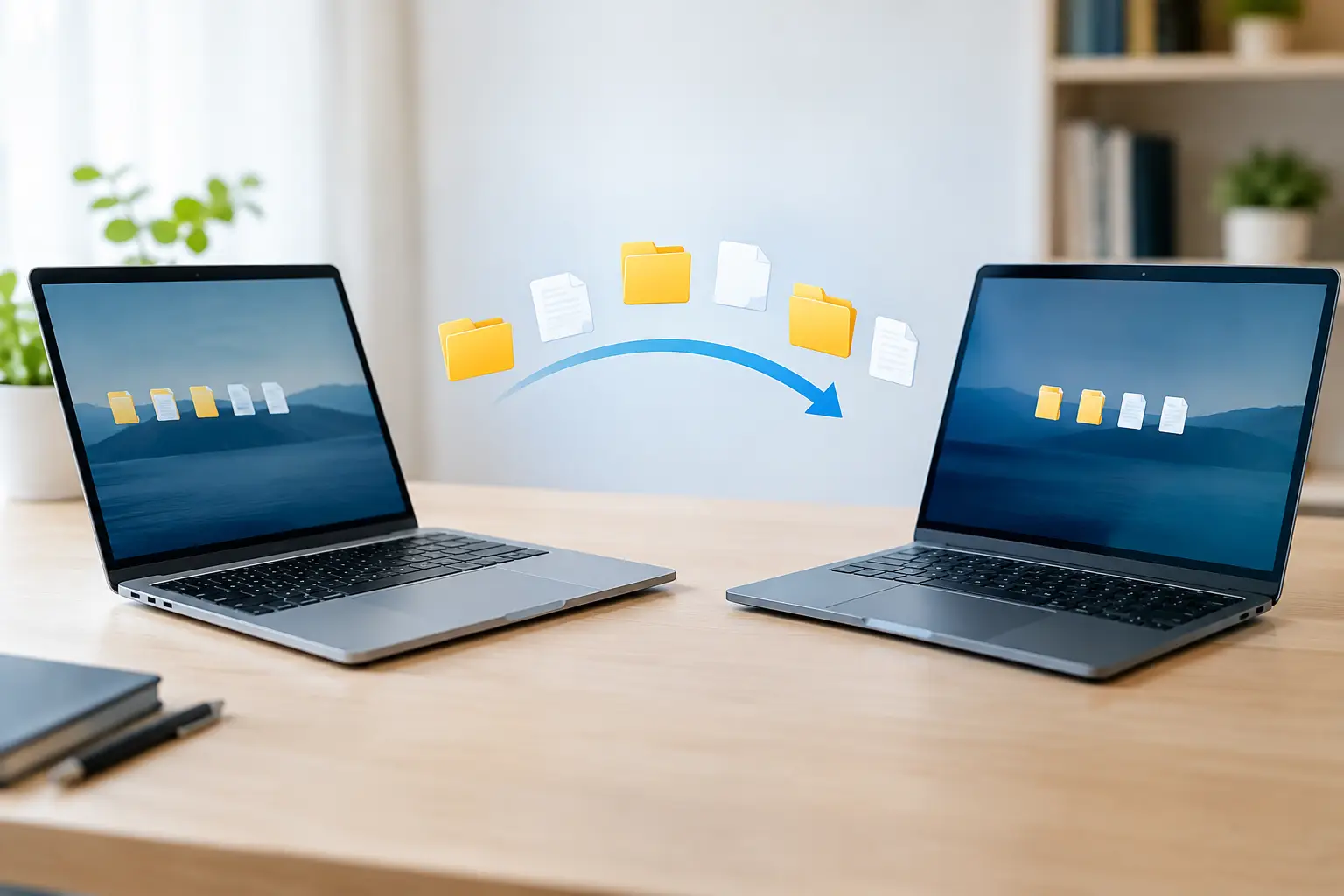
An external hard drive or SSD is often the fastest option when moving a large photo library, years of documents, or business files. Copy files from the old computer to the drive, safely eject it, then copy them to the new computer.
Use a drive from a trusted source and protect it carefully. Portable drives are easy to misplace, so they should not be left in a vehicle, public area, or shared workspace. If the transfer includes confidential information, enable encryption or use a password-protected storage device when available.
Cloud storage is convenient for everyday folders
Cloud storage can be a good choice when your documents and photos are already organized in synced folders. Sign in on the new computer and allow the files to download or sync before assuming the transfer is complete.
This method is convenient, but it is not always quick. Large collections can take days to sync on a slower connection. Also, if unwanted deletions or corrupted files sync from the old computer, they may appear on the new one as well. Check version history and deleted-file recovery options before making major changes.
Direct computer-to-computer transfers can save time
A direct connection over a local network or with a proper transfer tool may be useful when both computers are available and working. This can be efficient for a large transfer, but it requires correct setup and a stable connection.
Avoid using an open public Wi-Fi network to move private files. If you are transferring information across a network, use your secured home or office network with a strong password.
A professional transfer is worth considering for failing systems
If the old computer is making clicking noises, freezing, reporting drive errors, or taking a very long time to open files, do not keep retrying a large copy on your own. Repeated attempts can place more stress on a failing drive. A technician may be able to recover data safely, clone the drive when appropriate, or move files in a controlled way before the drive fails completely.
Prepare Files So Nothing Important Gets Missed
Before copying, take a few minutes to identify where your information is stored. The common folders are a good starting point, but they are not the whole picture.
Look through Documents, Pictures, Videos, Music, Desktop, and Downloads. The Desktop is especially easy to overlook because many people save important items there temporarily, then leave them for years. Check any custom folders you created and any external drives that may contain older archives.
Business users should also identify files tied to specific programs. Accounting software, databases, contact-management tools, and specialized office applications may store information in locations that are not obvious. Copying shortcuts from the desktop does not move the actual program data. It is often best to use that program’s built-in backup or export feature, then confirm the restored data opens correctly on the new computer.
Email deserves the same attention. If you use web-based email, messages may be stored online and available after you sign in. If your email program stores messages locally, contacts, calendars, or archived folders may need a separate export and import. Never assume that seeing recent messages means every older folder has transferred.
Create a simple written list of the folders, programs, and accounts you need to check. It is easier to compare a short checklist after the move than to rely on memory.
How to Transfer Files Safely Without Spreading Problems
Files can carry more than information. A document, downloaded installer, or unknown file from an old computer may also carry malware. That does not mean every old file is unsafe, but it does mean the new computer should not become an automatic copy of every problem from the old one.
Run a current security scan on the old computer before transferring files if it is still usable. Focus on personal files, not old software installers, random downloads, browser extensions, or unknown files sitting in temporary folders. There is rarely a good reason to move those items to a new system.
Be especially cautious with files that arrived unexpectedly by email, have unfamiliar names, or ask you to enable macros or editing when opened. If a file seems suspicious, leave it out and ask for help. It is better to replace one questionable download than to introduce a security issue to a clean computer.
For confidential documents, use a private network and storage you control. Do not send unencrypted tax records, employee information, medical paperwork, or customer data through casual file-sharing methods. Small businesses also need to consider who has access during the transfer. Limit access to the owner, authorized staff, or a trusted IT provider.
Verify the Transfer Before You Clean Up
A transfer is only complete after you verify it. Folder names appearing on the new computer are encouraging, but they do not prove every file arrived intact.
Start by comparing folder sizes and file counts between the old and new locations. The numbers do not always need to be identical because system files and duplicates can affect the totals, but major differences deserve investigation. Open several files from each major folder, including older photos, spreadsheets, PDFs, and documents with attachments.
Check the files that matter most first. For a homeowner, that may be photo albums, tax records, and legal documents. For a business, it may be the current accounting file, active customer records, shared project folders, and critical templates.
Also confirm that your backup exists independently of the transferred copy. If your only backup is the external drive you used to move files, keep it protected until you have established a regular backup routine on the new computer.
Do Not Forget Programs, Passwords, and Settings
Personal files can be copied, but most installed programs cannot simply be dragged from one computer to another. Programs usually need to be installed again from their original source, then activated with the proper license or account.
Before retiring the old computer, make sure you can sign in to important accounts on the new one. Use a trusted password manager or a written, securely stored record of account recovery information. Avoid saving passwords in a loose text document on the desktop or sending them through email.
Printers, scanners, network drives, email settings, and specialized work software may also need to be configured again. This is normal. A clean setup is often preferable because it avoids bringing over years of unnecessary programs and settings that may have contributed to a slow or unstable computer.
When Local Help Makes the Difference
A straightforward transfer can become stressful when the old computer will not start, a drive is failing, files are encrypted by ransomware, or business records must remain available during the changeover. In those situations, guessing can create more downtime or make recovery harder.
Computer Tech Pro helps Central Florida homeowners and small businesses move data to new computers, recover accessible files from troubled systems, and set up reliable backups for the future. The goal is not just to copy folders, but to make sure the new computer is organized, secure, and ready for everyday use.
Give yourself time before the old computer leaves your possession. A patient, verified transfer protects more than files – it protects the records, memories, and work those files represent.