

Posted On 12 Nov 2026
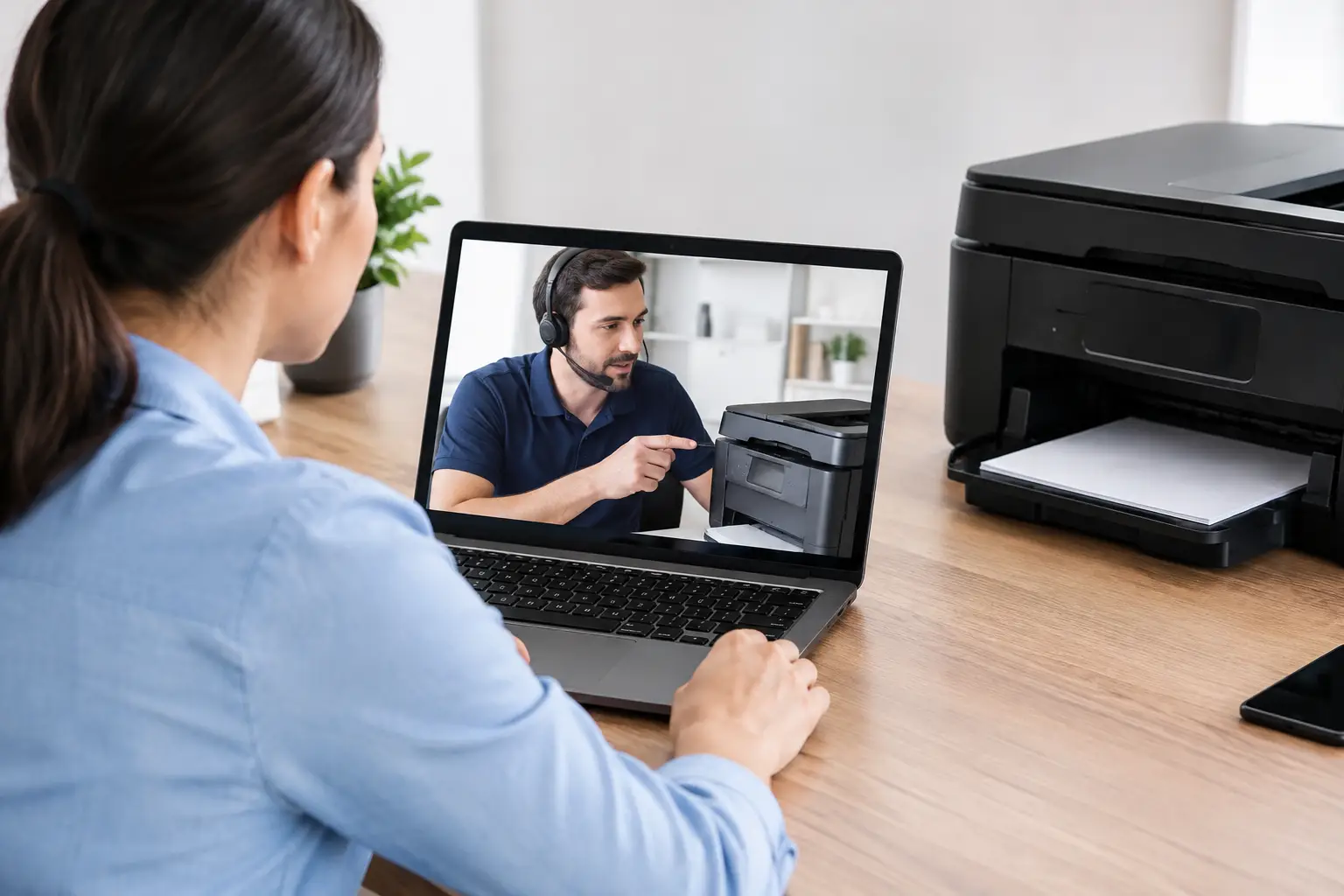
A printer that worked yesterday can suddenly show as offline, refuse to print an important document, or produce page after page of blank paper. Can remote support fix printers in situations like these? Very often, yes. Many printer issues begin with settings, software, Wi-Fi connections, or communication problems between the computer and printer – all of which can frequently be diagnosed and corrected without bringing equipment anywhere.
Remote help is not the right answer for every printer problem. A paper jam buried inside the machine, a damaged ink system, or a printer with no power needs hands-on attention. But before assuming the printer needs replacement or an on-site visit, it is worth checking whether the problem can be fixed remotely.
Can Remote Support Fix Printers at Home or Work?
Remote support works by securely connecting a technician to your computer with your permission. The technician can review printer settings, check error messages, test the connection, update or reinstall printer software, and send test pages. You can see what is happening on your screen while getting clear instructions for anything that requires you to touch the printer itself.
This approach is especially helpful when a printer is physically fine but the computer cannot find it. A printer may appear offline even though it is turned on. It may print from one computer but not another. It may have stopped working after a Windows update, a router change, or a new computer setup. Those are usually computer, network, or software issues rather than a broken printer.
For home office users and small businesses, remote support can also save valuable time. Instead of unplugging a printer, loading it into a vehicle, and hoping the issue can be reproduced later, troubleshooting can begin while the printer is connected in its normal location.
Printer Problems That Are Often Fixed Remotely
Most remotely solved printer problems fall into a few common categories. The first is printer setup. Whether the printer is new or has simply been moved to a different room, a technician can help install the proper software, select the correct printer, and confirm that it is ready to print.
Connection problems are another strong fit for remote service. Wireless printers depend on both the printer and computer being on the same network. If a router was replaced, the Wi-Fi name or password changed, or the printer lost its network connection, printing may stop. A technician can inspect the computer side of the connection, identify where communication is failing, and guide you through any buttons or screen prompts needed on the printer.
Remote support is also effective for print queue problems. A stuck document can prevent every job behind it from printing. Sometimes the printer appears idle, but Windows is holding a failed print job in the background. Clearing the queue and restarting the printing service can restore normal operation quickly.
Driver and software problems are common as well. A driver is the software that lets your computer communicate clearly with the printer. An outdated, incomplete, or incorrect driver may cause error messages, missing printing options, garbled pages, or repeated failures. Reinstalling the correct software remotely often resolves the issue.
Other issues that can often be handled without an on-site visit include:
- A printer showing offline or unavailable
- Documents stuck in the print queue
- Printing to the wrong printer
- Missing scan-to-computer options
- Print jobs that are extremely slow
- A printer that stopped working after a Windows update
The exact fix depends on the printer model, the type of connection, and the message on the screen. Honest troubleshooting matters because an “offline” message does not always mean the same thing.
What Remote Support Cannot Repair
Remote support can fix the computer and network side of printing. It cannot physically remove a jammed sheet, replace a broken tray, repair a damaged cable, or clean a printhead that has failed mechanically.
If the printer will not turn on, makes grinding noises, leaks ink, displays a hardware error before it connects to the computer, or has a visible broken part, the issue is likely inside the printer. In these cases, a technician may be able to help you identify the problem remotely, but an on-site visit, repair shop assessment, or printer replacement may be more practical.
Consumables can create confusion too. Low toner, dried ink, improperly seated cartridges, and worn drums can lead to faded output, streaks, blank pages, or color problems. A remote technician can help interpret what the printer is reporting and walk you through basic checks. However, the physical replacement or cleaning still has to be done at the printer.
There is also a cost question. For some lower-cost printers, a major mechanical repair can cost more than a reliable replacement. A good technician should explain that plainly rather than spending your money on a repair that does not make sense.
What to Have Ready Before a Remote Printer Appointment
A few simple details help troubleshooting move faster. Keep the printer turned on and leave it near the computer or in a place where you can reach its controls. Have a sheet of paper available for a test print. If the printer screen shows an error code or message, write it down or take a clear photo before the appointment.
It also helps to know how the printer connects. Is it plugged into the computer with a cable, connected to Wi-Fi, or connected through your office network? If you recently changed internet service, installed a new router, changed a Wi-Fi password, or upgraded computers, mention that early. Those changes often point directly to the cause.
For a shared small business printer, tell the technician whether everyone is affected or only one person. If one workstation cannot print but others can, the printer itself may be fine. The attention should go to that particular computer’s settings or software.
When an On-Site Visit Is the Better Choice
Some printer situations are better handled in person from the beginning. This is particularly true when the printer needs to be connected to a new office network, when several computers need access, or when the equipment is located in a spot where Wi-Fi signal may be weak.
An on-site visit can also make sense for larger printers, multifunction office equipment, and recurring network problems. A technician can check the physical location, cables, router placement, and network configuration together. That broader view is difficult to get from a remote connection alone.
For seniors or anyone who is uncomfortable navigating printer menus, remote support can still be useful, but there is no reason to struggle through complicated button sequences if in-person help would be more comfortable. The best service method is the one that gets the printer working with the least disruption.
How to Prevent the Same Printer Problem Later
Once printing is restored, a few habits can reduce repeat issues. Keep the printer connected to a stable Wi-Fi network, and avoid changing its settings unless necessary. When replacing a router, plan to reconnect the printer as part of the setup rather than waiting until the next time you need to print.
Use the correct printer as your default device, especially if you have more than one printer listed on the computer. Remove old printers that are no longer used so documents do not get sent to the wrong place. It is also wise to keep printer software current, although updates should be installed thoughtfully rather than at random.
For small businesses, reliable printing is part of keeping work moving. Regular computer maintenance, secure network setup, and support when changes are made can prevent a simple printer issue from becoming a day of lost productivity.
If your printer is powered on but will not cooperate with your computer, remote support is often the fastest place to start. And if the problem turns out to require hands-on service, you will know why – and what the most sensible next step is.