

Posted On 05 Nov 2026
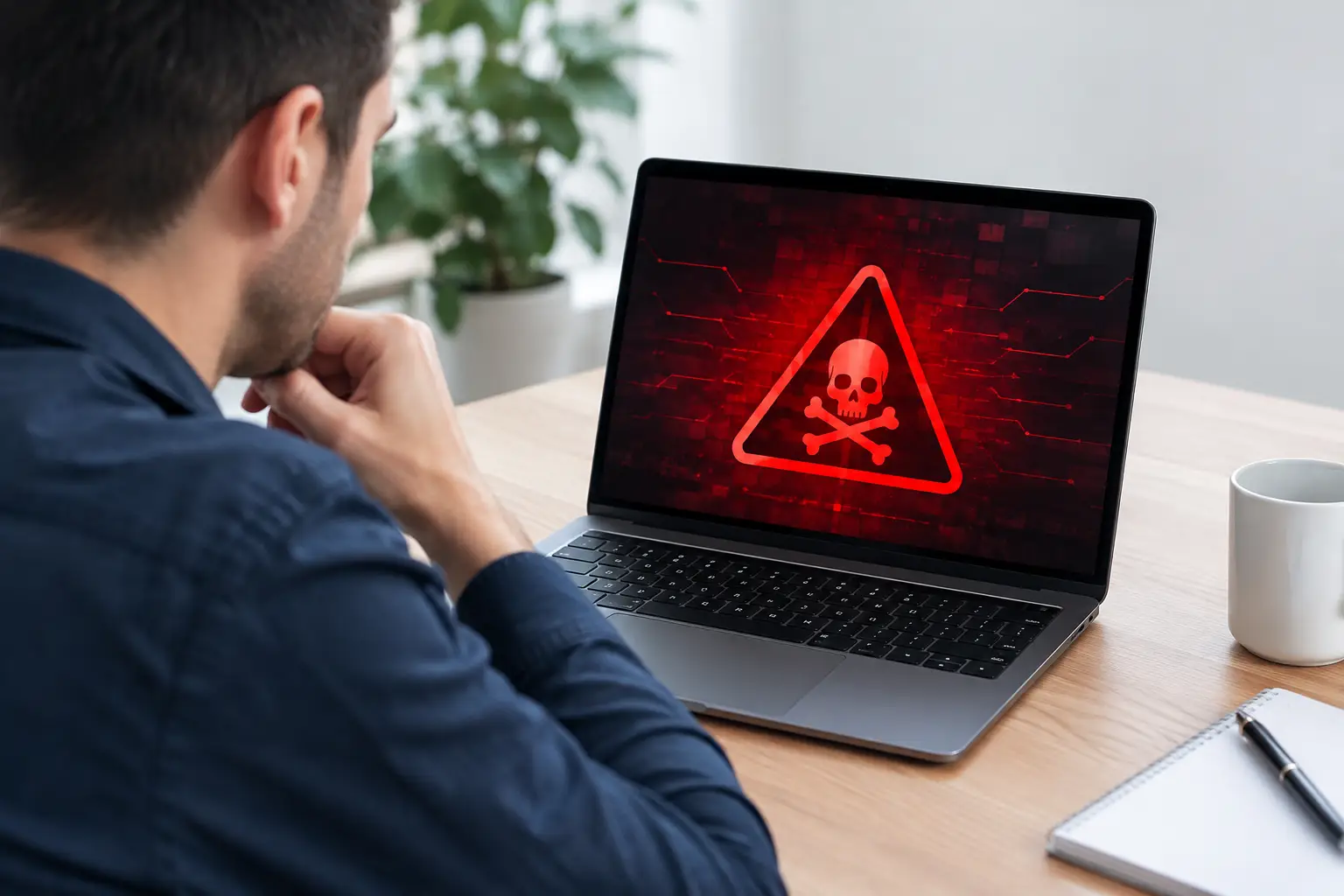
A computer that suddenly takes five minutes to open a browser, displays unfamiliar pop-ups, or signs you out of an email account is not necessarily just “getting old.” These can be top signs of malware, and waiting to see whether they disappear can give an infection more time to steal information, damage files, or spread through a home or office network.
Malware is a broad term for harmful software. It includes viruses, spyware, ransomware, browser hijackers, unwanted programs, and tools that let criminals gain access to a computer. Some infections are loud and obvious. Others are designed to stay quiet while they collect passwords, watch activity, or use system resources in the background.
Knowing what to watch for helps you act early, before a frustrating computer problem becomes a serious security or data-loss issue.
Top Signs of Malware on a Computer
Your computer becomes unusually slow
A slow computer does not automatically mean malware. An aging hard drive, limited memory, too many startup programs, Windows updates, or a nearly full storage drive can all affect performance. But a major slowdown that appears suddenly deserves attention, especially when it happens alongside other unusual behavior.
Malware can consume processing power, memory, and internet bandwidth without showing an obvious window on the screen. You may notice the fan running constantly, programs taking far longer to open, or the computer freezing during simple tasks such as checking email or opening a document.
If restarting temporarily improves the problem but it quickly returns, there may be a background process that needs a closer look.
Pop-ups appear when you are not browsing
Unexpected pop-ups are one of the clearest warning signs. They may claim that your computer is infected, say your security subscription has expired, or urge you to call a phone number immediately. Others promote cleanup tools, prize offers, or fake updates.
Do not click the message, call the displayed number, or install the suggested software. Legitimate security warnings do not typically pressure you with alarming timers, threats, or demands to contact an unknown support line.
A few browser notifications can be caused by a website permission that was accidentally approved. Repeated alerts outside the browser, however, can point to adware or a more serious infection.
Your browser keeps changing its settings
A browser that opens to an unfamiliar home page, uses a different search engine, or sends searches through odd-looking websites may have a browser hijacker or unwanted extension. These programs often arrive bundled with free downloads or get installed after a misleading prompt is accepted.
You may also see extra toolbars, new icons, ads on websites that normally do not have them, or search results filled with suspicious links. This is more than an inconvenience. Fake search pages can steer you toward unsafe downloads and phishing sites designed to collect passwords.
Programs open, close, or install without your permission
Your computer should not launch unfamiliar programs on its own or show new applications you do not remember installing. Watch for strange desktop shortcuts, unknown items in the startup list, security software you did not choose, or repeated installation prompts.
Some legitimate software updates do run automatically, so context matters. A recognized program updating itself is different from an unknown application demanding administrator access. When you are unsure, stop and verify before approving anything.
Files are missing, renamed, or will not open
This is one of the most urgent signs. Ransomware can encrypt documents, photos, spreadsheets, and other files so they cannot be opened. It may also add unfamiliar extensions to file names and leave a note demanding payment.
Do not pay immediately or continue using the computer as usual. Disconnect it from Wi-Fi or unplug the network cable if possible. This can help limit the infection’s ability to reach shared folders, backup drives, or other computers on the same network.
Not every missing-file problem is ransomware. A failing drive, an incorrect save location, or a cloud-syncing issue can look similar. Still, files that suddenly become unreadable should be treated as urgent until a professional can identify the cause.
Your accounts show activity you did not perform
Password-reset emails you did not request, sent messages you did not write, unfamiliar purchases, or login alerts from unknown locations may mean an account has been compromised. Malware is one possible cause, particularly if it includes a keylogger that records what you type. Phishing, reused passwords, and a breached online service are other possibilities.
Change passwords from a known-clean computer, beginning with your primary email account. Email often controls password resets for banking, shopping, and work accounts. Use a unique password for every important account and turn on multi-factor authentication where available.
If a work account may be affected, notify the appropriate person right away. Quick reporting can prevent a single compromised password from becoming a larger business problem.
Security tools are disabled or will not update
Malware often tries to protect itself by blocking security updates, turning off antivirus protection, or preventing security websites from opening. If your protection suddenly reports that it is disabled and will not turn back on, do not assume it is a harmless glitch.
Similarly, take notice if Windows updates repeatedly fail without a clear reason, or if a computer blocks access to familiar support and security resources. These symptoms are not proof by themselves, but they are strong reasons to have the system checked.
Your internet connection is busy for no clear reason
An infection may send data out of your computer, download more harmful files, or communicate with a remote attacker. You might notice internet activity when no one is actively using the computer, unusually high data usage, or poor performance during video calls and normal browsing.
Internet trouble can also come from Wi-Fi interference, an aging router, or a provider outage. The difference is the pattern. When connection issues appear with pop-ups, unexplained programs, or account warnings, malware moves higher on the list of likely causes.
What to Do When You Suspect Malware
The goal is to contain the problem without making it worse. Avoid logging into financial accounts, entering passwords, or connecting external backup drives until you know the computer is safe. If ransomware or a serious infection is suspected, disconnect the computer from the network first.
Take a photo of any error message or ransom note with another camera if needed. Do not delete files, run random cleanup tools, or follow instructions from pop-ups. Well-meaning actions can overwrite useful evidence, make recovery harder, or install additional unwanted software.
A reputable security scan can identify many common threats, but scanning is not always the entire answer. Some infections change browser settings, create hidden scheduled tasks, steal saved passwords, or damage Windows files. A thorough cleanup may involve removing the infection, checking startup items and accounts, repairing system damage, and making sure backups are safe before restoring data.
For a home office or small business, it is also wise to check whether the affected computer had access to shared files, accounting software, customer information, or network storage. The response should match the risk. A single adware problem requires a different level of follow-up than a possible ransomware event involving company records.
How to Lower the Risk Going Forward
Most malware relies on a moment of trust: an attachment that looks like an invoice, a fake delivery notice, a convincing password-reset email, or a download button that is not really a download button. A little caution goes a long way.
Keep Windows, browsers, and trusted security software updated. Install programs only from sources you recognize, and read setup screens instead of clicking through them quickly. Be especially careful with unexpected attachments and links, even when they appear to come from a familiar contact. Their account may have been compromised.
Regular backups are equally important. Keep at least one backup that is not continuously connected to the computer. A backup that malware can reach may be encrypted along with everything else. Test that important files can actually be restored, because a backup only helps when it works at the moment you need it.
For households, a quick conversation about scam emails and fake support alerts can prevent trouble. For small businesses, written procedures, managed security tools, and reliable backup planning reduce the chance that one mistaken click stops operations.
If something on your computer feels wrong, trust that instinct. Early help is usually simpler and less expensive than recovering after passwords, personal files, or business data have already been affected. Computer Tech Pro can help Central Florida residents and small businesses identify the cause, remove malware safely, and put practical protections in place so you can get back to using your computer with confidence.