
Posted On 10 Nov 2026
A familiar Windows 10 desktop can feel like the safest choice, especially when a computer is working well and you know where everything is. But Windows 11 versus Windows 10 is no longer just a question of appearance. With regular Windows 10 support ending on October 14, 2025, the decision now affects security, compatibility, and how long a computer can remain dependable.
For many homeowners and small businesses, Windows 11 is the better long-term direction. That does not mean every older computer should be forced into an upgrade. The right answer depends on the age of the system, the programs you rely on, and whether the computer meets Windows 11’s hardware requirements.
Windows 11 Versus Windows 10: The Biggest Difference
Windows 10 was designed for an era when many people used a desktop or laptop mainly for email, web browsing, documents, and a few familiar programs. It remains straightforward, stable, and comfortable for people who have used it for years. The Start menu sits in the lower-left corner by default, settings are familiar, and older software often runs without trouble.
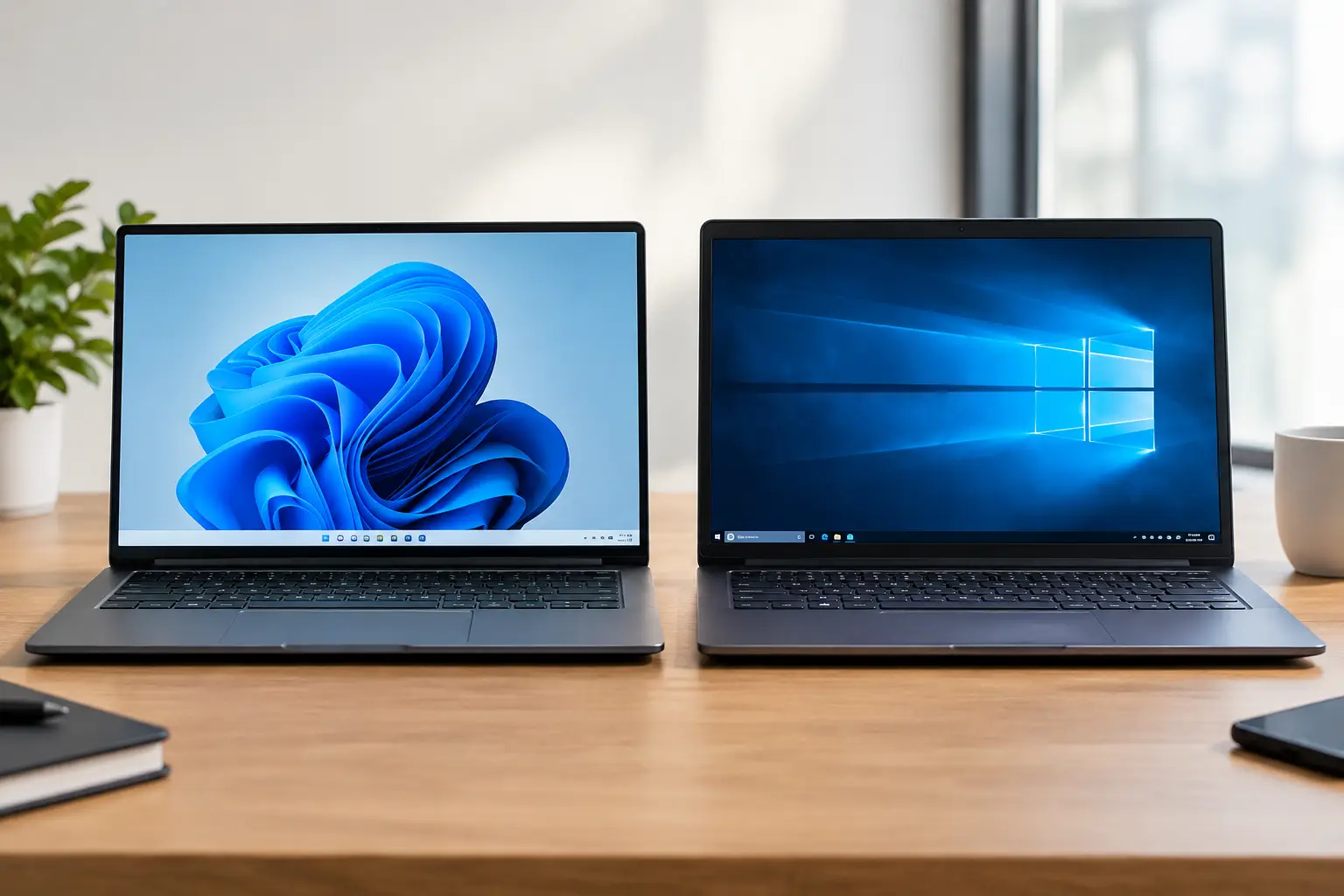
Windows 11 keeps the same basic Windows foundation but updates the experience. The Start button and taskbar are centered by default, though they can be moved back to the left. Menus have been simplified, windows are easier to arrange side by side, and the system places more emphasis on modern security features.
The visual changes get the most attention, but they are not the most important reason to move forward. The larger issue is that Windows 11 continues to receive standard security updates and feature support, while Windows 10 no longer does under normal support. A computer can still turn on and run Windows 10 after its end-of-support date, but newly discovered security weaknesses may not be fixed.
Microsoft offers a temporary Extended Security Updates option for some Windows 10 users, but it is a short-term bridge rather than a permanent plan. It may be useful when a replacement or upgrade cannot happen immediately, particularly when a critical older program is involved. It is not a reason to postpone a sensible long-term decision indefinitely.
Security Is a Practical Reason to Upgrade
Security updates may sound technical, but their purpose is simple: they help close openings that criminals can use to steal information, install harmful software, or disrupt a computer. This matters whether the computer holds family photos and financial records or business files and customer information.
Windows 11 requires certain newer hardware security features, including TPM 2.0 and Secure Boot, on supported systems. These features help protect the startup process and make it harder for certain types of malicious software to take control before Windows fully loads. Windows 10 can be secured with good habits and quality protection, but Windows 11 is built around stronger security expectations from the start.
That does not mean upgrading alone makes a computer safe. Weak passwords, suspicious attachments, reused login information, and missing backups can still create serious problems. A secure setup also includes current antivirus protection, regular updates, reliable backups, and someone to call when something does not look right.
For a home office or small business, the support difference is especially significant. One infected computer can interrupt billing, appointments, email, and access to shared files. Staying on a supported operating system is one of the more sensible ways to reduce avoidable risk.
Does Windows 11 Make a Computer Faster?
Sometimes, but not always. Windows 11 is not a miracle cure for a slow computer. If a system has a failing hard drive, too little memory, unnecessary startup programs, or malware, installing a newer version of Windows will not fix the underlying problem.
On a supported computer with a solid-state drive and adequate memory, Windows 11 can feel responsive and organized. It handles modern multitasking well, and features such as Snap Layouts make it easier to keep an email window, document, browser, and accounting program visible without constantly resizing each one.
For someone who works from home, that small improvement can add up. For a household computer used mainly for browsing and email, the change may feel less dramatic. The better question is not “Will Windows 11 make it faster?” but “Is this computer in good enough condition to be worth keeping for the next few years?”
An older computer that feels slow may benefit more from a tune-up, malware cleanup, or solid-state drive upgrade than from a Windows upgrade alone. In other cases, the cost of repairs and upgrades may be better put toward a newer system that is fully supported from day one.
Hardware Requirements Can Decide the Issue
Windows 11 has stricter requirements than Windows 10. A computer generally needs a compatible 64-bit processor, at least 4 GB of memory, adequate storage space, TPM 2.0, and Secure Boot capability. Many computers made in the last several years qualify, but some otherwise functional systems do not.
It is tempting to use unofficial workarounds to install Windows 11 on unsupported hardware. We generally do not recommend that route for a computer you depend on. An unsupported installation can create update problems, driver issues, or uncertainty about future security support. It may work for a while, but it leaves the owner with a system that can be harder to maintain.
Before deciding, check compatibility properly. The age of a computer does not always tell the whole story. Two systems purchased around the same time can have very different processors and security capabilities. A technician can also check the health of the drive, battery, memory, and cooling system, which helps determine whether an upgrade is truly worthwhile.
What Changes Will You Notice in Daily Use?
The most immediate change is the layout. Windows 11 uses a cleaner taskbar and a redesigned Start menu. Some people like the simpler look right away; others need a few days to adjust. Familiar functions are still there, but they may be located differently or require an extra click.
The right-click menu is another common adjustment. Windows 11 presents a shorter menu first, with additional older options available when needed. This keeps the screen less cluttered, although experienced users may initially find it slower.
Windows 11 also improves window organization. Snap Layouts can quickly place multiple open programs into a useful arrangement, which is helpful for bookkeeping, research, scheduling, or comparing documents. Its updated Settings app is easier to navigate than earlier versions, though some advanced controls still appear in older Windows tools.
Most common software, printers, and accessories work normally when Windows 11 is installed on supported hardware. Still, special business programs, older scanners, and niche equipment deserve a compatibility check before an upgrade. A quick review beforehand is far less stressful than finding out a critical program no longer works during a busy workday.
When Staying on Windows 10 May Make Sense Temporarily
There are legitimate reasons not to upgrade immediately. Perhaps a computer runs specialized software that has not been tested on Windows 11. Perhaps an older device is nearing replacement, and putting money into it would not be wise. A business may also need time to plan multiple upgrades, verify software compatibility, and move data carefully.
In those situations, the goal should be risk reduction and a clear replacement plan. Keep the system updated as far as its available support allows, maintain current security software, back up important files, and avoid using an outdated computer for sensitive tasks when possible. Do not wait until a hard drive fails or a security problem occurs to begin moving important data.
If the computer meets the requirements and important programs are compatible, upgrading from Windows 10 to Windows 11 is usually the more practical choice. The upgrade should begin with a verified backup. Files, email settings, printers, and business software all deserve attention before changes are made.
Choosing the Right Path for Your Computer
The best choice is based on the machine in front of you, not a one-size-fits-all rule. A supported computer in good condition is often an excellent candidate for Windows 11. An unsupported computer with a failing drive or limited memory may be better replaced. A system with an essential older program may need a carefully managed transition instead of a rushed upgrade.
For residents and small businesses in Central Florida, Computer Tech Pro can assess whether a Windows 11 upgrade, repair, or replacement makes the most financial sense. The goal is not to push a new operating system onto every computer. It is to keep your files protected, your daily work reliable, and your next technology decision clear.
A few minutes spent checking compatibility and backing up data can prevent a much more expensive problem later. When your computer is part of how you communicate, pay bills, run a business, or stay connected with family, a thoughtful plan is always better than an emergency repair.