
Posted On 01 Nov 2026
A computer that takes several minutes to reach the desktop, hesitates when opening email, or freezes while saving a document often has one common bottleneck: its storage drive. When comparing an SSD upgrade versus hard drive replacement, the right choice is usually about more than price. It affects how quickly the computer starts, how responsive it feels, how much storage you have, and how safely your important files can be transferred.
For many homeowners, remote workers, and small businesses, an SSD is the single most noticeable upgrade available for an older Windows computer. But a traditional hard drive still has a useful role, especially when large amounts of storage matter more than everyday speed.
SSD Upgrade Versus Hard Drive: The Core Difference
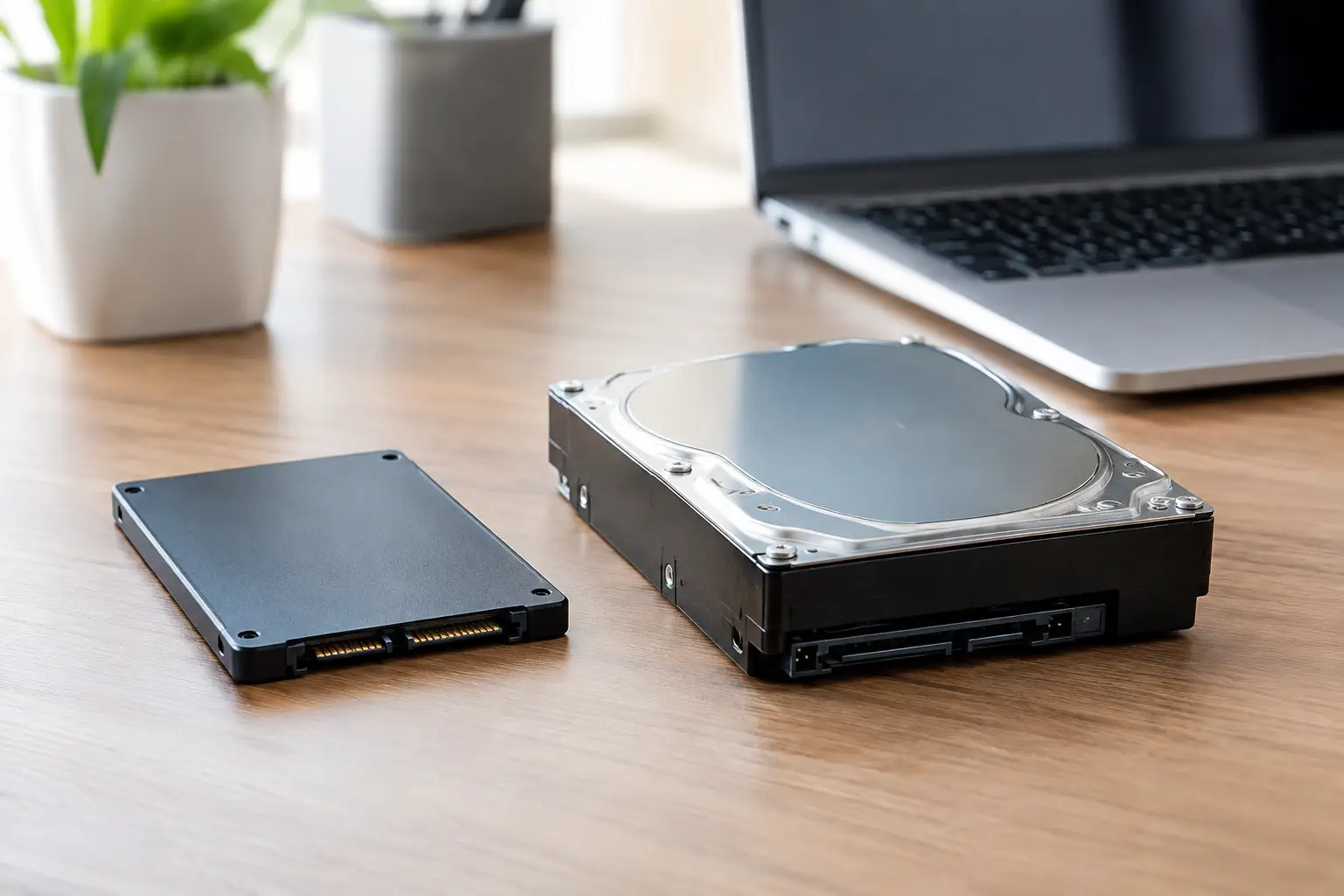
A traditional hard disk drive, often called an HDD, stores data on spinning magnetic disks. A small mechanical arm reads and writes information as the disks rotate. This design has been common in computers for decades, and it remains an affordable way to store lots of files.
A solid-state drive, or SSD, has no moving parts. It stores data on memory chips, much like a USB flash drive but built for much higher speed and reliability. Because there are no disks to spin or moving arms to position, an SSD can access files far more quickly.
That difference is easy to feel in normal use. A computer with an SSD typically starts Windows faster, opens programs sooner, searches files more quickly, and feels less delayed when switching between tasks. An HDD can still work well, but it is often the reason an otherwise capable computer feels old and slow.
When an SSD Upgrade Makes the Most Sense
An SSD upgrade is usually the best choice when the goal is to make an existing desktop or laptop feel faster without replacing the entire computer. If the computer has enough memory, a healthy processor, and no major hardware issues, replacing a slow hard drive with an SSD can extend its useful life considerably.
The improvement is especially noticeable for people who use a computer for email, web browsing, online banking, video calls, schoolwork, office documents, printing, and home office tasks. Windows updates also tend to install more smoothly when the system drive is not struggling to read and write data from an aging mechanical drive.
An SSD is also a smart option for laptops that travel around the home or office. Traditional hard drives are more vulnerable to damage if they are bumped or dropped while running because their internal components move at high speed. SSDs are not indestructible, but their lack of moving parts gives them an advantage in everyday handling.
For small businesses, faster computers can mean fewer interruptions during the workday. Waiting for software to load, files to open, or a system to restart may only take a few minutes at a time, but those delays add up across a team. An SSD upgrade is often a practical way to improve productivity without buying several new computers at once.
When a Hard Drive Is Still the Better Choice
A hard drive is not automatically the wrong choice. It remains useful when storage capacity is the main priority and performance is less critical. Large collections of photos, videos, archived documents, backup files, and business records can require multiple terabytes of space. A traditional hard drive generally provides more capacity for the money than an SSD.
For example, a computer may use a smaller SSD for Windows and everyday programs while keeping a larger hard drive for files that do not need instant access. This can be a good setup for a desktop with room for more than one drive.
Hard drives can also be useful for local backup storage. A backup drive is meant to hold a separate copy of important information, not necessarily to run programs all day. In that role, a high-capacity hard drive can be a cost-effective part of a larger backup plan.
Still, a hard drive should not be chosen simply because it is cheaper if the existing computer is already frustratingly slow. Saving money on the drive may not solve the problem that prompted the upgrade in the first place.
Speed: What You Will Actually Notice
Technical speed ratings can be confusing, but the everyday difference is straightforward. With an SSD, tasks that involve lots of small files generally happen much faster. Windows startup, program launches, updates, virus scans, and opening folders full of documents are common examples.
A hard drive may take a minute or more to fully settle after startup, especially if Windows is loading background services and security software. An SSD often reduces that wait dramatically. The computer also tends to remain responsive while other tasks are happening in the background.
An SSD will not fix every performance issue. A computer may still be slow because of too little memory, an older processor, malware, failing hardware, overheating, or an unstable internet connection. That is why it is worth diagnosing the system before ordering parts. Installing a new drive without checking the rest of the computer can lead to disappointment and unnecessary expense.
Storage Capacity and Cost Trade-Offs
The best drive size depends on what is already stored on the computer and how the system will be used over the next few years. A drive that is nearly full can slow down updates, limit file storage, and create problems during data transfers.
For many households, a 500 GB or 1 TB SSD offers a comfortable balance of speed and space. Users with extensive photo libraries, large video files, or years of business records may need more capacity. Before choosing a smaller SSD to reduce cost, check how much space is currently in use and leave room for Windows updates, new programs, and future files.
The lowest-priced drive is not always the best value. Drive quality, warranty coverage, compatibility, and proper installation all matter. A poorly chosen drive may be slower than expected, may not fit the computer correctly, or may not provide enough room for the existing data.
Reliability and Protecting Your Files
Both SSDs and hard drives can fail. An SSD does not make backups unnecessary, and a hard drive does not always provide warning before it stops working. Important files should exist in more than one place, especially financial records, family photos, client documents, and business data.
Hard drives may show warning signs such as clicking sounds, repeated error messages, freezing, or files that disappear or will not open. If those symptoms appear, avoid repeatedly restarting the computer or continuing to use the drive heavily. Each attempt can make a data recovery situation more difficult.
SSDs usually fail differently. They are quiet and may not show the same mechanical warning signs, which makes regular backups equally important. A healthy replacement drive should be paired with a plan for protecting the data it will hold.
Should You Clone the Old Drive or Start Fresh?
When replacing a working hard drive with an SSD, cloning is often the most convenient option. Cloning copies Windows, programs, settings, and files from the old drive to the new one. When it goes well, the computer starts from the SSD and looks familiar, only faster.
However, cloning is not always the best approach. If the old system has malware, corruption, years of unwanted software, or persistent Windows errors, copying everything can bring those problems to the new drive. In those cases, a clean Windows installation followed by careful data transfer may provide a better result.
The right path depends on the computer’s condition and the value of the data. A technician should confirm that the new drive is compatible, verify the transfer, test the system after installation, and make sure important files are accessible before the old drive is erased or discarded.
Making the Right Choice for Your Computer
Choose an SSD when you want a noticeably faster, quieter, more responsive computer and your storage needs are moderate. Choose a hard drive when you need the most storage possible for the budget, particularly for archives or backup copies. Consider using both when you need fast daily performance and substantial file storage.
For older computers, an honest assessment matters more than a one-size-fits-all recommendation. Sometimes an SSD upgrade is the sensible repair. Other times, the computer has multiple issues or is nearing the point where replacement makes better financial sense.
Computer Tech Pro can evaluate the condition of your system, explain the options in plain language, and help protect your files during an upgrade. The goal is not simply to install a new drive. It is to leave you with a computer that works reliably for the way you use it every day.