

Posted On 18 Aug 2026
A dropped video call during a client meeting, a printer that disappears from the network, or files that take minutes to open are not minor annoyances. They cost time and make a small business look unprepared. This small office network setup guide explains how to build a dependable system without buying more equipment than your office actually needs.
The right setup depends on your space, staff size, internet connection, and the work you do. A two-person real estate office has different needs than a medical practice or a law firm handling confidential documents. The goal is the same: reliable access, sensible security, and a plan for when something goes wrong.
Start With the Work Your Network Must Handle
Before choosing a router or running cables, take inventory of how people use the network. Count the computers, printers, phones used for desk service, security cameras, backup devices, and any other equipment that needs an internet or local network connection. Also consider expected growth. If you have five employees now but plan to add three more this year, build for eight instead of replacing equipment too soon.
Next, look at the type of traffic your office creates. Video meetings, cloud-based accounting, large design files, remote access, and cloud backups all place different demands on a connection. Internet speed matters, but the quality of the equipment inside the office matters just as much. Fast internet will not fix weak Wi-Fi coverage, an overloaded router, or outdated cabling.
It also helps to identify devices that should remain separate from business computers. Guest Wi-Fi, for example, should not provide visitors access to printers, shared files, or office systems. Keeping those connections separated is one of the simplest ways to improve privacy and reduce accidental security problems.
Choose a Sensible Network Layout
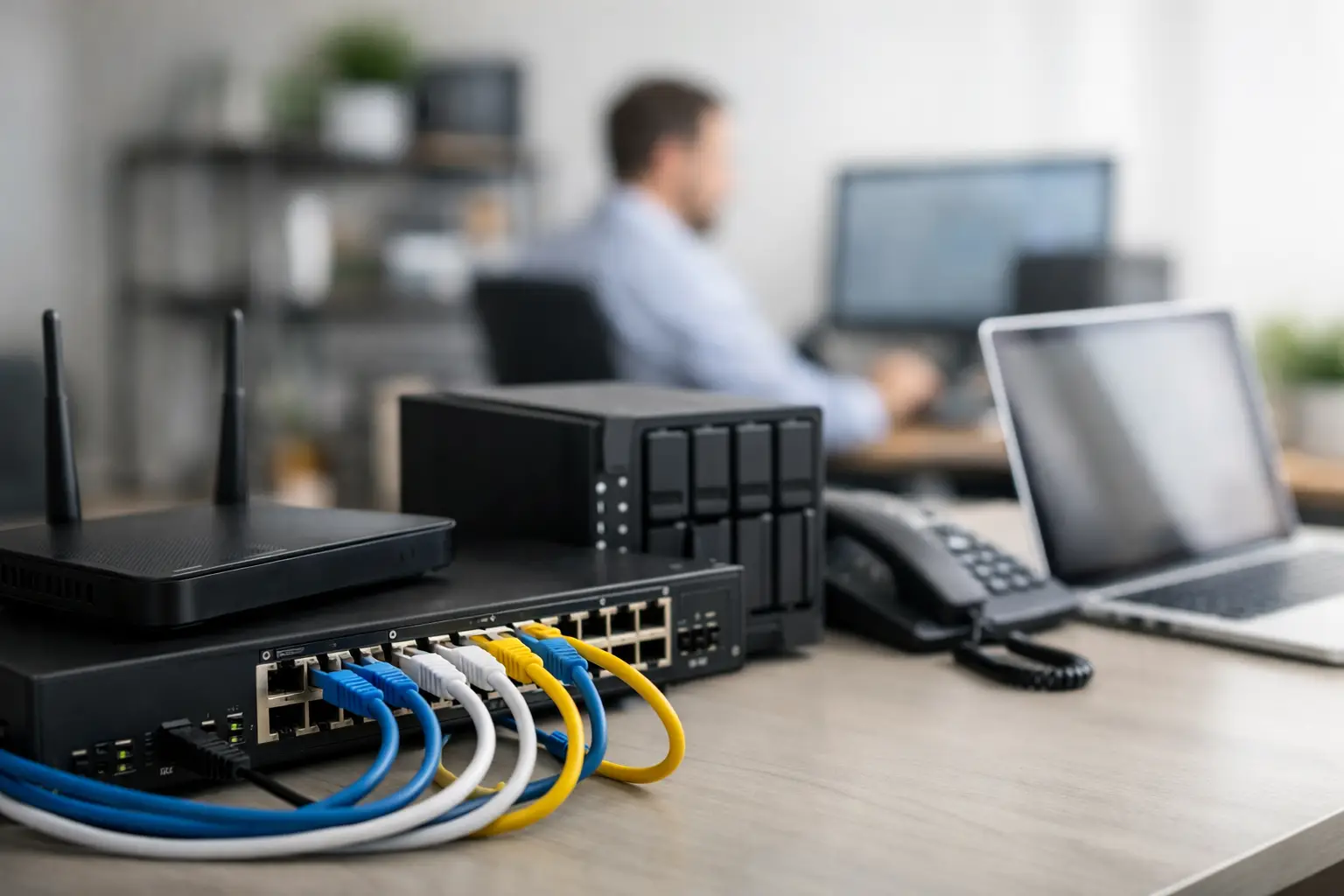
Most small offices need four basic parts: an internet modem or gateway from the provider, a business-grade router or firewall, a network switch, and Wi-Fi access points. The router directs traffic and provides security controls. The switch connects wired equipment. Access points provide Wi-Fi in the areas where staff work.
For a very small office, one quality router with built-in Wi-Fi may be enough. That can be a practical and affordable choice when the office is compact, walls are not too dense, and only a few people are online at once. As the office grows, separate equipment is usually easier to manage and replace. A failed Wi-Fi access point should not take down the entire network.
Use wired connections where they matter most
Computers that stay at desks, printers, network storage, and desk-based equipment are often better connected with Ethernet cables. Wired connections are generally faster and more consistent than Wi-Fi, especially for large file transfers and backups. They also reduce crowding on the wireless network.
Wi-Fi is still essential for laptops, meeting rooms, and flexible workspaces. The practical approach is not wired versus wireless. It is using each where it makes the most sense.
Plan Wi-Fi coverage instead of guessing
A single Wi-Fi unit placed in a back office or utility closet rarely serves an entire workplace well. Concrete block walls, metal shelving, filing cabinets, and even plumbing can weaken the signal. Central placement usually helps, but larger or oddly shaped offices may need more than one access point.
More access points are not automatically better. Poor placement or incorrect settings can create interference and make connections worse. A basic site review can identify weak areas before staff begins reporting problems. This is especially useful in older Central Florida office buildings, where wall materials and room layouts can make Wi-Fi performance unpredictable.
Secure the Network Before It Becomes a Problem
Small businesses are common targets because attackers expect security controls to be limited. Basic protections make a meaningful difference, and they do not need to be complicated for staff to use.
Start by changing default administrator passwords on network equipment. Use long, unique passwords and keep them in a secure password manager rather than on a note near the desk. Turn on multi-factor authentication for email, cloud accounts, remote access, and network management whenever it is available.
Your office should have separate wireless networks for staff and guests. Staff devices can access the equipment they need, while visitors receive internet access only. If you use internet-connected cameras, smart devices, or specialized equipment, they may also need their own separate network. This limits the damage if one device is compromised.
Keep routers, firewalls, access points, and computers updated. Updates often correct security flaws as well as performance issues. The trade-off is that updates can occasionally affect older equipment or software, so businesses with critical applications may want updates scheduled after hours and monitored by an IT professional.
Build Backup and Recovery Into the Setup
A network is only part of the picture. If the office loses access to files, email, or key systems, the quality of the Wi-Fi will not matter much. Every small business should know where its important data is stored, who can access it, and how it will be restored after accidental deletion, equipment failure, or ransomware.
Cloud storage may protect files from a failed computer, but it is not always a complete backup strategy. Deleted or encrypted files can sometimes sync across accounts. A separate, monitored backup provides another recovery option. Businesses handling financial records, client documents, medical information, or legal files should also consider how long records must be retained and whether access needs to be documented.
Network storage can be useful for shared files and local backups, but it needs proper configuration, password protection, and backup of its own. A storage device is not a backup if it is the only place your data exists.
Set Up Everyday Management From the Beginning
The most dependable networks are not the ones that never need attention. They are the ones that are documented and maintained before a minor issue becomes downtime.
Keep a simple record of your internet provider details, equipment model numbers, administrator access, Wi-Fi names, and where key cables connect. Labeling cables and ports may seem small, but it can save a great deal of time when a printer, workstation, or access point needs troubleshooting.
Give employees the access they need, not unlimited access by default. A staff member who only needs shared files and email should not have administrative control of the network. When someone leaves the company, remove their access promptly. These habits protect the business without making day-to-day work harder.
A useful maintenance routine includes checking backups, reviewing security alerts, installing planned updates, and testing internet failover or recovery procedures if your office relies heavily on online systems. For offices where every hour of downtime matters, a backup internet connection can be worth considering. It adds a monthly cost, but it may allow essential work to continue when the primary provider has an outage.
Common Small Office Network Setup Mistakes
The most common problems usually begin with good intentions and rushed decisions. Avoid these four mistakes when possible:
- Using a consumer router designed for light home use in an office with many users and devices.
- Placing all equipment on one network, including staff computers, guest connections, and internet-connected devices.
- Treating Wi-Fi signal bars as proof that the network is fast, secure, and properly configured.
- Skipping backup testing because a backup service appears to be running.
There is no need to buy the most expensive equipment to avoid these issues. What matters is selecting equipment that fits the office, configuring it correctly, and maintaining it over time.
When Professional Network Help Makes Sense
A basic setup can be manageable for a small office with a few computers and simple needs. Professional help is especially valuable when the office handles private client information, has frequent Wi-Fi problems, needs shared storage, uses remote workers, or cannot afford extended downtime.
Computer Tech Pro helps small businesses throughout Lake County and nearby Central Florida communities plan, install, secure, and maintain office networks. Support can include on-site troubleshooting, remote assistance, Wi-Fi improvements, printer setup, network storage configuration, cybersecurity protection, and ongoing managed IT service.
A well-planned network should fade into the background while your staff gets work done. If your connection is constantly demanding attention, that is a sign the setup deserves a closer look before the next busy day exposes a bigger problem.


