

Posted On 08 Aug 2026
A computer can seem fine one moment and refuse to open a family photo, work document, or accounting file the next. Recognizing hard drive failure warning signs early gives you the best chance of protecting what matters before a small storage problem turns into permanent data loss.
A hard drive does not always fail without notice. Many computers show changes in speed, stability, noise, or file access first. The key is not to ignore those changes or keep restarting the computer until it finally stops working. If your files are important, your first priority should be making a safe copy of them.
8 Hard Drive Failure Warning Signs to Watch For
1. Clicking, grinding, or repeated spinning noises
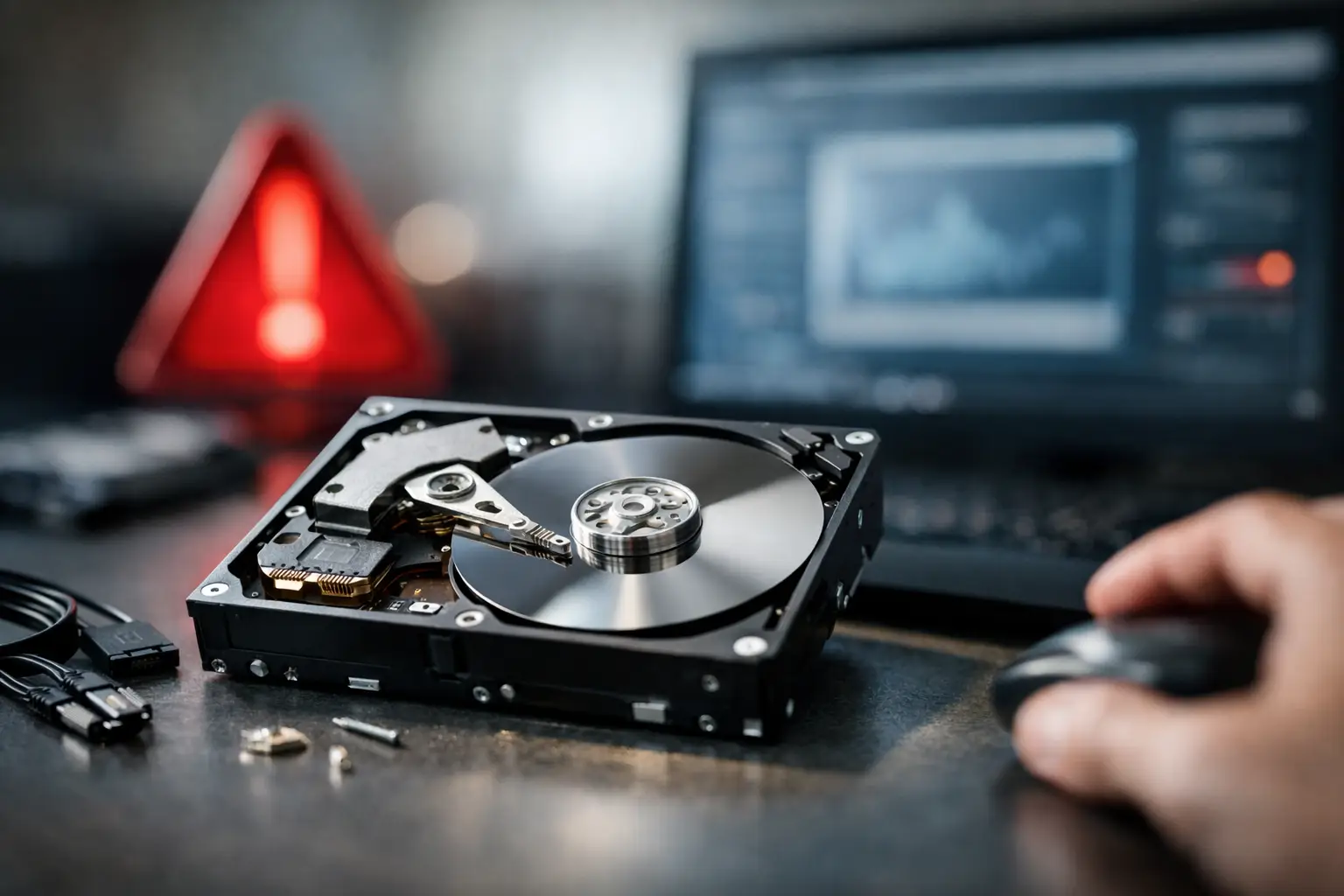
Traditional hard disk drives have moving parts inside. A quiet hum during normal use is common, but repeated clicking, grinding, buzzing, or a drive that spins up and down over and over is not. These sounds can mean the drive is having trouble reading data or positioning its internal components.
If you hear a new mechanical sound, turn the computer off as soon as you can safely do so. Continuing to use a failing drive may make recovery more difficult. Do not open the drive yourself. Hard drives are sealed devices, and even a small amount of dust or improper handling can cause further damage.
2. Files disappear, will not open, or become corrupted
A document that suddenly will not open is not always a hard drive problem. It could be an issue with the program or the file itself. But when several files disappear, show strange names, fail to save, or produce repeated error messages, storage trouble becomes more likely.
You may also notice photos that only partially load, folders that take an unusually long time to open, or files that report they are damaged. Copy any accessible files to a backup drive or cloud backup right away. Start with irreplaceable items such as financial records, business files, photos, and email archives.
3. The computer freezes during simple tasks
Everyone experiences an occasional slow program, especially on an older computer. A more concerning pattern is frequent freezing when opening folders, moving files, signing in, or starting Windows. The cursor may stop responding for a few seconds or several minutes while the computer appears to be thinking.
A failing drive can struggle to read the information Windows needs. However, freezing can also be caused by low available storage, malware, overheating, memory problems, or software conflicts. A proper diagnosis matters because replacing a hard drive will not solve every slow-computer problem.
4. Blue screen errors or repeated unexpected restarts
A blue screen error can happen for many reasons, including driver problems and hardware issues. When blue screens happen repeatedly, especially while opening files or booting the computer, a failing drive should be considered.
Unexpected restarts, startup repair loops, and messages saying Windows could not load correctly may point to damaged system files. If the drive is still readable, back up your data before attempting major repairs or a Windows reinstallation. Repair tools can sometimes correct logical errors, but they cannot restore a drive with worsening physical damage.
5. Your computer takes much longer to start
A computer that once started in under a minute but now sits on the loading screen for several minutes deserves attention. The same goes for a desktop that appears but remains unusable while programs and folders slowly load.
Slow startup is often associated with an aging hard drive, particularly a traditional spinning drive. It can also result from too many startup programs or limited system resources. A technician can check the drive’s health, identify whether the slowdown is storage-related, and recommend whether cleanup, repair, or an SSD upgrade makes the most sense.
6. The drive is not detected consistently
One of the clearest hard drive failure warning signs is a drive that appears one day and disappears the next. You may see messages such as “boot device not found,” “no operating system found,” or a request to select a proper boot device.
An external drive may connect sometimes but fail to appear in File Explorer at other times. Before assuming the drive itself has failed, test another cable, power connection, or USB port when appropriate. If the issue continues, avoid repeatedly disconnecting and reconnecting the drive while trying random fixes. That can add stress to already unstable hardware.
7. You receive disk or file system error messages
Windows may warn you about a drive that needs to be scanned or repaired. You might see messages about bad sectors, a file system that cannot be read, or a drive that needs formatting before it can be used.
Do not agree to format a drive if it contains files you need. Formatting can make files harder to recover, even when the underlying drive is still working. Likewise, repair scans are not always the right first move if you suspect physical failure. The safest next step depends on whether the drive is making noises, whether it is still detected, and how valuable the data is.
8. A drive health warning appears
Some computers and diagnostic tools can read a drive’s built-in health information. A warning about failing sectors, predicted failure, or poor drive health should be taken seriously, even if the computer still seems to work normally.
Think of this as an opportunity, not a reason to panic. Back up your files immediately and arrange for a replacement drive. Waiting until the computer will no longer start turns a straightforward replacement into a more involved data recovery situation.
What to Do When You Notice Hard Drive Failure Warning Signs
The right response is usually calm, quick action. First, stop using the computer for anything unnecessary. Avoid installing updates, running cleanup software, downloading large files, or moving hundreds of folders around. Every extra read and write operation can increase the risk when a drive is unstable.
If the drive is accessible and not making mechanical noises, copy your most important files first. Do not rely on a single backup if you can avoid it. A separate external backup and a trusted cloud backup provide better protection than keeping the only copy of a file on the computer.
If the computer will not start, makes clicking sounds, or cannot see the drive, do not keep rebooting it. Repeated startup attempts may be tempting, but they can make a damaged drive worse. A professional can assess whether the problem is the drive, its connection, Windows, or another part of the computer.
Hard Drive Problems Are Not Always Drive Failure
It is easy to assume a slow computer has a dying hard drive, but that is not always true. Malware, insufficient memory, overheating, a failing power supply, corrupted Windows files, and Wi-Fi issues can all create symptoms that feel similar from the user’s perspective.
That is why an honest diagnosis saves time and money. In some cases, a computer only needs a tune-up, malware cleanup, or Windows repair. In others, replacing an aging hard drive with an SSD can make a computer feel dramatically faster while improving reliability. If the old drive contains important data, the replacement process should include a careful plan for backup, transfer, or recovery.
How to Reduce the Risk of Data Loss
No drive lasts forever. Traditional hard drives are especially vulnerable to wear because they rely on moving parts, while SSDs have different failure patterns and can also stop working without much warning. The practical answer is a consistent backup routine rather than trusting any one device indefinitely.
For home users, back up personal files regularly and confirm that the backup can actually be opened. For a small business, backups should cover essential documents, accounting data, shared files, and systems needed to keep operating after equipment fails. Ransomware protection and backup planning also matter because data loss is not limited to hardware failure.
Computer Tech Pro helps Central Florida homeowners and small businesses diagnose drive problems, replace failing hardware, transfer data when possible, and set up dependable backup options. The sooner a storage issue is checked, the more choices you typically have.
If a computer starts acting differently around files, startup, or storage, trust the change enough to protect your data now. A backup made before the drive fails is always the easiest recovery.


