

Posted On 20 Aug 2026
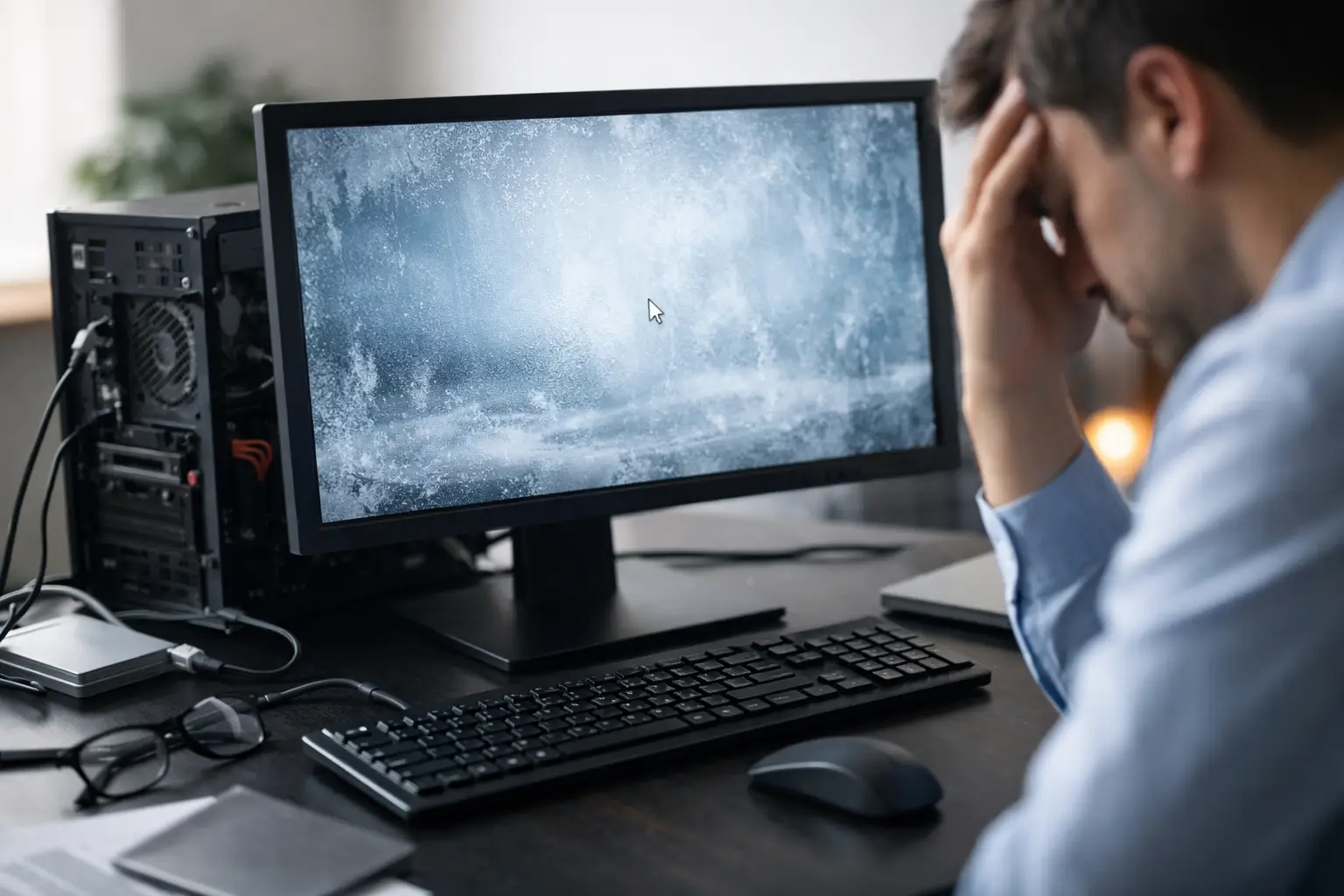
A computer can freeze at the most inconvenient moment: while paying a bill, joining a work meeting, printing an important document, or finishing a school assignment. If you have searched, “why does computer freeze,” the short answer is that your system has stopped responding because a program, hardware component, driver, or Windows process is stuck. The right next step depends on whether it is a one-time problem or a pattern that keeps returning.
A freeze is frustrating, but it is also useful information. The timing of the freeze, what was open at the time, and whether the computer recovers on its own can help narrow down the cause. Taking a few careful steps can often prevent lost work and avoid turning a manageable issue into a larger repair.
What a Computer Freeze Actually Means
A frozen computer does not always mean the same thing. Sometimes one program stops responding while the rest of Windows still works. In other cases, the mouse pointer moves but clicks do nothing. A complete freeze may leave the screen stuck, the keyboard unresponsive, and the computer unable to shut down normally.
If only one program is frozen, press Ctrl + Shift + Esc to open Task Manager. If it opens, select the program marked “Not responding” and choose End task. You may lose unsaved work in that program, but the computer itself may be fine.
If nothing responds, hold the power button down for about 10 seconds until the computer turns off. Wait a few seconds before starting it again. This should be a last resort because a forced shutdown can damage an open file or interrupt a Windows update, but it is appropriate when the system is completely locked up.
Why Does a Computer Freeze Repeatedly?
Repeated freezes are usually caused by one of a handful of issues. The difficult part is that the same symptom can come from very different problems. A computer that freezes only when opening a web browser needs a different diagnosis than one that freezes at startup or shuts down after 20 minutes of use.
Too Many Programs or Too Little Available Memory
Every open program, browser tab, background utility, and startup application uses system resources. On an older computer, or one with limited memory, opening several demanding programs at once can push the system beyond what it can comfortably handle. It may become very slow before freezing, especially when switching between windows.
This is not always a sign that the computer needs replacement. Removing unnecessary startup programs, closing unused browser tabs, clearing temporary files, and installing more memory may help. In many cases, an SSD upgrade also makes a dramatic difference because the computer can access files and virtual memory much faster than it can with an aging hard drive.
A Failing Hard Drive or SSD
Storage problems are one of the most serious reasons a computer freezes. A failing hard drive may cause long pauses when opening files, programs that will not load, error messages, strange clicking sounds, or freezes during startup. SSDs usually do not make noise, but they can still fail and produce similar symptoms.
Do not keep restarting a computer that is freezing while trying to access important files. Each restart can add stress to a failing drive, and the priority should be protecting your data. If family photos, business documents, tax records, or other irreplaceable files are not backed up, professional data recovery or a controlled drive replacement may be the safer option.
Overheating
Computers generate heat, and Central Florida homes can add to the challenge when a system sits in a warm office, enclosed cabinet, or dusty area. When internal cooling cannot keep up, the processor may slow itself down, freeze, or force a shutdown to prevent damage.
Overheating often appears after the computer has been running for a while. The fan may run loudly, the case may feel unusually warm, or the system may freeze during video calls, large downloads, or other demanding tasks. Dust buildup, a blocked air vent, a failing fan, or dried thermal material can all contribute.
Avoid placing a desktop directly against a wall or covering ventilation openings. Laptops should be used on a firm, flat surface rather than a bed, blanket, or cushion. If the problem continues, the internal cooling system should be inspected and cleaned properly.
Windows, Driver, or Software Conflicts
Windows relies on small pieces of software called drivers to communicate with parts such as the display, printer, Wi-Fi adapter, and storage controller. If a driver becomes corrupted, outdated, or incompatible after an update, freezing can follow. The same is true of damaged Windows files or a program that conflicts with another application.
Clues matter here. A freeze that starts immediately after installing a new printer, Windows update, or business application may point to software or driver trouble. A computer that freezes only when connecting to Wi-Fi or using a particular program also gives a technician a useful starting point.
Installing random driver-update tools is not recommended. These utilities can install the wrong version, bundle unwanted software, or make the original problem harder to identify. Targeted updates and proper Windows troubleshooting are safer than guessing.
Malware and Unwanted Programs
Malware does not always announce itself with a warning message. It can run quietly in the background, use processing power, interfere with browsers, change settings, and cause repeated instability. Pop-up ads, unfamiliar toolbars, unexpected security alerts, suspicious account activity, or a sudden loss of performance are all reasons to take the issue seriously.
A basic security scan is a reasonable first step, but a clean result does not always rule out an infection. Some threats hide deeply, while others damage Windows or leave unwanted programs behind. If freezes occur alongside suspicious behavior, avoid entering passwords or accessing sensitive financial information until the computer has been checked.
Hardware Problems Beyond the Drive
Memory problems, a weak power supply, a failing motherboard component, or a damaged cable can also cause freezing. These issues can be intermittent, which makes them especially frustrating. The computer may work normally for days, then freeze during a routine task with no obvious warning.
This is where testing matters. Replacing parts based on a guess can cost more than a proper diagnosis. A technician can test memory, check drive health, review Windows error reports, monitor temperatures, and determine whether a repair is practical before recommending hardware.
Safe Steps to Take Before the Next Freeze
If the computer starts normally after a freeze, use that time wisely. Back up important files first, especially documents and photos that are stored only on that computer. A backup is valuable even when the problem turns out to be minor.
Next, pay attention to the pattern. Write down whether the freeze happens during startup, when waking from sleep, while browsing, when printing, or during a specific task. Notice whether any error message appears after restarting. These details can save time during diagnosis.
You can also restart the computer normally, install pending Windows updates, and make sure there is adequate free storage space. If the system is nearly full, Windows has less room for temporary files and updates. Remove only files and programs you recognize. Do not delete system folders or use aggressive cleanup tools simply because they promise a quick fix.
For a single program that freezes repeatedly, try updating or reinstalling that program. If the entire computer freezes, skip repeated do-it-yourself fixes that involve changing system settings, updating unknown drivers, or reinstalling Windows without a backup. Those actions can hide the original cause or put files at risk.
When It Is Time for Professional Help
A computer that freezes once after a major update may recover without further trouble. A computer that freezes weekly, loses files, displays blue screen errors, makes unusual noises, runs excessively hot, or will not start properly needs attention sooner rather than later.
For home office users and small businesses, downtime has a real cost. A freeze can interrupt client communication, delay billing, prevent access to records, or leave a team unable to work. Early diagnosis is usually less disruptive than waiting for a drive or other component to fail completely.
Computer Tech Pro can diagnose recurring freezes through in-shop, remote, or on-site support, depending on the problem. The goal is not to sell an unnecessary replacement. It is to identify what is failing, protect your files, explain the options clearly, and get you back to a dependable computer.
A frozen computer is rarely something to ignore, but it does not always mean the worst. Protect your data, watch for patterns, and get help before an occasional lockup becomes a complete interruption.


