

Posted On 18 Oct 2026
That clicking sound from a desktop or laptop is easy to dismiss until the computer suddenly cannot find your files. Hard drive problems often start quietly, then become urgent without much warning. Knowing the top hard drive failure signs can give you time to protect family photos, financial records, work documents, and other files that may not exist anywhere else.
A hard drive can fail because of normal wear, heat, a power problem, physical damage, or an internal mechanical issue. The right response depends on the symptom, but one rule applies in nearly every situation: if the drive still opens, back up important files immediately. Avoid repeatedly restarting the computer or running repair tools until your most valuable data is safely copied.
10 Top Hard Drive Failure Signs to Watch For
1. Clicking, grinding, or repeated spinning noises
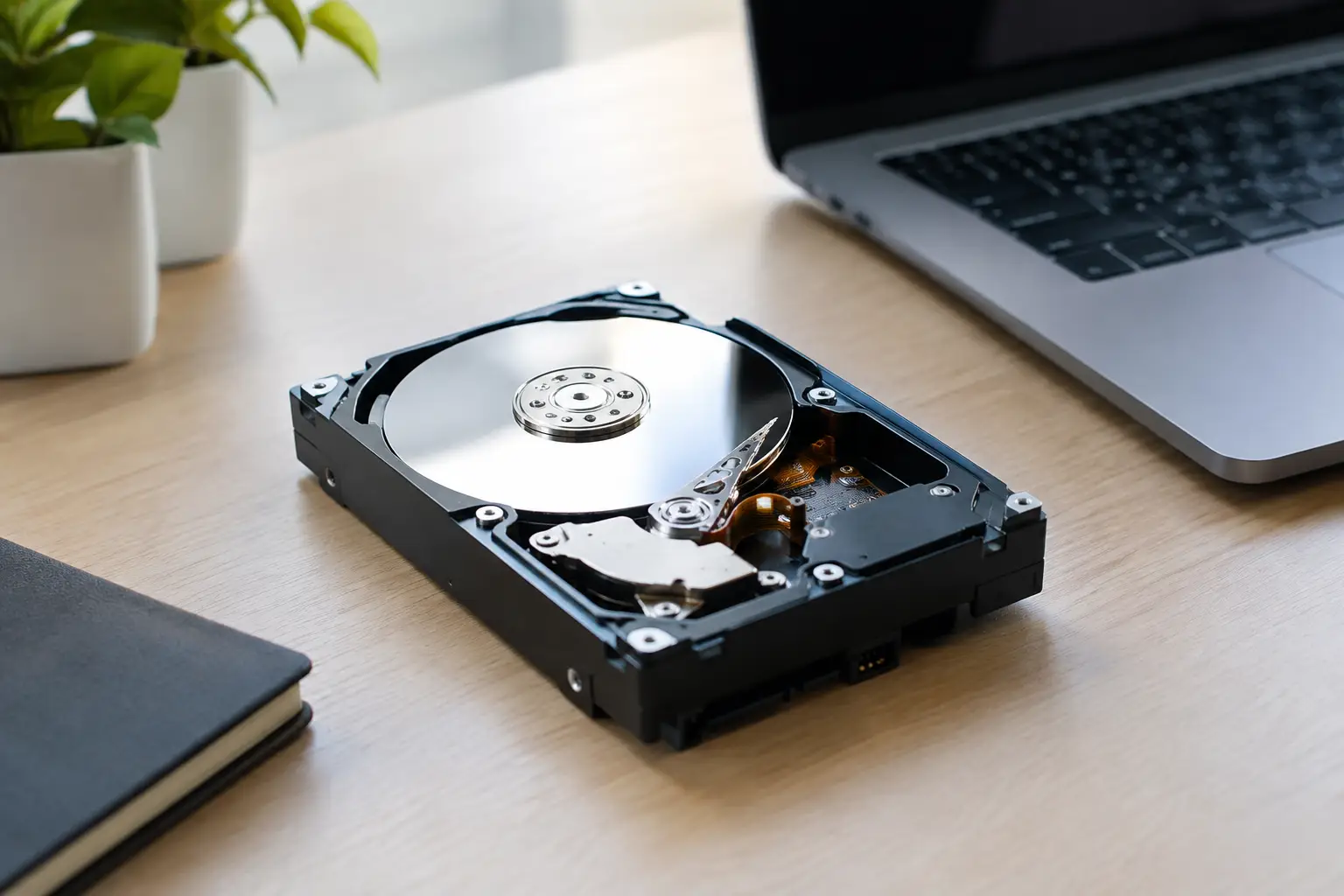
A healthy hard drive makes a low, steady sound when it is working. Sharp clicking, grinding, scraping, beeping, or a repeated spin-up and spin-down noise is different. These sounds can point to a mechanical problem inside the drive, such as trouble reading the disk surface.
Do not assume a noisy drive will keep working for weeks. Turn off the computer if the noises are severe or new, especially if files are already difficult to open. Continuing to use a failing drive can make data recovery more difficult and more expensive.
2. Files take a long time to open or will not open at all
If documents, pictures, or folders suddenly take much longer than usual to open, the hard drive may be struggling to read certain areas. You may also see an error saying a file is corrupted, inaccessible, or cannot be read.
A single damaged file does not always mean the entire drive is failing. However, multiple files with similar problems, particularly files stored in different folders, deserve prompt attention. Copy what you can to a backup drive or secure cloud backup before trying to organize, delete, or repair anything.
3. Frequent freezing and unexplained slowdowns
A computer can run slowly for many reasons, including too many startup programs, low available storage, malware, or an aging processor. A failing hard drive usually adds a particular pattern: the computer freezes while opening files, saving a document, searching folders, or starting Windows.
You might see the mouse move normally while the program you need stops responding. The computer may eventually recover after a long wait. If this happens repeatedly, do not treat it as an ordinary slow-computer issue. It may be the drive retrying failed read requests in the background.
4. Blue screen errors and unexpected restarts
Blue screen errors can be caused by many things, including memory problems, drivers, overheating, and Windows issues. When they occur alongside file errors, slow startup, or strange drive sounds, the hard drive becomes a stronger suspect.
Unexpected restarts are also worth investigating. A restart does not prove the drive has failed, but it can interrupt file transfers and cause additional damage to open documents. Write down any error message or take a photo of the screen. That information helps a technician identify whether the source is the drive, Windows, or another hardware component.
5. The computer cannot find the drive at startup
One of the clearest hard drive failure signs is an error at startup stating that there is no boot device, no operating system, or no drive detected. The computer may go directly into a recovery screen or refuse to start Windows at all.
Sometimes this is caused by a loose connection, a failed update, or a setting that changed after a power outage. It can also mean the drive has stopped communicating with the computer. Avoid reinstalling Windows right away. Reinstallation can overwrite files that might otherwise be recoverable.
6. Folders disappear or file names look unusual
Missing folders, files that suddenly show as zero bytes, and strange file names can indicate damage to the drive’s file system. In simple terms, the computer may be losing track of where information is stored.
This can also happen after an improper shutdown or power interruption, so it is not always a sign of physical drive failure. Still, it should be treated seriously. If the files reappear after a restart, back them up. A temporary recovery does not guarantee the drive is healthy.
7. Disk error messages keep returning
Windows may report that it found a problem with a drive and needs to scan or repair it. One isolated message after a sudden loss of power may be manageable. Repeated repair prompts, especially after the computer has already completed a scan, are more concerning.
Do not keep running repair scans as your first response if important data is not backed up. These tools can be useful, but they place additional stress on a drive that may already be unstable. Protect the data first, then diagnose the hardware.
8. The drive disappears from File Explorer
A secondary storage drive that appears one day and disappears the next should not be ignored. You may notice it is missing from File Explorer, then returns after a restart. This intermittent behavior can be caused by a cable or power issue, but it can also indicate that the drive is beginning to fail.
For a desktop computer, internal connections can sometimes be checked safely by a qualified technician. For most home and office users, it is better not to repeatedly disconnect and reconnect the drive while trying to access important files. Each restart or connection attempt may be the last time the drive responds.
9. The computer is unusually hot or the fan runs constantly
Heat does not automatically mean a hard drive is failing. Dust buildup, blocked airflow, and demanding software can all raise the temperature inside a computer. But a struggling drive may keep working harder than normal as it tries to read damaged sections, contributing to slow performance and prolonged activity.
If the computer is hot, noisy, slow, and freezing, shut it down after backing up accessible files. Continued heat can affect other components as well.
10. Backup jobs fail for no clear reason
A failed backup is often the first warning that files cannot be read reliably. If your backup program reports skipped files, read errors, or repeated failures, do not simply rerun it and assume the problem is solved.
Check which files were skipped. If the same files fail every time, copy other critical files first. For a small business, a backup failure should be addressed quickly because it can leave the organization without a usable recovery point after ransomware, hardware failure, or an accidental deletion.
What to Do When You Notice a Failing Hard Drive
Your next steps should focus on preserving data, not proving that the drive is completely dead. If the computer is still usable and the drive is quiet, copy irreplaceable files first. Start with documents, photos, accounting files, email archives, and any business folders stored locally. Use a dependable external backup destination or approved cloud backup account with enough available space.
If the drive is clicking loudly, disappearing, refusing to start, or causing repeated crashes, power the computer down. Do not keep restarting it in hopes that it will work normally again. Avoid installing new programs, downloading updates, defragmenting the drive, or running a factory reset. Those actions can overwrite data or make an unstable drive worse.
A professional diagnosis can determine whether the issue is a failing drive, damaged Windows installation, loose connection, power issue, or another hardware fault. In many cases, the best long-term solution is to replace the failing drive with a solid-state drive, then transfer or recover the data. Solid-state drives have no moving parts and generally provide a much faster, more responsive computer, though they still need backups like any other storage device.
When Data Recovery Is Worth Considering
Data recovery is most valuable when the files are truly irreplaceable. That may include family photographs, tax records, legal documents, client files, QuickBooks data, or years of work stored in one place. The cost and likelihood of recovery depend on the type of failure and how much the drive has been used since problems began.
If the files are already safely backed up, replacing the drive is usually more practical than attempting to keep it in service. A drive that has begun failing cannot be trusted simply because it starts working again for a day or two.
For homeowners and small businesses in Lake County and nearby Central Florida communities, Computer Tech Pro can assess the problem, help protect accessible data, and recommend a practical replacement or recovery path. The goal is not to sell unnecessary work. It is to get your computer dependable again while giving your important files the best possible chance.
The best time to plan for a hard drive failure is before it becomes a data-loss emergency. Keep current backups, pay attention to changes in performance or noise, and act promptly when something does not feel right.


