

Posted On 20 Oct 2026
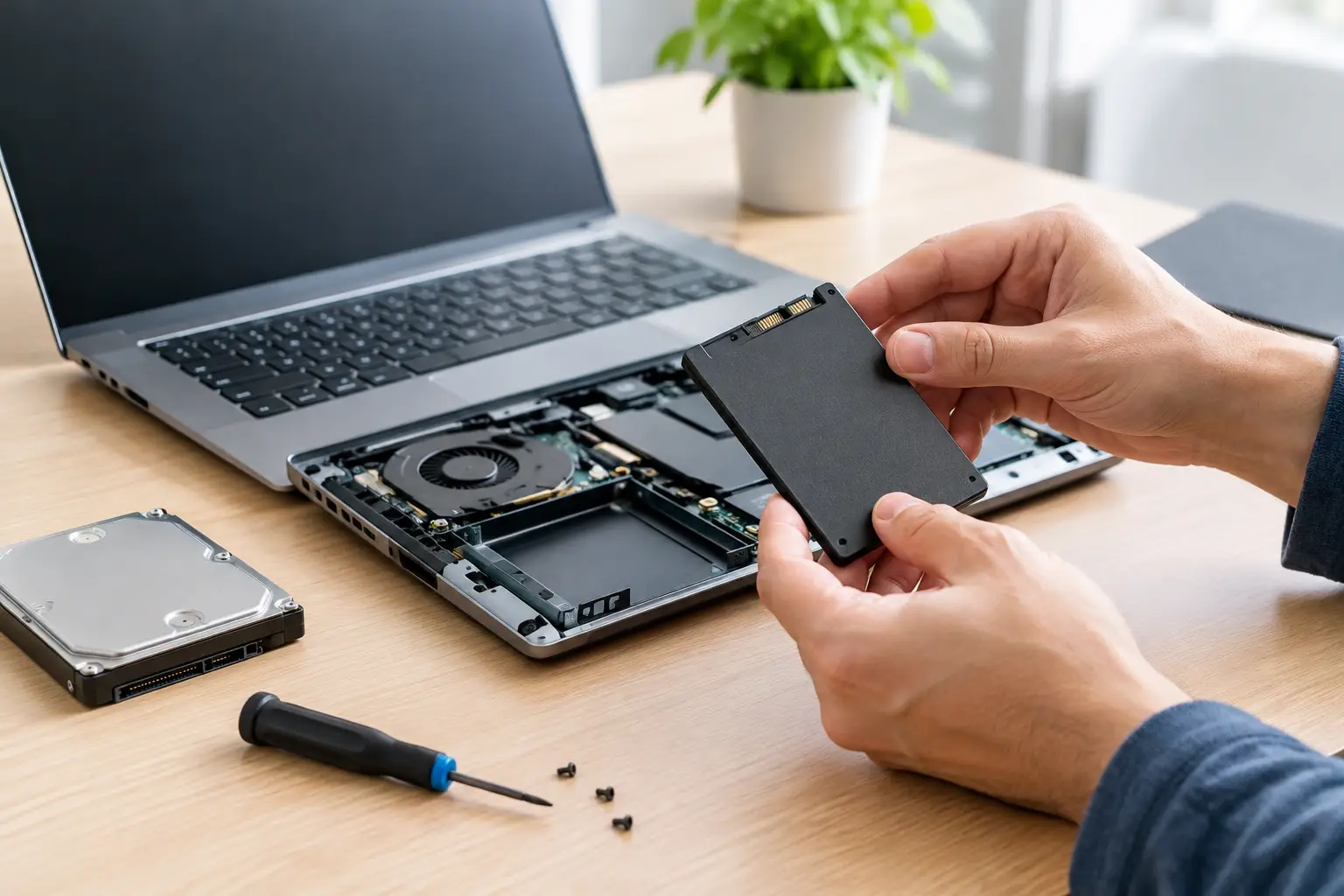
A laptop that takes several minutes to start, freezes while opening email, or struggles with basic web browsing does not always need to be replaced. When you upgrade a laptop to an SSD, you replace the older mechanical hard drive with faster storage that can make the whole computer feel far more responsive. For many homeowners, students, remote workers, and small offices, it is one of the most worthwhile repairs available.
The right upgrade depends on the laptop’s age, condition, and how it is used. An SSD can solve many speed problems, but it cannot repair a failing battery, damaged screen, overheating issue, or lack of memory. A careful evaluation helps ensure you spend money where it will make a real difference.
What Changes When You Upgrade Laptop to SSD?
A traditional hard drive stores data on spinning disks with moving parts. It has to physically move into position to find the files Windows needs. An SSD, or solid-state drive, has no moving parts. It accesses files electronically, which dramatically reduces the time spent waiting for data.
In practical terms, that often means Windows starts in seconds rather than minutes. Programs open faster, updates install with less disruption, and switching between everyday tasks feels smoother. If your laptop currently makes clicking, grinding, or repeated spinning sounds during startup, an SSD may also eliminate the noise caused by the old hard drive.
The difference is especially noticeable on systems that still use a hard drive and have otherwise serviceable hardware. A five- to eight-year-old laptop with a healthy processor, enough memory, and a working screen can often remain useful for years after an SSD upgrade.
That said, an SSD is not a magic fix for every slow computer. A system affected by malware, too little memory, an overloaded startup list, a failing cooling fan, or serious Windows errors may need additional work. The best repair plan addresses the actual cause instead of assuming one part will solve everything.
Signs Your Laptop Is a Good Candidate
Slow startup is the most common sign, but it is not the only one. You may be a strong candidate for an SSD upgrade if the laptop pauses frequently when opening folders, takes a long time to save files, or stays busy even when you are only using one or two programs.
A hard drive showing early signs of failure should be addressed quickly. Repeated error messages, missing files, unusual noises, frequent freezes, and an inability to boot are all reasons to protect your data before the drive fails completely. In this situation, the priority is not simply improving speed. It is recovering and preserving important photos, documents, financial records, and business files.
An SSD upgrade can also be a sensible choice when you need a reliable secondary computer for home office tasks, online learning, email, video meetings, and document work. Replacing a slow hard drive costs far less than replacing a laptop that is otherwise in good condition.
Choosing the Right SSD Capacity and Type
Not every SSD fits every laptop. Some systems use a standard 2.5-inch drive, while others use a smaller stick-shaped drive installed directly on the motherboard. There are also different connection types, and choosing the wrong one can mean the drive will not fit or will not be recognized.
Capacity matters just as much. A smaller SSD may be sufficient for basic web use and documents, but it can fill up quickly if the laptop stores many family photos, videos, downloaded files, or work records. As a general rule, the new drive should provide enough room for your current files, Windows updates, and future use. Keeping some free storage space also helps the computer perform well over time.
It may be tempting to buy the least expensive drive available, but reliability matters. The SSD holds your operating system, files, and applications. A quality drive, installed correctly and paired with a confirmed backup, is usually a better value than a bargain option that creates problems later.
Protect Your Files Before the Upgrade
The biggest concern for most people is simple: will their files still be there? They can be, but data protection must come before any hardware change.
There are two common approaches. The first is cloning, which copies the existing drive to the new SSD. If the original Windows installation is healthy, cloning lets you keep your user profile, installed programs, settings, and files. After the SSD is installed, the laptop should look familiar, only faster.
The second approach is a clean Windows installation. This removes old clutter, damaged system files, and unwanted software, then installs a fresh copy of Windows on the SSD. Your personal files can be transferred back afterward. A clean installation can be the better option when the old system has recurring errors, malware concerns, or years of accumulated software problems.
Neither option is automatically best. Cloning is convenient, while a clean installation may provide a cleaner long-term result. Before either method, create a separate backup of important data. Do not rely on a single aging hard drive as the only copy of irreplaceable files.
Check What Is Actually Being Moved
Before starting, review the folders that matter most: Documents, Desktop, Pictures, Downloads, email archives, accounting files, browser bookmarks, and work folders. Some programs store data in less obvious locations, so it is wise to verify that important information is included in the backup.
Small businesses should take extra care with customer records, shared folders, specialized software, and licensing information. A fast computer is helpful, but not at the expense of records needed to operate the business.
Can You Upgrade an Older Laptop?
Often, yes. Age alone does not determine whether an SSD upgrade is worthwhile. The better question is whether the laptop is stable enough to justify the investment.
If the system has a cracked case, unreliable charging port, failing keyboard, weak battery, outdated software support, or frequent overheating, the total cost of repairs may exceed its value. In other cases, combining an SSD with a memory upgrade and a computer tune-up can restore a laptop that seemed ready for retirement.
Windows compatibility should also be checked before spending money on upgrades. A laptop may run well after receiving an SSD but still not meet the requirements for the version of Windows you plan to use. Knowing that before the repair helps avoid surprises.
Why Professional SSD Installation Can Be Worth It
Some experienced users can complete an SSD installation themselves. The process is more involved than simply swapping one drive for another, though. The laptop must be opened safely, the correct drive must be selected, data must be cloned or transferred, Windows must boot properly, and the old drive must be handled securely.
A professional installation is particularly useful when there are no backups, the old drive is already failing, or the laptop contains sensitive personal or business information. It also helps when Windows has errors that could carry over during a clone.
Computer Tech Pro can assess whether an SSD upgrade makes sense, recommend an appropriate drive size, protect your files, and verify that the laptop is working correctly before it is returned. For customers in Central Florida, that can mean less downtime and more confidence that the upgrade was completed properly.
What to Expect After the Upgrade
After moving to an SSD, most people notice the improvement immediately. Startup is faster, routine tasks feel less frustrating, and the computer is more responsive when several programs are open. The laptop may also run more quietly because the new drive has no spinning mechanical components.
Good results still depend on basic maintenance. Keep Windows updated, use reliable security protection, maintain current backups, and avoid filling the drive completely. If the laptop remains slow after an SSD installation, the next step is to check memory use, startup programs, software conflicts, and possible hardware issues rather than guessing.
A well-planned SSD upgrade is not about chasing specifications. It is about turning a frustrating laptop into a dependable tool again, while keeping the files and programs you rely on protected.


