
Posted On 07 Apr 2026
Over time, computers fill up with old files—downloads, duplicate photos, outdated documents—that take up valuable space and slow down performance. Cleaning them out is a smart move, but it’s important to do it carefully so you don’t accidentally delete something important.
Start by identifying what you actually need. Go through folders like Downloads, Documents, and Desktop, and look for files you haven’t used in months or years. Pay attention to duplicates, old installers, and temporary files that no longer serve a purpose.
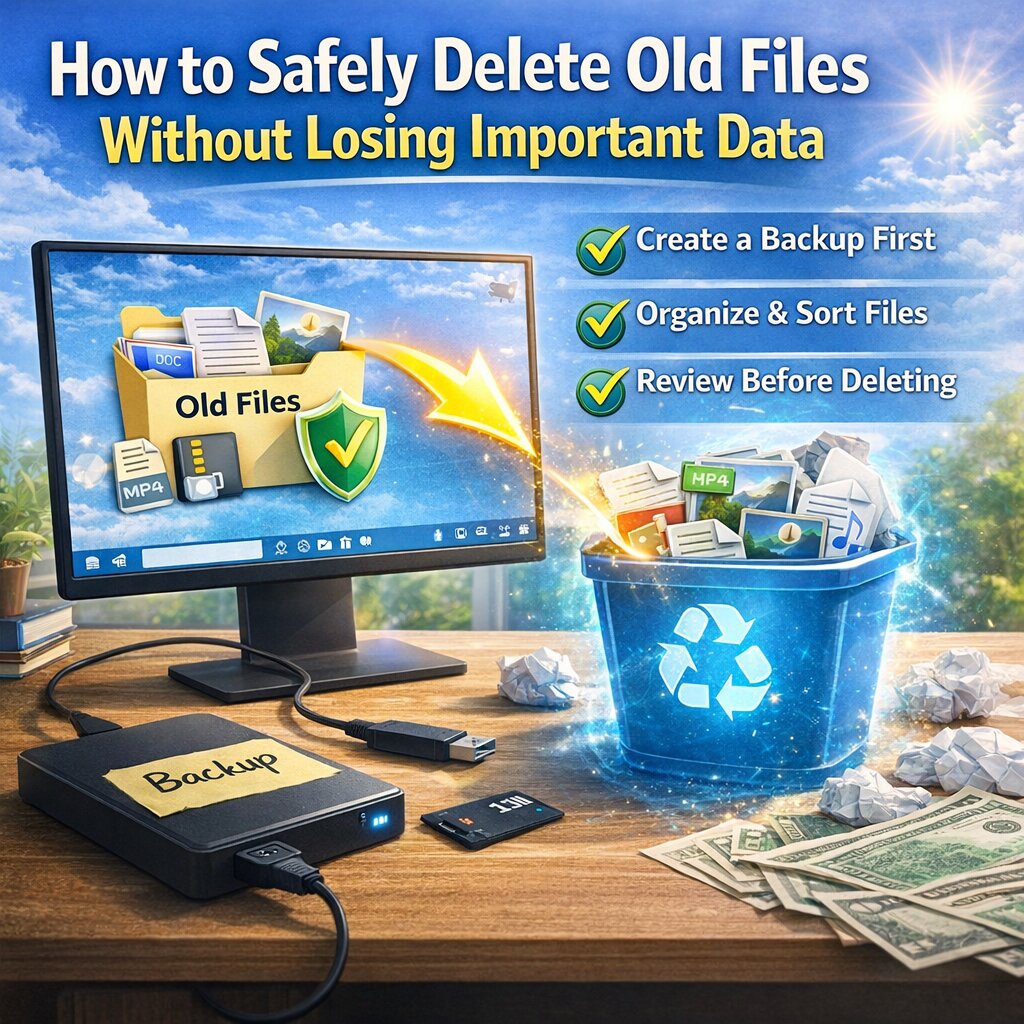
Before deleting anything, create a backup. This is a critical step. Use an external hard drive or a cloud service like Google Drive or OneDrive to store a copy of important files. That way, if something gets deleted by mistake, you can easily recover it.
Next, organize your files. Create clearly labeled folders for categories like “Taxes,” “Photos,” or “Work Documents.” When files are organized, it’s much easier to see what’s safe to delete and what should be kept.
Use built-in tools like Disk Cleanup (Windows) or storage management settings to remove temporary files, system cache, and recycle bin contents. These tools are designed to safely delete unnecessary data without affecting your important files.
Be cautious with permanent deletion. When you delete files, they often go to the Recycle Bin first—giving you a chance to restore them. Only empty the Recycle Bin once you’re sure everything inside is no longer needed.
Finally, consider using file cleanup software that can identify duplicates and large unused files, but always review what it suggests before deleting.
A careful approach to file cleanup helps you free up space, improve performance, and avoid losing valuable data. When done right, a cleaner computer is a faster and more reliable one.


