

Posted On 18 Jul 2026
A computer that takes several minutes to start can make even simple tasks feel frustrating. You click an email, open a document, or launch a browser, then wait for the system to catch up. For many older desktops and laptops, the problem is not the processor or memory alone. It is the traditional hard drive. This guide to SSD upgrade benefits explained shows why replacing that drive is often one of the most noticeable improvements you can make without buying an entirely new computer.
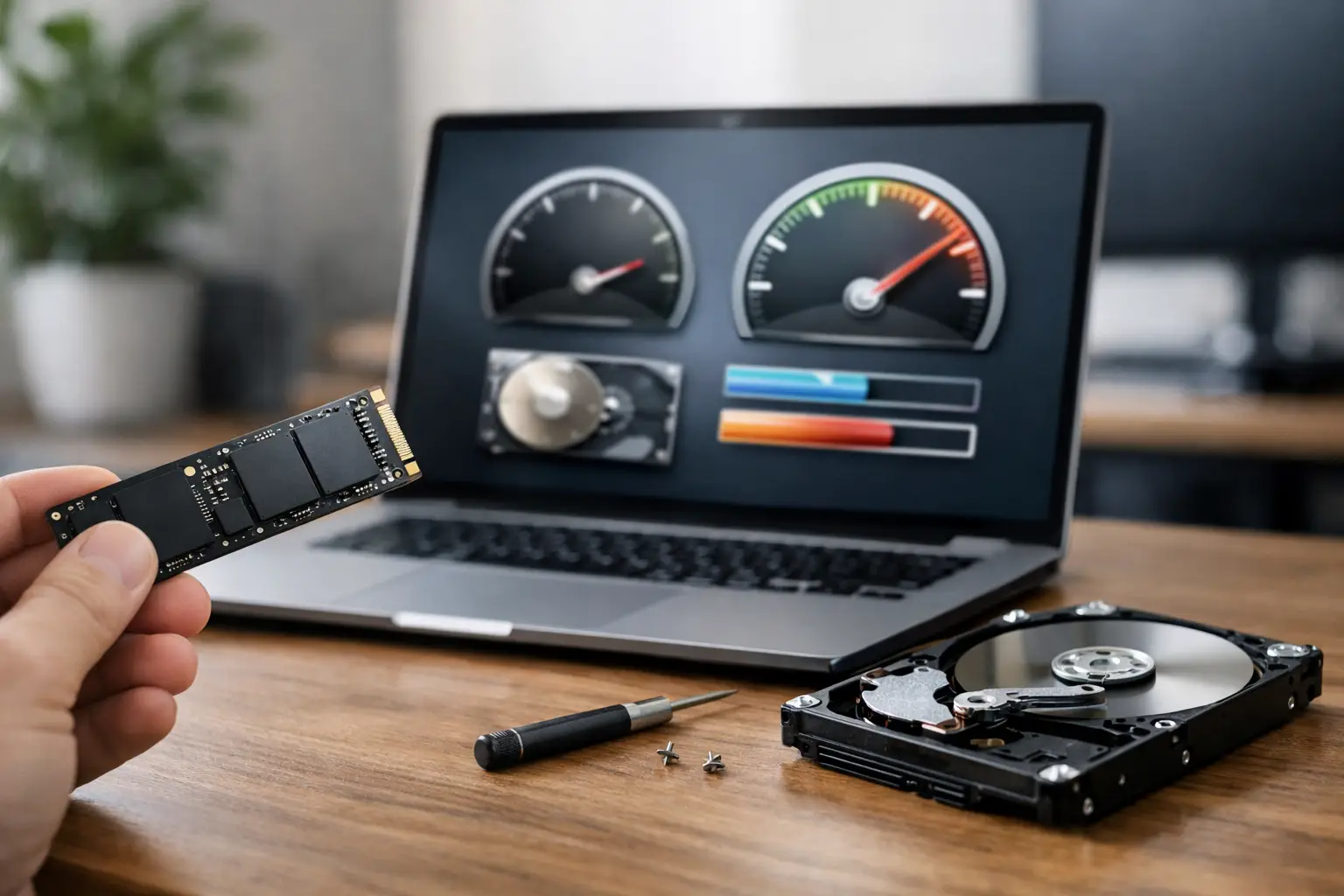
An SSD, or solid-state drive, stores data electronically rather than on spinning disks. That basic difference changes how quickly the computer can find and load the files, programs, and operating system you use every day. It is a practical upgrade for homeowners who want a less frustrating PC and for local businesses that need dependable systems with less downtime.
SSD Upgrade Benefits Explained for Everyday Use
The biggest benefit is speed you can feel immediately. A computer with a healthy traditional hard drive may still be functional, but it has to physically spin and move a read/write head to locate information. An SSD has no moving parts, so it can access data much faster.
Faster startup and shutdown times
With an SSD, Windows can often start in seconds rather than minutes. The exact improvement depends on the age of the computer, installed software, and the condition of the current drive, but the difference is usually obvious. Login screens appear sooner, desktop icons settle faster, and you can get to work without the long delay after turning the system on.
Shutdown can also be quicker. That matters for customers who use a laptop on the go, as well as offices where employees need to close out systems reliably at the end of the day.
Quicker programs and smoother multitasking
Programs such as web browsers, Microsoft Office, email applications, accounting software, and photo tools load files from storage. When that storage is slow, the computer can seem frozen even if the processor is capable enough for the task.
An SSD reduces those delays. Opening a large spreadsheet, searching stored email, switching between programs, and loading saved documents generally feel more responsive. This does not turn every older computer into a high-end workstation, but it removes one of the most common bottlenecks in everyday use.
For a busy home, that means less waiting when checking medical portals, paying bills, sharing photos, or joining a video call. For a business, it can mean employees spend less time staring at loading screens and more time serving customers.
Better performance as the computer ages
Traditional hard drives can become slower as they wear, develop file fragmentation, or struggle with background tasks. A full or failing hard drive may cause extended boot times, constant disk activity, and programs that stop responding.
An SSD is not immune to problems, but it is less affected by physical wear from spinning components because there are no spinning components. Replacing an aging hard drive before it fails can improve performance while helping avoid the stress of an unexpected data loss situation.
Reliability Matters as Much as Speed
Speed gets most of the attention, but reliability is another important reason to consider an SSD upgrade. Hard drives contain mechanical parts that can fail from age, impact, heat, or normal wear. A laptop dropped from a desk or bumped during travel has a greater chance of damaging a spinning drive than a solid-state drive.
SSDs are generally more resistant to vibration and physical movement. That makes them especially useful in laptops, mobile work systems, and computers located in active households or offices. They also run quietly because there is no spinning platter or moving read/write head.
That said, an SSD is not a substitute for a backup. Any drive can fail, be damaged by a power surge, become infected with malware, or be affected by accidental deletion. Important family photos, financial records, business documents, and customer files should be backed up separately. A reliable drive and a reliable backup plan work together.
An SSD Can Extend the Useful Life of a Computer
Many customers assume a slow computer must be replaced. Sometimes that is the right call, particularly when the device is very old, cannot run a supported operating system, has failing hardware, or no longer meets the demands of current software. But an SSD upgrade can be a cost-effective alternative when the rest of the machine is still in good condition.
A computer with a capable processor, enough memory, and a healthy display may gain several more useful years from a storage upgrade. This can be especially valuable for a secondary household computer, a desktop used for email and documents, or an office workstation that handles routine business applications.
The upgrade is also often less expensive than purchasing a new computer. Instead of moving to a new system, reinstalling software, and adjusting to a different setup, you may be able to keep the computer you already know while making it much more pleasant to use.
What an SSD Upgrade Will Not Fix
An SSD delivers real improvements, but it has limits. If a computer has only a small amount of memory, an outdated processor, overheating problems, a weak battery, or a damaged screen, storage alone will not solve every issue. Similarly, a system affected by malware, unwanted startup programs, corrupted Windows files, or network problems needs proper troubleshooting.
Storage capacity is another consideration. Older hard drives often provide a lot of space at a low cost. SSDs have become far more affordable, but larger capacities still cost more. Choosing too small a drive can create a new problem when Windows updates, photos, videos, and applications fill it up.
For most users, the right choice comes down to how the computer is used and how much data needs to stay on the device. A technician can help determine whether a 500GB, 1TB, or larger SSD makes sense and whether the computer supports the desired drive type.
The Installation Process Should Protect Your Data
Installing an SSD involves more than putting a new drive into the computer. The operating system, programs, user accounts, settings, and personal files need to be moved correctly or reinstalled. The best approach depends on the condition of the current drive and the goals for the system.
If the existing drive is healthy, it may be possible to clone it to the SSD. This copies the Windows installation and data so the computer can continue with a familiar setup. If the old system has years of clutter, errors, or unwanted software, a clean Windows installation may be the better option. It takes more setup work, but it can provide a fresh start.
Before either option, important files should be backed up and verified. That step is especially critical when the old hard drive is showing warning signs, such as clicking noises, frequent freezes, missing files, or repeated disk errors. Waiting until the drive stops working completely can make data recovery more difficult and expensive.
Choosing the Right SSD for Your System
Not every SSD fits every computer. Many older desktops and laptops use a 2.5-inch SATA SSD, while newer systems may use smaller M.2 drives. M.2 drives can use either SATA or faster NVMe connections, and the physical size, slot type, and system compatibility all matter.
A fast drive that does not match the computer will not help, which is why professional evaluation can prevent wasted money and installation problems. It is also worth checking whether the computer needs more memory, a tune-up, cooling service, or security cleanup at the same time. Addressing related issues during one service visit can help the machine perform as it should.
For local customers who prefer hands-on help, Computer Tech Pro can assess the system, recommend an appropriate drive, protect important data during the process, and make sure the computer is operating correctly afterward. That removes the guesswork from selecting parts and moving years of files to new storage.
A slow computer does not always need to be replaced. If startup delays, sluggish programs, and constant hard drive activity are making work or home use difficult, an SSD upgrade may be the practical change that gives the system a useful second life. The right next step is to evaluate the computer before the old drive becomes an emergency.


