

Posted On 04 Jun 2026
That sinking feeling usually starts with a click, a frozen screen, or a message saying a file cannot be opened. By the time most people search how to back up computer systems, they are already worried about photos, tax records, QuickBooks files, customer data, or years of email. The good news is that backup does not have to be complicated. It just has to be set up correctly and checked once in a while.
A lot of people assume saving files to the desktop means they are safe. They are not. If the hard drive fails, the laptop is stolen, Windows becomes corrupted, or ransomware locks your files, anything stored only on that machine is at risk. A real backup means your data exists somewhere else and can be restored when something goes wrong.
How to back up computer files without overcomplicating it
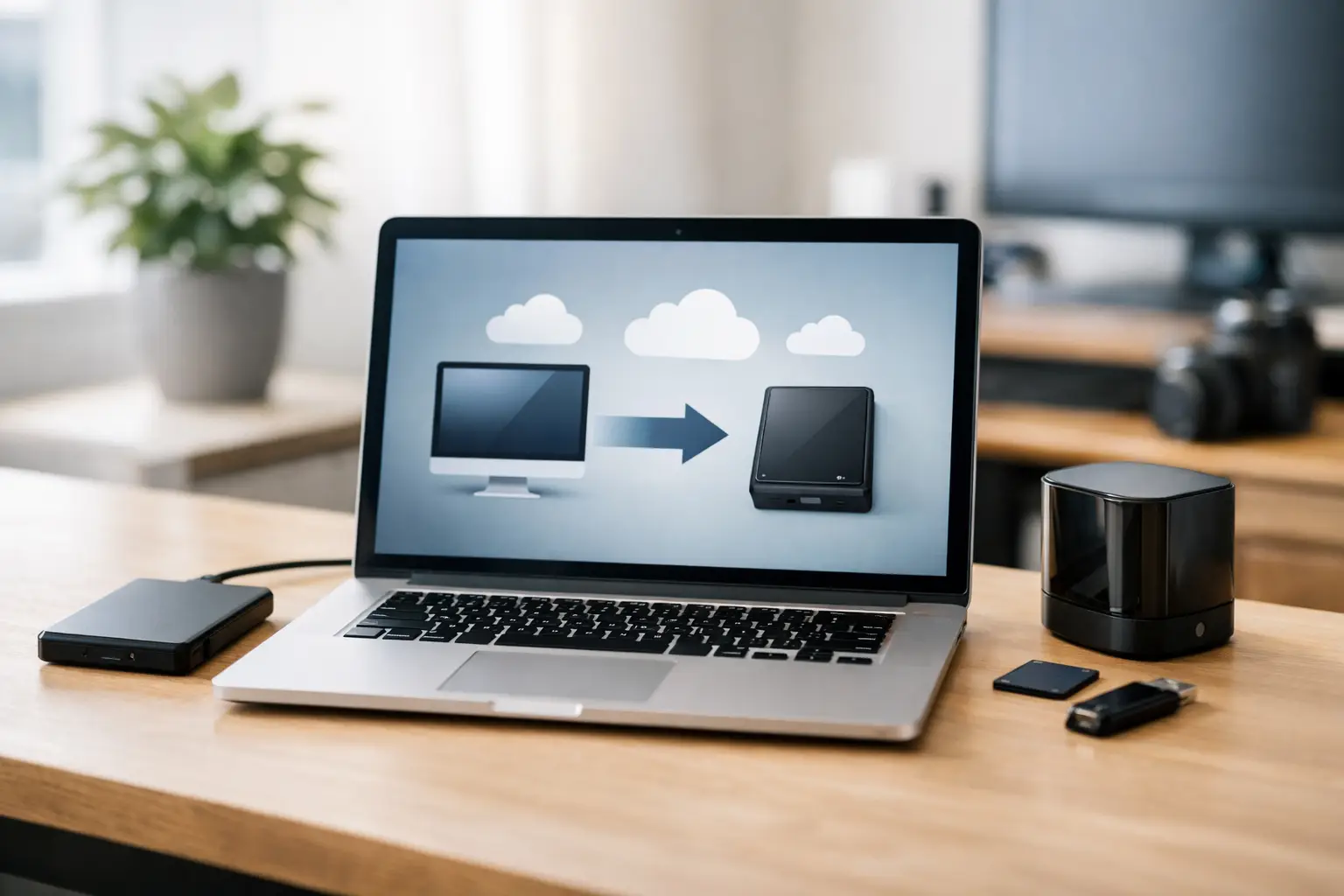
The most reliable approach is simple: keep more than one copy of your important data, and keep at least one copy separate from the computer itself. For most home users and small businesses, that means using a combination of an external drive and a cloud backup service.
An external drive gives you a fast local copy. If your computer stops booting or you accidentally delete a folder, restoring from a nearby backup is usually quicker than downloading everything from the internet. Cloud backup gives you off-site protection. If there is theft, fire, storm damage, or a major hardware failure, your files still exist somewhere beyond your home or office.
Some people ask whether a USB flash drive is enough. Usually, no. Flash drives are easy to lose, easy to forget, and often too small or too unreliable for ongoing backup. They can be useful for temporary file transfer, but they are not the best long-term plan for protecting a full computer.
What should you back up first?
Start with the files you would hate to lose. For most households, that means documents, family photos, videos, downloads worth keeping, financial records, and email data if it is stored locally. For business users, add accounting files, client records, shared folders, databases, scanned paperwork, and any application-specific data your team depends on every day.
It also helps to think beyond obvious documents. Browser bookmarks, desktop folders, saved passwords, custom templates, and software settings can save a lot of time during recovery. If your business uses industry software, make sure you know where that data lives. Some programs store everything in a standard Documents folder. Others tuck critical data into hidden directories or user profiles.
A full system image can also be useful. This is different from a file backup because it captures the operating system, programs, settings, and files together. The advantage is speed during a major failure. The trade-off is that system images are larger, and they are not always the easiest tool for grabbing one individual file. For many people, the best setup is both: regular file backups plus occasional full-system backups.
Local backup vs cloud backup
Local backup is any copy stored on a device you control directly, such as an external hard drive or a network-attached storage unit. It is fast, practical, and often affordable. If your internet is slow or you need to restore a large amount of data quickly, local backup is hard to beat.
Cloud backup stores your files in a secure remote data center. It protects you from physical loss at your location and usually runs quietly in the background once configured. That convenience matters because the best backup is the one that actually happens automatically.
There are trade-offs. Local drives can fail, be unplugged, or sit right next to the computer during a disaster. Cloud backup can take time for the first upload and may restore slowly if you need hundreds of gigabytes back at once. That is why relying on only one method can leave gaps.
For most people in Central Florida, where storm season is a real concern, off-site protection is especially important. Power problems, water damage, and sudden equipment loss are not rare events. A backup strategy should reflect that reality.
How to back up computer data on Windows
If you use a Windows PC, begin by connecting an external hard drive with enough space for your files. Then turn on a built-in backup option such as File History or a backup utility that can automatically copy your important folders on a schedule. Choose daily backups if you work on the computer often. Weekly may be enough for a light-use family PC, but daily is safer.
Next, add a cloud backup service or a synced cloud storage account for your most important files. This is where people sometimes get confused. Syncing and backup are not exactly the same thing. A sync service keeps files updated across devices, which is useful, but if you accidentally delete a file, that deletion may sync too. A true backup keeps recoverable versions so you can roll back to an earlier copy.
If your files matter, test the restore process. Open the backup. Recover a document. Make sure the photos are actually there. Many people discover too late that a drive was full, disconnected, or backing up the wrong folders.
How often should you back up?
That depends on how much work you can afford to lose.
If you run a business, even one day of lost data can be expensive. Daily backups are the minimum for most offices, and some businesses need continuous or hourly protection for active data. If you are a home user and mainly store family photos, schoolwork, and personal documents, a nightly backup is still a smart default because it removes the burden of remembering.
Manual backups tend to fail for one reason: life gets busy. Automatic scheduling is better than good intentions. Set it, confirm it works, and review it periodically.
Common backup mistakes that cause trouble later
One of the biggest mistakes is assuming cloud storage alone covers everything. It may cover selected folders, but not your full system, application data, or every user account. Another common problem is keeping the only backup drive permanently plugged in. That sounds convenient, but it can expose the backup to ransomware or electrical damage along with the computer.
People also forget to replace aging backup hardware. External drives do not last forever. If a drive has been in service for years, makes unusual noises, or disconnects randomly, it should not be trusted as your only copy.
For small businesses, the most costly mistake is not assigning responsibility. If everyone assumes someone else is monitoring backups, nobody notices failures until a restore is needed. Backups need ownership, even in a two-person office.
A practical backup plan for home users and small businesses
If you want a realistic setup that balances protection, cost, and ease of use, keep it straightforward. Use an external hard drive for automatic local backups. Use a cloud backup platform for off-site protection. Back up daily. Keep critical business data included, not just standard user folders. Test a few restores every month or quarter.
For home users, that may be enough. For businesses, add device coverage across workstations and shared systems, plus backup retention that lets you recover older file versions if corruption or ransomware goes unnoticed for days. It also helps to document where key data lives and who can restore it.
If that sounds like more than you want to manage, that is normal. Backup is one of those tasks that feels simple until you need to recover from a failure quickly and accurately. At that point, the details matter.
When professional help makes sense
If your computer stores irreplaceable family memories, legal records, tax files, or business information, a generic backup setup may not be enough. The right plan depends on how much data you have, how quickly you need to recover, and whether one computer or several devices are involved.
That is where having a trusted local IT partner can save time and stress. Computer Tech Pro helps home users and businesses set up dependable backup solutions that fit real-world needs, not just a one-size-fits-all checklist. That can include local backup configuration, cloud backup planning, data protection for office systems, and making sure recovery actually works when it counts.
Backing up your computer is not about being overly cautious. It is about avoiding a bad day turning into a major loss. The best time to set it up is before anything looks wrong, while your files are still exactly where they should be.


