

Posted On 29 Jul 2026
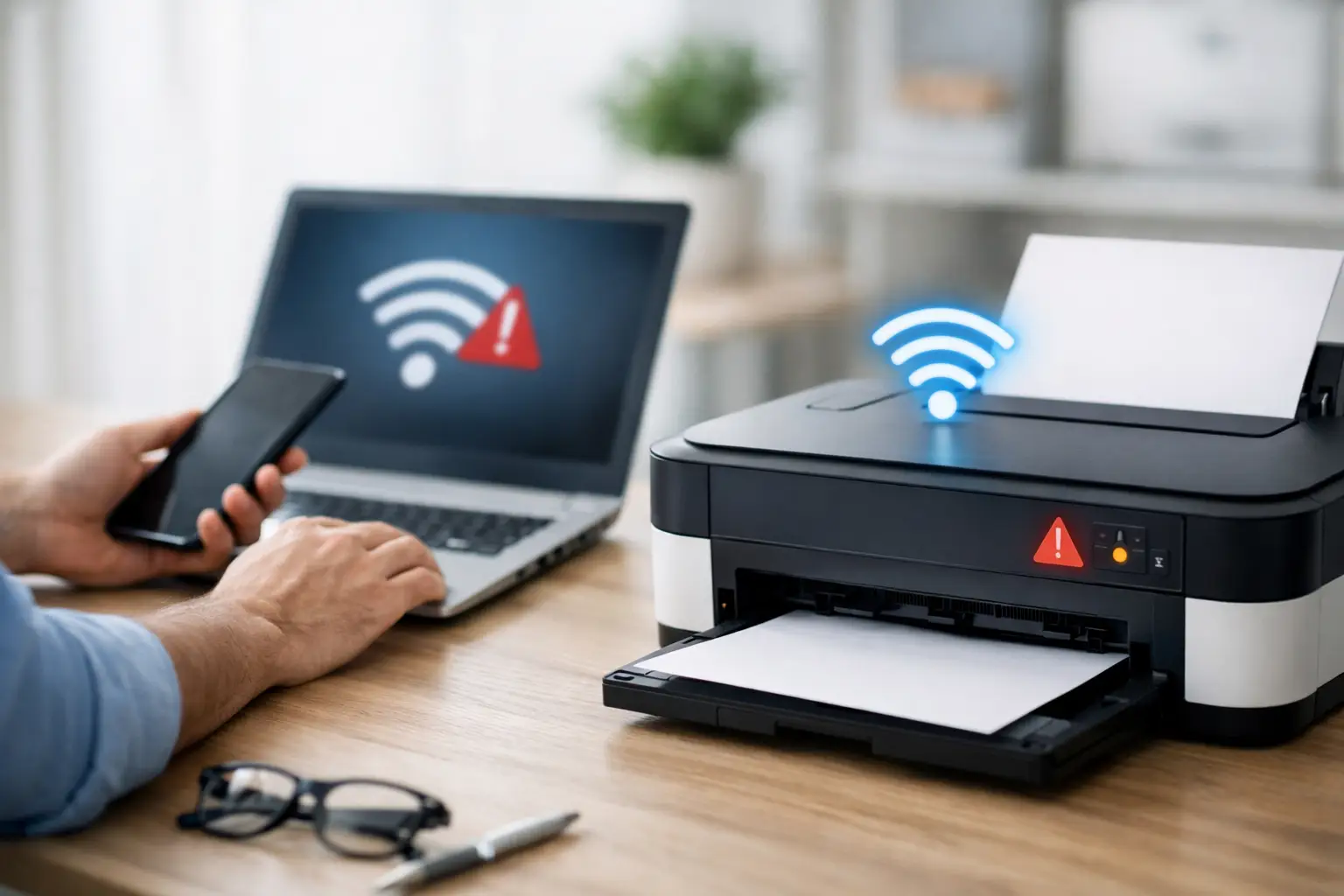
A printer can look perfectly normal – powered on, full of paper, and sitting only a few feet from the router – yet every print job stays stuck in the queue. Wireless printer connection problems are frustrating because the cause is not always the printer itself. A changed Wi-Fi password, a router update, a computer setting, or a weak signal can all interrupt communication.
The good news is that most connection failures have a logical cause and can be corrected without replacing equipment. The key is to work through the connection in the right order, rather than repeatedly pressing Print and hoping the job goes through.
Start With the Printer and Wi-Fi Network
Before changing settings on a computer, confirm that the printer is actually connected to the same network as the device sending the print job. This sounds simple, but it is the most common source of trouble in homes and offices.
Many routers broadcast more than one network name, often separating 2.4 GHz and 5 GHz Wi-Fi. Older wireless printers may only support 2.4 GHz. If a laptop or phone is connected to the 5 GHz network while the printer is on a separate guest network, isolated network, or old router name, they may not be able to see each other.
Check the printer display for its Wi-Fi status. Most printers show a wireless icon, signal bars, or the network name in the settings menu. If the icon is blinking, crossed out, or missing, the printer has likely lost its connection. Reconnect it using the printer’s wireless setup menu, entering the current network password carefully.
A recent change to the Wi-Fi password is especially likely to cause this issue. Printers do not automatically learn a new password after the router is updated. They need to be connected again manually.
Restart the Devices in the Right Order
Restarting equipment is not a cure for every issue, but it is useful when a printer, router, or computer has held onto an outdated network address. Do it in a deliberate order.
Turn the printer off. Unplug the router and modem if they are separate devices, wait about 30 seconds, then restore power. Give the internet connection a few minutes to come back fully. Turn on the printer next, wait for it to reconnect to Wi-Fi, and then restart the computer or mobile device.
This sequence allows the router to assign the printer a fresh local address before the computer searches for it. If the printer reconnects but remains unavailable, print a network configuration page from the printer menu. That page usually shows the printer’s network name, IP address, and signal status. It provides useful information without requiring technical guesswork.
Check Whether the Printer Is Set to Offline
A connected printer can still be marked offline by Windows or macOS. This often happens after a power outage, router replacement, interrupted update, or failed print job.
On a Windows computer, open the printer settings and verify that the correct printer is selected as the default. Open the print queue and look for options such as “Use Printer Offline” or “Pause Printing.” If either option is selected, clear it. Then cancel old jobs that have been waiting in the queue and try printing a simple one-page document.
On a Mac, remove any stalled jobs from the print queue and confirm the printer is listed under Printers & Scanners. If the printer has a yellow or red status indicator, the operating system may need the printer added again.
Do not assume the printer name tells the whole story. It is common to see two or three versions of the same printer listed after a network change. One may be a stale connection to an old IP address. The correct entry is usually the one that shows an active status and matches the printer currently on the network.
Update the Driver, but Avoid Random Downloads
Printer drivers translate a document into instructions the printer can understand. A damaged, outdated, or incorrect driver can cause printing failures even when the Wi-Fi connection is working.
Windows may install a basic driver automatically, which is often enough for standard black-and-white printing. However, it may not support scanning, duplex printing, color controls, or newer printer features. If the printer connects but prints blank pages, displays an error, or will not accept jobs, reinstalling the correct manufacturer driver can help.
Be careful when searching online for driver tools. Many third-party download sites bundle unnecessary software or misleading “driver updater” programs. Use the printer manufacturer’s support software or have a trusted technician install the correct driver. For business computers, this matters even more because unauthorized utilities can create security and reliability issues.
Look for Signal and Router Problems
Wireless printing depends on a stable local network, not just an internet connection. You may be able to browse websites while the printer remains unreachable because the printer’s signal is weak or the router is not allowing devices to communicate properly.
Distance, concrete block walls, metal filing cabinets, cordless phone bases, and crowded Wi-Fi channels can interfere with a printer’s connection. A printer located in a back office, garage, enclosed cabinet, or far bedroom may connect intermittently even if phones work in that area.
Move the printer temporarily closer to the router as a test. If it begins working reliably, the issue is likely signal strength rather than the printer. A better router location, mesh Wi-Fi system, or properly placed access point may be a longer-term solution.
Guest Wi-Fi is another frequent problem in small offices and homes. Guest networks are designed to keep connected devices separate from one another for security. A laptop on the main network often cannot print to a printer on the guest network. Put both devices on the primary private network instead.
When Wireless Printer Connection Problems Affect One Computer
If everyone else can print but one computer cannot, focus on that computer rather than resetting the entire printer. Its saved printer connection may be outdated, its security software may be interfering, or its print spooler service may be stuck.
First, confirm that the computer is connected to the expected Wi-Fi network. Then remove the printer from the computer’s settings and add it again. This creates a fresh connection and often resolves an address mismatch after a router restart or replacement.
If multiple employees cannot print but the printer itself appears connected, the problem may be a network setting, router configuration, or shared print setup. Businesses should avoid making broad router changes without knowing what else depends on that network. An incorrect setting can disrupt workstations, payment devices, security cameras, phones, or cloud backups.
Give the Printer a Stable Address
For an office printer that is used every day, a reserved IP address can prevent recurring connection issues. Normally, a router assigns addresses automatically. After a restart, the printer may receive a different address, while computers continue trying to send jobs to the old one.
A router reservation tells the network to give the printer the same address each time it connects. This is especially helpful for shared printers, scanners, and multifunction devices. It is not always necessary for a lightly used home printer, but it can save time in an office where downtime affects several people.
This is one area where professional help can be worthwhile. The setting is straightforward when done correctly, but every router interface is different, and business networks may have security rules or managed equipment that should not be changed casually.
Know When the Problem Is Not the Connection
Not every failed print is a wireless failure. A printer with a paper jam, low ink warning, open cover, maintenance error, or hardware fault can appear unavailable because it refuses the print job. Review the printer display for a specific message before spending time on Wi-Fi troubleshooting.
Likewise, a single document that will not print may be damaged or formatted incorrectly. Try printing a basic test page or a short text document. If that works, the connection is fine and the original file needs attention.
For customers in Lake County and Central Florida, Computer Tech Pro can diagnose the full path from the computer and router to the printer itself. That matters when the issue keeps returning, affects multiple devices, or interrupts a busy office day. A good fix should restore printing now and reduce the chances of facing the same problem after the next router update or power outage.
If your printer works only when it feels like it, keep track of what changed just before the failures started. A new router, password change, power outage, software update, or moved printer often points directly to the real cause – and makes the repair faster.


