

Posted On 29 Jul 2026
A failed hard drive rarely gives much warning. One day, family photos open normally, business records are available, and email attachments are where they belong. The next, the computer will not start, files disappear, or a ransomware message demands payment. Computer backups are what turn that stressful moment from a possible disaster into a recoverable problem.
A backup is simply a separate copy of the data you cannot afford to lose. It is not the same as leaving a file in your Downloads folder, syncing it to another device, or assuming a computer will keep working because it is relatively new. Hardware fails, accidents happen, accounts can be compromised, and malware can spread faster than many people expect.
For Central Florida households and local businesses, a dependable backup plan protects more than documents. It protects memories, customer information, financial records, work in progress, and the time it would take to rebuild what was lost.
Why Computer Backups Need More Than One Copy
Many people believe they have a backup because their files are stored in a cloud service or copied to an external drive. Either option can be useful, but each has limits. A single external drive can fail, be misplaced, or be damaged by a power surge, theft, or water. A cloud-synced folder may copy accidental deletions or ransomware-encrypted files to the cloud before anyone notices.
The goal is not to buy the most complicated system. The goal is to make sure a problem affecting one copy does not affect every copy. That means keeping important files in more than one location and checking that those copies can actually be restored.
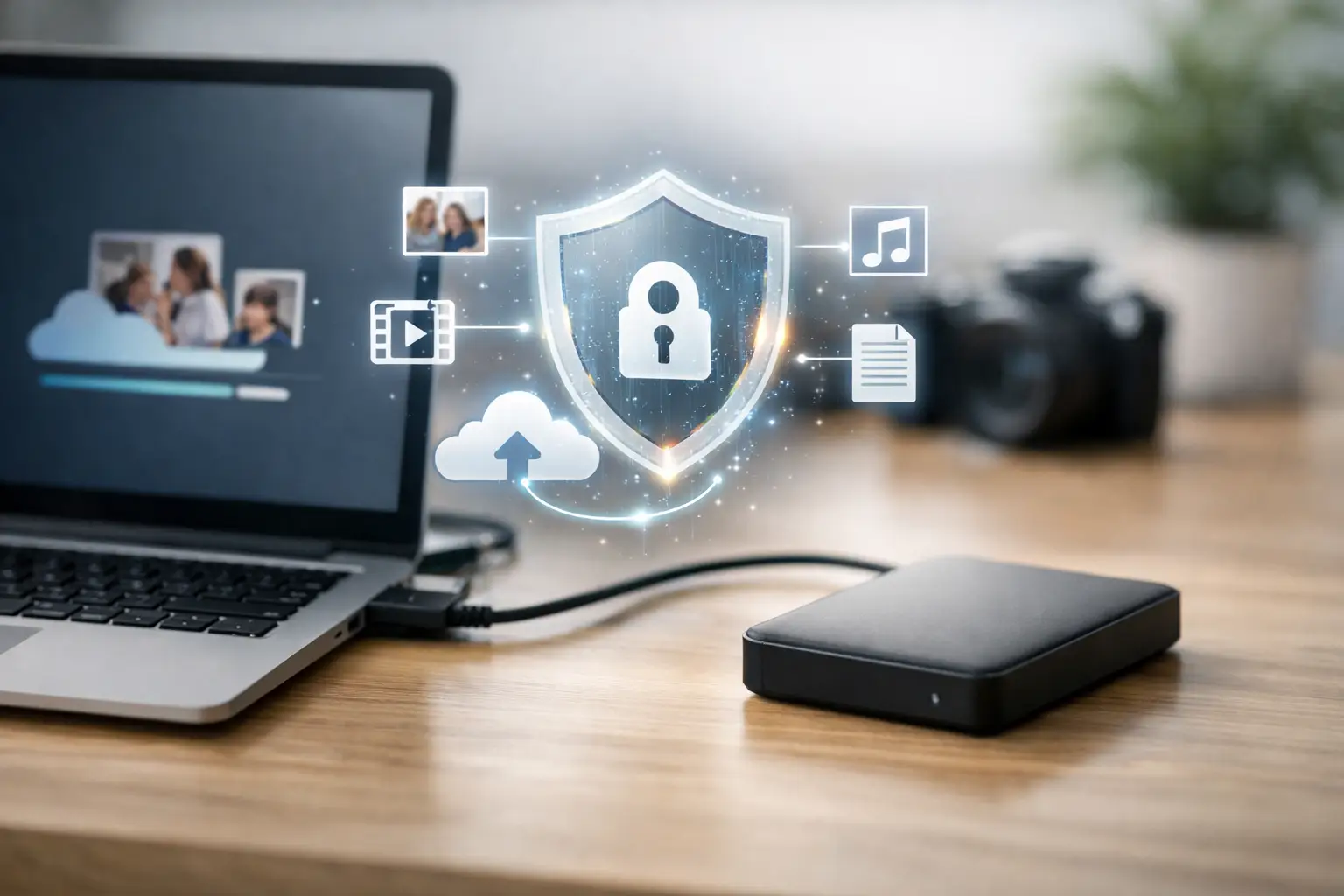
For a homeowner, this may mean keeping files on the computer, maintaining an automatic backup on an external drive, and storing another encrypted copy away from home. For a business, it may include protected backups of workstations, servers, accounting software, shared folders, and email data. The right setup depends on how much data you have, how quickly you need to recover, and what a day of downtime would cost.
What Should You Back Up?
Start with the information that would be difficult, expensive, or impossible to replace. Personal files often include photos, videos, tax returns, legal documents, contacts, passwords stored in an approved password manager, and saved email archives. If you use software for finances, genealogy, creative projects, or home records, make sure its data files are included as well.
Businesses should look beyond common office documents. Customer databases, QuickBooks or other accounting data, scheduling systems, estimates, invoices, shared drives, email, industry-specific applications, and configuration files may all need protection. A business can have a new computer delivered quickly, but recreating years of customer records is a different matter.
Do not assume every program automatically stores data where you expect. Some applications save files locally in hidden folders, while others use cloud storage with retention rules that may not meet your needs. A technician can help identify where critical information lives before setting up a backup plan.
The 3-2-1 Rule for Computer Backups
A straightforward guideline is the 3-2-1 rule: keep three copies of important data, on two different types of storage, with one copy kept off-site. It is not the only method, but it remains practical because it addresses common failures.
Your original files are the first copy. An external hard drive or network storage device can be the second. An encrypted cloud backup or a drive stored securely at another location can provide the off-site copy. If a lightning strike damages equipment in the home or office, an off-site backup gives you another path to recovery.
There are trade-offs. External drives are usually affordable and can restore large amounts of data quickly, but they need to be connected, monitored, and protected. Cloud backups can work automatically and remain available after local damage or theft, but restoring a large amount of data may take time depending on internet speed. For many customers, using both provides the best balance.
Backup Is Different From File Syncing
Cloud storage services are helpful for sharing files and working from multiple devices. They are not always a complete backup solution. Syncing is designed to keep folders matching. If a file is deleted from one device, that deletion can sync elsewhere. If ransomware encrypts files in a synced folder, the damaged versions may also be synchronized.
Some services offer file version history, which can help if the issue is discovered quickly. However, versions may be retained only for a limited time, and not every folder or application is included. A true backup system should maintain separate recovery points and make it possible to restore a file, a folder, or an entire system after a serious failure.
This distinction is especially important for businesses. A shared cloud folder is convenient, but it should not be the only protection for payroll records, client files, and operational data.
Automate the Process, Then Test It
The best backup plan is the one that continues working when life gets busy. Manual backups are easy to postpone, particularly when a computer seems to be running fine. Automatic scheduled backups reduce that risk by copying changes daily or continuously without relying on someone to remember.
Automation still needs oversight. A backup drive can fill up, software can report an error, login credentials can expire, or a device may stop connecting to the network. Review backup status regularly and investigate warnings promptly. A green check mark is useful, but the real test is whether a file can be restored.
At least a few times a year, restore a sample document, photo, or folder to a different location. Businesses should also test a larger recovery plan: who is responsible, where backup credentials are stored, which systems must be restored first, and how employees will continue working during an outage. Testing reveals gaps before those gaps become an emergency.
Protect Backups From Ransomware and Unauthorized Access
Ransomware is designed to make files unusable and pressure victims to pay for access. A current, isolated backup is often the strongest recovery option, but only if attackers cannot reach and encrypt the backup too.
Use strong, unique passwords and multi-factor authentication on backup and cloud accounts. Keep backup software, operating systems, and security tools updated. Limit access so that not every employee or household user can delete backup sets or change retention settings. If an external drive remains permanently connected to a computer, consider whether your backup software offers protection against unauthorized changes or whether a separate offline copy is needed.
Encryption also matters. Backups may contain tax documents, medical information, customer data, and saved passwords. Encrypt portable drives and cloud backup data so a lost device does not become a privacy problem. Keep recovery keys stored safely, because encryption cannot protect data if no one can access it when recovery is needed.
How Often Should You Back Up?
The answer depends on how much recent work you can afford to lose. A retired homeowner who organizes photos once a week may be comfortable with daily backups. A home office or busy local business that changes documents throughout the day may need continuous or hourly protection for key folders.
Think about the worst reasonable case. If your computer failed Friday afternoon, would you be comfortable restoring data from Monday? If the answer is no, the backup frequency is not enough. Also consider retention: a backup should preserve older versions long enough to recover from a problem discovered weeks later, not just yesterday’s files.
Get a Backup Plan That Fits Your System
A backup plan should be simple enough to manage but complete enough to be useful. That may mean an external drive and automatic software for one computer, or a managed combination of local and cloud backups for an office with several employees. There is no benefit in paying for storage that does not cover your important files, and there is no comfort in a backup no one has tested.
Computer Tech Pro can help evaluate what needs protection, configure backup options, and verify that recovery is possible. Whether you need help safeguarding family photos or keeping a local business operating after a hardware failure, the right time to build a recovery plan is while every file is still available.


