

Posted On 03 Jun 2026
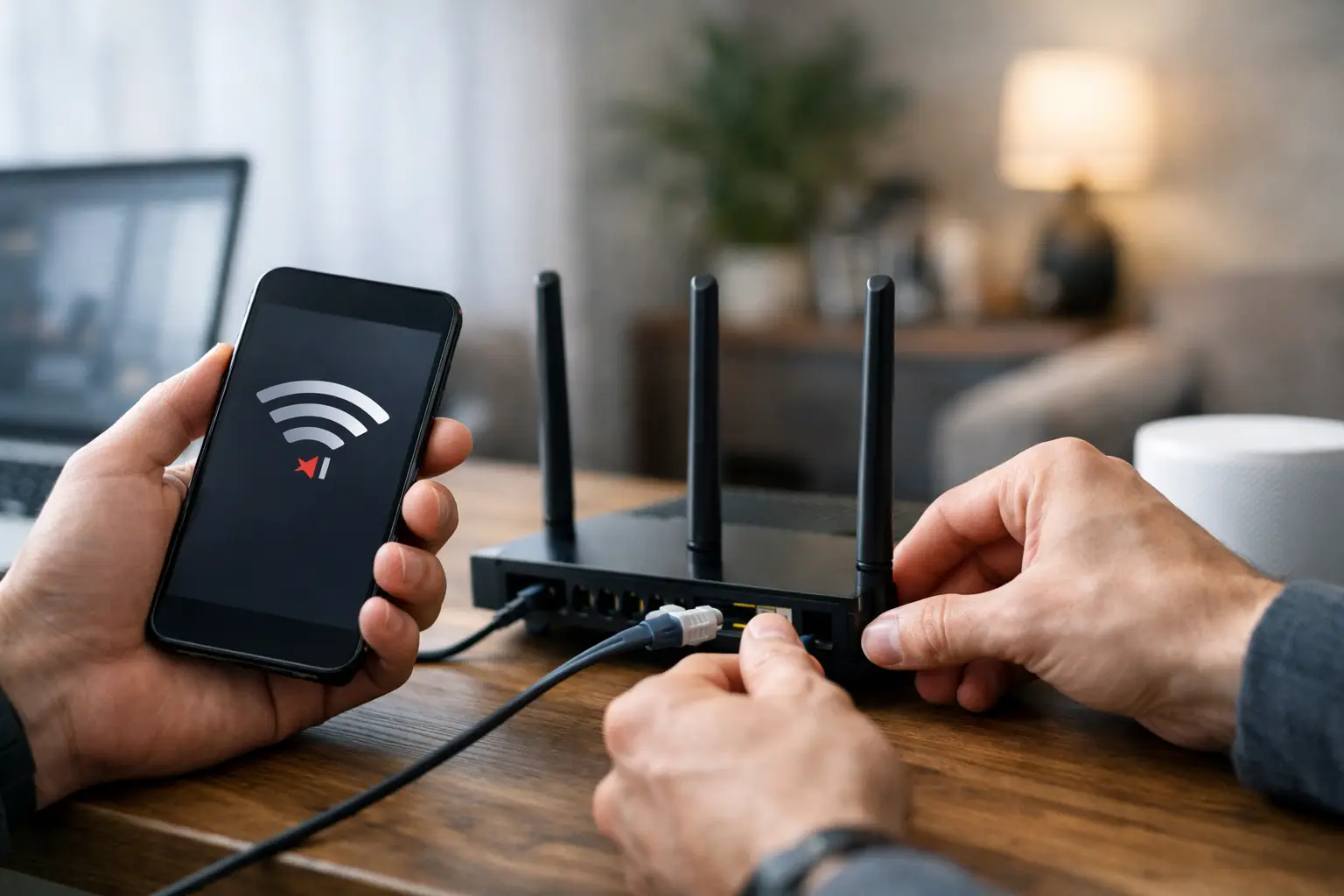
A video call freezes, the TV starts buffering, and the printer suddenly goes offline – that is usually the moment people start asking how to fix wifi issues fast. The good news is that many wireless problems have a straightforward cause. The trick is narrowing down whether the issue is your internet service, your router, your device, or the way your network is set up.
WiFi problems are frustrating because they do not always fail the same way twice. Sometimes the signal is weak in one room. Sometimes everything connects, but nothing loads. In a home office or small business, that kind of inconsistency costs time and patience. A calm, step-by-step approach usually gets you to the real problem much faster than randomly rebooting equipment and hoping for the best.
How to fix WiFi issues without guessing
Start by figuring out what is actually broken. If every device in the building is struggling, the problem is probably with the modem, router, internet provider, or overall network setup. If only one laptop, phone, or printer is having trouble, the issue is more likely on that device.
A quick test helps. Try opening a website on two or three different devices. If they all fail, look at your modem and router first. If one device works and another does not, focus on the device that is acting up. This simple distinction saves a lot of time.
Next, pay attention to the symptoms. Slow speed, dropped connections, and no connection at all are not the same problem. Slow speed may point to signal interference, outdated hardware, or too many devices sharing bandwidth. Frequent disconnects often suggest router placement, overheating, or signal conflict. A complete outage may be a service issue, failed equipment, or incorrect network settings.
Check the modem and router first
Your modem brings internet into the building. Your router distributes that connection wirelessly. In many homes those functions are combined into one unit, but the basic troubleshooting is the same.
Look at the status lights. If the internet or online light is out or red, your service may be down or the modem may have lost sync with your provider. If the WiFi light is off, the wireless portion may be disabled or malfunctioning. If everything looks normal but nothing works, restart the equipment properly.
Unplug the modem and router from power. Wait about 30 seconds. Plug the modem back in first and give it a few minutes to fully reconnect. Then power up the router. This order matters because the router needs a working internet connection from the modem before it can hand it out to your devices.
If the connection returns and stays stable, the problem may have been temporary. If it comes back only briefly and then fails again, you may be dealing with aging hardware, overheating, a bad cable, or a signal issue from your provider.
Router location also matters more than many people realize. If the router is tucked behind a TV, inside a cabinet, in a corner of the house, or near thick walls and large metal objects, the signal can weaken quickly. A more central, open location often improves coverage without changing any settings.
Why your WiFi signal is strong but still slow
A full signal bar does not always mean a healthy connection. You can have excellent wireless coverage but poor internet performance. That usually means the device can see the router clearly, but the router itself is struggling with bandwidth, interference, or an upstream internet issue.
This is common in busy homes and small offices where multiple smart TVs, phones, cameras, tablets, streaming devices, and computers are all competing for the same connection. Older routers especially tend to slow down when too many devices stay connected all day.
Fix device-specific WiFi problems
When one device keeps failing while others work normally, start with the basics on that machine. Turn WiFi off and back on. Restart the device. Forget the wireless network and reconnect using the correct password. These steps sound simple, but they often clear out stuck settings or bad session data.
If that does not help, check whether the device has software or driver updates pending. Laptops and desktop computers can develop wireless issues after operating system changes, outdated network drivers, or security software conflicts. Phones and tablets can also hold onto old network information that causes connection problems.
On business PCs, there is another wrinkle. VPN software, firewall rules, email security tools, and endpoint protection can sometimes interfere with network access even when WiFi itself appears connected. In that case, the signal is not the true issue. The software stack is.
Printers, smart TVs, and security cameras deserve special mention because they are often the least forgiving devices on the network. They may stop reconnecting after a password change, fail when the router changes channels automatically, or struggle with networks that combine different frequency bands under one name.
How to fix WiFi issues caused by interference
Interference is one of the most common reasons wireless networks become unreliable. WiFi shares airspace with other electronics, neighboring routers, and building materials. Microwave ovens, cordless phones, Bluetooth devices, baby monitors, and even dense walls can reduce performance.
If your router offers both 2.4 GHz and 5 GHz bands, choosing the right one can help. The 2.4 GHz band usually reaches farther, but it is more crowded and often slower. The 5 GHz band is faster and cleaner at close range, but it does not travel as well through walls. Which one works better depends on the layout of the space and the device you are using.
In a larger home or office, weak coverage in back bedrooms, conference rooms, or detached spaces may simply be a range problem. That does not always mean the internet is bad. It may mean one router cannot cover the entire property reliably. In those cases, adding a properly configured access point or mesh system may be the right fix. The trade-off is that more equipment can improve coverage, but only if it is installed and placed correctly.
When channel congestion is the real problem
In neighborhoods, apartments, and office complexes, nearby WiFi networks often overlap. When too many routers are broadcasting on crowded channels, performance drops. This can show up as random slowdowns during certain hours, especially evenings when everyone is online.
Changing wireless channels can help, but it is not always a set-it-and-forget-it solution. Some routers manage this well automatically. Others do not. If the network keeps degrading, the router may need manual optimization or replacement.
Don’t ignore outdated equipment
A lot of WiFi trouble comes down to hardware that is simply past its prime. Routers do not last forever. Over time they run hotter, perform worse under load, and fall behind newer device standards. If your router is several years old and struggles with streaming, remote work, video calls, or multiple users, replacement may be more cost-effective than constant troubleshooting.
The same goes for modems and network adapters. A fast internet plan cannot overcome old hardware bottlenecks. If you are paying for high speed service but using equipment that cannot deliver it, your WiFi will never feel consistent.
There is also a security angle here. Old networking gear may stop receiving firmware updates, which increases risk for both homes and businesses. Reliability and security often go together.
When the problem is your internet provider
Sometimes your WiFi is working fine, but the internet service itself is unstable. A simple way to tell is to connect a computer directly to the modem with an Ethernet cable if possible. If the wired connection is also slow or dropping, the issue is probably outside the WiFi network.
You may be dealing with a local outage, signal quality problem, damaged cable line, or service interruption from the provider. In small business settings, intermittent provider issues can look like random network failure until someone tests it properly.
If outages are frequent, document when they happen and what the modem lights show. That makes provider support much more productive and helps separate service problems from internal network issues.
When to call for professional help
If you have restarted equipment, tested multiple devices, checked placement, and ruled out a provider outage, but the problem keeps returning, it is time for a more thorough diagnosis. Repeated WiFi issues usually point to a deeper cause such as poor network design, failing hardware, bad cabling, software conflicts, or security concerns.
That is especially true for businesses, home offices, and households with many connected devices. A quick fix may restore service for a day, but it will not solve recurring downtime if the network was never set up for the way you actually use it.
Computer Tech Pro works with both residential and business customers who need dependable troubleshooting without the guesswork. Sometimes the answer is simple. Sometimes it takes a full review of the modem, router, device settings, coverage, and security. Either way, the goal is the same: get the connection stable and keep it that way.
Reliable WiFi should feel invisible. When it stops being invisible, the right fix is usually the one that addresses the real cause, not just the symptom you happen to notice first.


