

Posted On 23 Jul 2026
A slow computer can turn a simple remote-work day into a string of delays: video calls that freeze, files that take too long to open, and email that stalls when you need it most. The best computers for remote work are not always the most expensive models. They are the systems that reliably handle the work you actually do, protect your information, and give you room to grow without creating more technology headaches.
For a Central Florida homeowner working from home, that may mean a dependable laptop with a larger screen and a comfortable keyboard. For a small business, it may mean several business-grade desktops that are easy to maintain, secure, and connected to a reliable backup plan. The right choice depends on your software, your workspace, and how much downtime your workday can tolerate.
What Remote Work Really Demands From a Computer
Remote work often uses more resources than people expect. A computer may be running email, cloud storage, web browsers with many open tabs, accounting software, video meetings, printers, and security software at the same time. A device that was fine for basic web browsing can begin to feel frustratingly slow under that workload.
Start with the processor, memory, and storage. For most office work, an Intel Core i5 or AMD Ryzen 5 processor from a recent generation is a practical starting point. Apple users should look for an Apple Silicon Mac with an M-series chip. These systems provide enough performance for video conferencing, Microsoft 365, web-based applications, and everyday multitasking without paying for power that may go unused.
Memory, also called RAM, makes a noticeable difference during a busy day. Eight gigabytes can handle lighter tasks, but 16GB is the better target for most remote workers. It helps when several applications are open and reduces the slowdowns that occur when a computer runs short on working memory.
Storage should be a solid-state drive, commonly called an SSD. Compared with older hard drives, SSDs start faster, open files more quickly, and make the whole system feel more responsive. A 512GB SSD gives most users a comfortable amount of space for documents, applications, and local files. If you work with large photos, videos, design files, or extensive client records, consider 1TB or more.
Best Computers for Remote Work by Work Style
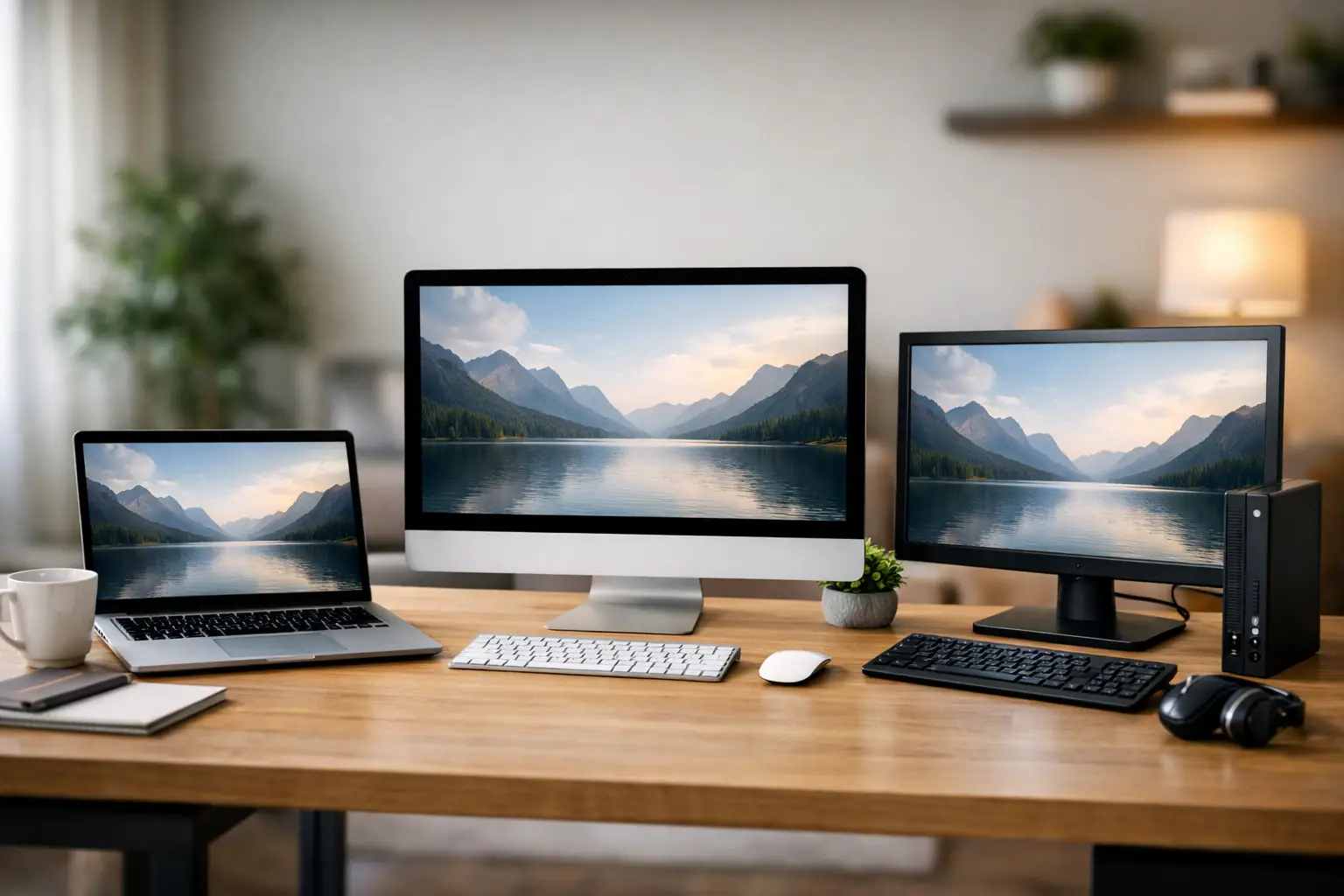
There is no single best computer for every remote worker. Choosing the right form factor is often more valuable than chasing a specific brand or the newest feature.
Laptop: Best for flexibility and travel
A laptop is the right fit for people who move between rooms, work from a home office and a client location, or travel regularly. Look for a 14-inch or 15-inch display, 16GB of RAM, and a 512GB SSD. A 14-inch laptop is easier to carry, while a 15-inch model offers more comfortable screen space for spreadsheets and side-by-side windows.
Battery life matters, but do not make a purchase based only on a manufacturer’s advertised battery number. Video calls, higher screen brightness, and multiple connected accessories can reduce real-world battery time. For remote work, it is smart to keep the charger at your main workspace and use a surge protector to help protect your equipment from power fluctuations.
Business-class laptop lines are often worth considering because they are built for daily use and usually offer better keyboards, more ports, and easier repair options than entry-level consumer models. They may cost more upfront, but dependable hardware can cost less than repeated repairs or lost work time.
Desktop: Best for a dedicated home office
A desktop computer is often the best value when the system will stay in one location. You generally get more performance and easier upgrade options for the same budget. Desktops are also easier to pair with a large monitor, full-size keyboard, webcam, printer, and wired network connection.
For accounting, office management, customer service, insurance, real estate, and similar work, a business desktop with a recent Core i5 or Ryzen 5 processor, 16GB of RAM, and a 512GB SSD is a strong long-term choice. A wired Ethernet connection can also be more stable than Wi-Fi during important calls or large file transfers.
A custom-built desktop can make sense when your requirements are specific. For example, a business may need multiple monitors, specialized software, extra storage, or a system that can be serviced and upgraded over time. It also allows you to avoid paying for features that do not support your day-to-day work.
All-in-one computer: Best for a clean, simple setup
All-in-one computers place the computer components behind the monitor, reducing cable clutter and saving desk space. They can be a good choice for a reception area, light administrative work, or a home office where appearance and simplicity matter.
The trade-off is repairability. If a major internal component fails, service can be more involved than it would be with a separate desktop and monitor. Choose an all-in-one from a reputable manufacturer, and make sure it has enough memory and storage from the start because upgrades may be limited.
Refurbished business computer: Best for controlled budgets
A professionally refurbished business desktop or laptop can be an excellent remote-work option for budget-conscious households and small businesses. Business-grade systems are often designed for longer service life, and a properly inspected refurbished computer can provide dependable performance at a lower cost than a new device.
The key is knowing what you are buying. Avoid very old systems that cannot run current security updates or that rely on aging hard drives. Ask whether the computer includes a licensed, supported operating system, an SSD, a battery warranty for laptops, and clear information about its condition. Refurbished should never mean unsupported or insecure.
Do Not Overlook the Screen, Camera, and Ports
Remote work is easier when you can see your work comfortably. A 1080p display is a sensible minimum, and a larger external monitor can be one of the most useful upgrades for anyone working with spreadsheets, scheduling systems, multiple browser windows, or client records. Many people find that two screens reduce constant switching between applications and help them stay organized.
For video meetings, a built-in webcam is convenient, but an external 1080p webcam may provide a clearer image and more flexible positioning. Good lighting and a reliable microphone matter just as much. If you spend hours in meetings, a headset can reduce background noise and make conversations easier to understand.
Check the available ports before buying. USB ports, USB-C connections, HDMI or DisplayPort output, and an audio jack can determine whether your existing monitor, printer, external drive, or headset connects easily. A docking station can expand a laptop setup, but it should be compatible with the computer and the number of displays you need.
Security and Backup Are Part of the Purchase
A fast computer does not help much if ransomware, hardware failure, or an account compromise stops your business from operating. Remote workers should plan for security and backups at the same time they choose hardware.
Use a supported operating system that receives current security updates. Keep antivirus protection active, install updates promptly, and use strong, unique passwords with multi-factor authentication for email, banking, cloud storage, and business applications. A password manager can make this easier without forcing you to remember dozens of passwords.
Backup deserves equal attention. Cloud synchronization is useful, but it is not always a complete backup solution. If a file is deleted or encrypted by malware, that change may sync across devices. A reliable plan should include protected copies of critical files and a clear process for restoring them when needed.
For small businesses, consider who will manage updates, user accounts, network security, email protection, and backups. Without a clear plan, an employee’s computer problem can become an interruption for the entire office. Computer Tech Pro helps local customers match computers, maintenance, and security support to the way they work, whether the need is one home-office laptop or an ongoing business technology plan.
When It Makes Sense to Repair Instead of Replace
Replacement is not always necessary. If your current computer has a reasonably modern processor, an SSD upgrade, additional memory, a new battery, or a thorough tune-up may restore useful performance. This can be a cost-effective option for light office work, email, and web-based applications.
Replacement is usually the better decision when the computer no longer receives operating system security updates, frequently crashes, cannot run required software, has an aging hard drive, or needs several expensive repairs at once. Continuing to rely on an unreliable device can be more costly than purchasing a properly configured replacement, especially when work and customer communication depend on it.
Before moving to a new computer, make a plan to transfer documents, email settings, browser bookmarks, printers, software licenses, and saved passwords safely. A careful setup prevents the common frustration of buying a new system only to discover that essential files or access details were left behind.
The best remote-work computer should fade into the background while you get your work done. Choose enough performance for your busiest day, protect it with current security and backup practices, and keep a trusted support resource available before a small issue becomes lost time.


