

Posted On 06 Jun 2026
That strange clicking sound from your computer is not something to ignore. Neither is a system that suddenly takes forever to open files, freezes during startup, or tells you a document is corrupted when it worked fine yesterday. The top signs your hard drive is failing often show up gradually, but once they start, your window to protect your data can get very small.
For many home users and small businesses, the hard drive is where years of photos, documents, financial records, email files, and business data live. When that drive starts to fail, the problem is not just the computer slowing down. It can turn into lost memories, interrupted work, and expensive recovery efforts if you wait too long.
Top signs your hard drive is failing
A failing hard drive does not always stop working all at once. In many cases, it gives warnings first. The challenge is that those warnings are easy to dismiss as normal computer issues, especially if the system is older.
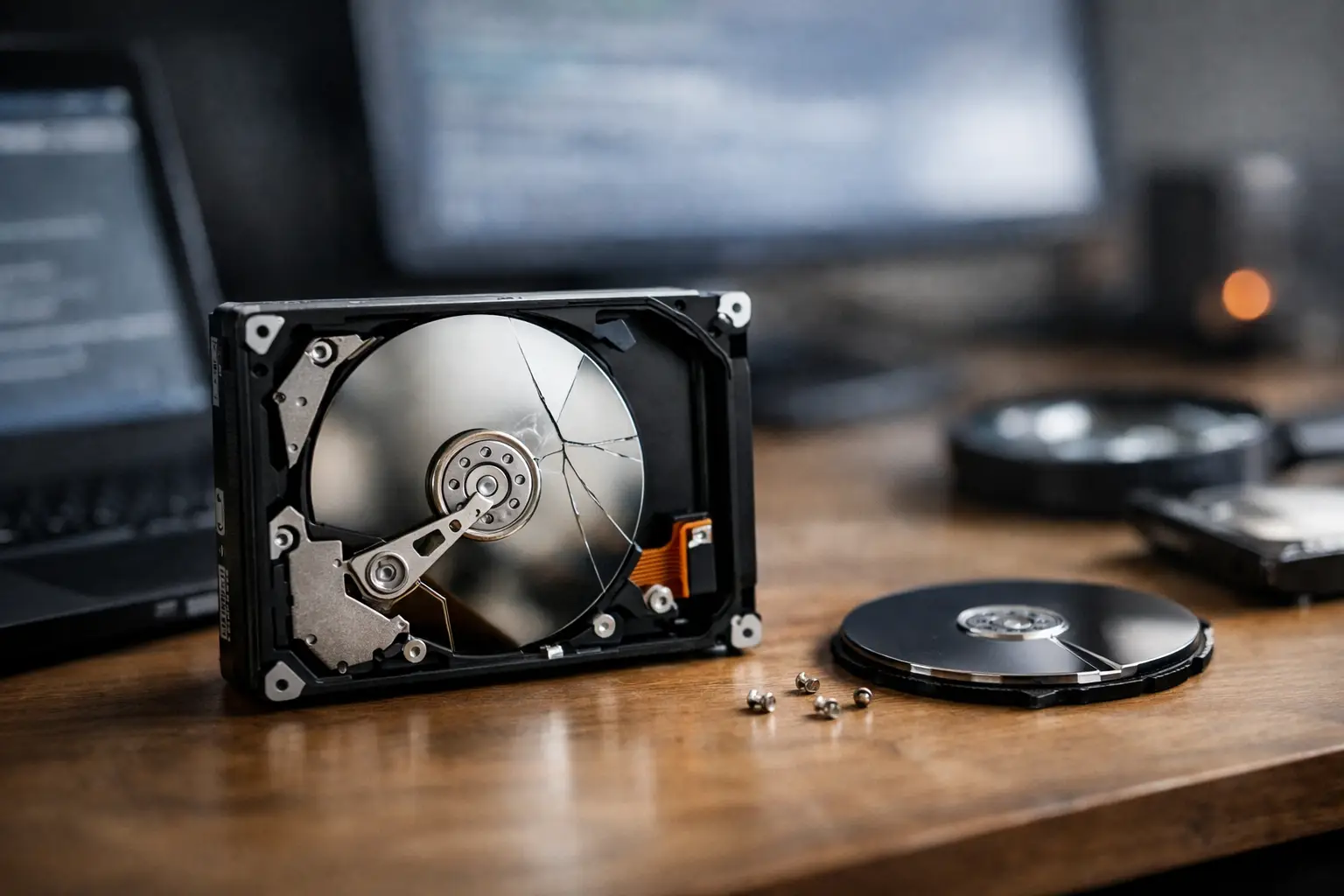
One of the most common signs is unusual noise. Traditional hard disk drives, also called HDDs, should not make loud clicking, grinding, or repeated spin-up sounds. If you hear a clicking pattern, that can point to mechanical trouble inside the drive. A fan can also make noise, so it helps to notice where the sound is coming from, but any new drive-related sound deserves attention.
Another red flag is frequent freezing or crashing, especially when opening folders, saving files, or starting programs. If the whole computer locks up during disk-heavy tasks, the drive may be struggling to read or write data. That does not always mean the drive is the only cause, since low memory or software issues can also create slowdowns, but repeated freezes around file access are worth taking seriously.
Corrupted files are another warning sign. If documents suddenly will not open, photos appear damaged, or files disappear and reappear, the storage device may be developing bad sectors. A bad sector is a small damaged area of the drive that can no longer reliably store data. One bad sector does not always mean immediate failure, but when they start increasing, the risk rises fast.
You may also notice startup problems. A computer that takes much longer than usual to boot, gets stuck on a loading screen, or shows disk-related error messages may be dealing with a failing drive. In some cases, the system starts after several attempts. That can create a false sense of security. If it starts today, many people assume it will start tomorrow. That is not a safe assumption.
Performance changes that should not be ignored
Slow performance by itself does not prove a drive is failing. Old computers slow down for all kinds of reasons, including too many startup programs, malware, low storage space, or outdated hardware. Still, there is a difference between a generally sluggish PC and one that has become unpredictably slow when reading or saving data.
If you click on a folder and it hangs for several seconds before opening, or if copying files suddenly takes far longer than normal, the drive may be struggling internally. You might also see programs stop responding more often, particularly programs that rely on larger files, such as accounting software, photo libraries, or email archives.
Businesses often notice this first in day-to-day operations. A workstation may take forever to load shared files, save invoices, or open customer records. At home, it might show up as family photos taking too long to load or the computer pausing every time you try to back up data. When the delay is tied to file access rather than internet use, the hard drive becomes a likely suspect.
Warning messages and system alerts
Modern systems sometimes tell you directly that something is wrong. You may see messages asking you to scan and repair the drive, warnings that Windows detected a hard disk problem, or repeated prompts to restart because of disk errors. These alerts should never be brushed aside.
Some drives also report health information through SMART monitoring, which stands for Self-Monitoring, Analysis, and Reporting Technology. If a utility says the drive is failing, overheating, or showing read errors, take it seriously. SMART is not perfect. A drive can fail without much warning, and some drives look fine until they do not. But if the system is already raising flags, the safest move is to back up your data immediately.
Missing files, corrupted folders, and save errors
One of the clearest signs your hard drive is failing is when your data becomes unreliable. Files that vanish, folders that cannot be opened, or save errors that happen without a clear reason often point to disk trouble.
This is where people can make things worse by continuing to use the computer normally. Every new save, update, download, or restart puts more stress on a failing drive. If the files matter, it is better to stop using the system as much as possible until the data is backed up or the machine is checked by a professional.
HDD failure vs. SSD failure
Not every computer uses the same type of storage. Traditional hard disk drives have moving parts, so they often show symptoms like clicking, grinding, or spin failures. Solid-state drives, or SSDs, do not have moving parts, so they usually fail differently.
When an SSD starts having trouble, you may notice sudden crashes, files becoming read-only, failed writes, or a drive that disappears from the system altogether. SSDs are generally faster and more reliable in many situations, but they are not immune to failure. In some cases, SSD failure can feel more abrupt because there are fewer obvious mechanical warnings.
That distinction matters because people often expect every bad drive to make noise. If your computer is silent but still showing file corruption, startup issues, or repeated drive errors, storage failure is still on the table.
What to do if you notice the top signs your hard drive is failing
The first priority is your data. If the drive is still accessible, back up what matters most right away. Start with irreplaceable files such as family photos, business documents, financial records, QuickBooks files, email data, and anything you cannot easily recreate.
If the drive is making mechanical noise, disappearing from the system, or freezing the computer badly, do not run repeated repair attempts without a plan. People often restart over and over, run heavy scans, or keep trying to copy everything at once. That can push a weak drive closer to total failure.
A better approach is to limit use, copy the most important files first, and have the hardware evaluated. If the system is mission-critical for a business, speed matters even more. Downtime can quickly become more expensive than the repair itself.
It is also worth separating drive failure from other issues. Sometimes a bad cable, overheating, malware, motherboard problem, or failing power supply can mimic storage failure. That is why proper diagnostics matter. You do not want to replace the wrong part or miss a backup opportunity while guessing.
When to stop troubleshooting and get help
If your computer is still running and the issue is just occasional slowness, you may have time to test the drive and make a clean backup. If you are hearing clicking, seeing repeated disk errors, or losing access to files, time is no longer on your side.
For home users, the biggest mistake is waiting until the computer will not start at all. For business owners, it is continuing to run daily operations on a drive that is already showing signs of failure. Both situations increase the chance of data loss and longer downtime.
This is where a local repair partner can make a real difference. A company like Computer Tech Pro can help determine whether the issue is truly the drive, secure your data, and recommend the right next step, whether that means replacement, migration to a faster SSD, or broader system support.
A failing hard drive rarely gets better on its own. If your computer is clicking, freezing, corrupting files, or warning you about disk problems, treat that as your chance to act before the problem turns into a full data-loss event.


