

Posted On 23 Sep 2026
A computer that takes several minutes to start, hesitates when opening email, or freezes during simple tasks can make every day more frustrating. In the SSD versus hard drive decision, the right choice usually comes down to one question: do you need more speed, more storage space, or both? For many older desktops and laptops, replacing a traditional hard drive with an SSD is one of the most noticeable improvements you can make.
What Is the Difference Between an SSD and a Hard Drive?
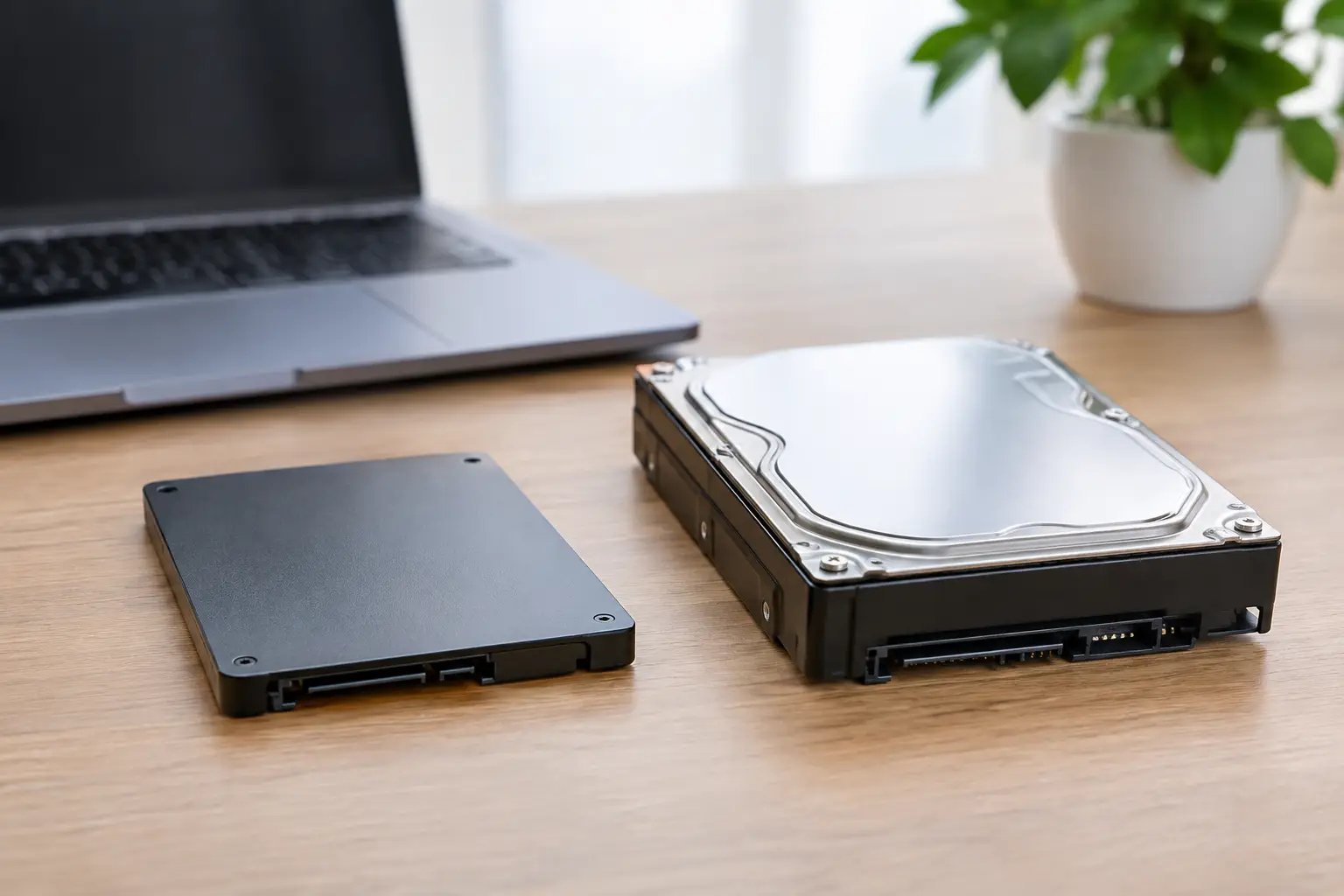
A traditional hard disk drive, often called an HDD or simply a hard drive, stores data on spinning magnetic disks. A small moving arm reads and writes information on those disks. This is proven technology that has been used in computers for many years, and it remains useful when a large amount of storage is needed at a lower cost.
A solid-state drive, or SSD, stores data on memory chips instead of moving parts. Think of it as a faster, more modern type of storage. Because there are no spinning disks or moving read heads, an SSD can access files much more quickly and is less likely to be damaged by a bump or drop.
Both types can store Windows, programs, photos, documents, and business files. The difference is not whether they hold your data. The difference is how quickly and reliably they work in the situations that matter to you.
SSD Versus Hard Drive for Everyday Speed
For most home users, remote workers, and small businesses, speed is the main reason to choose an SSD. A computer with an SSD generally starts Windows faster, opens programs sooner, and responds more quickly when switching between tasks. Updates also tend to finish faster, which can reduce interruptions during the day.
The difference is especially clear when replacing an older hard drive in a computer that otherwise still meets your needs. A system that once took two or three minutes to reach the desktop may be ready much sooner after an SSD upgrade. Programs such as web browsers, office software, accounting tools, and email applications usually feel more responsive as well.
A hard drive is not automatically the cause of every slow computer. Low memory, unwanted programs, malware, Windows errors, overheating, or an aging processor can also affect performance. Still, when a computer has a healthy but older hard drive, an SSD upgrade is often the best value improvement available.
Why SSDs Feel Faster
Hard drives must physically spin and move a read head to find data. When Windows needs hundreds or thousands of small files to start up, that process takes time. An SSD can access those files electronically, with far less delay.
That speed is most noticeable in normal daily use, not just in technical test results. You may see quicker startup times, faster file searches, smoother multitasking, and fewer pauses when opening frequently used programs. If your current computer feels like it is always thinking before it responds, storage speed may be part of the problem.
Cost and Storage Capacity
Hard drives still have one major advantage: they offer more storage space for the price. If you need several terabytes of room for large photo collections, video files, archived records, or local backups, a hard drive can be an economical choice.
SSDs cost more per gigabyte, although prices have become much more reasonable. For many people, a 500GB or 1TB SSD provides enough room for Windows, everyday programs, and important files. The right capacity depends on how much storage you currently use and how quickly that amount is growing.
Before buying either option, check your current storage use rather than guessing. A computer with 450GB of files will not be a good candidate for a 500GB replacement drive without careful cleanup or a plan to move some data elsewhere. It is also wise to leave free space on any drive so Windows and programs can work properly.
For some households and businesses, the best answer is not strictly SSD versus hard drive. A computer can use an SSD as the main drive for Windows and programs, while a larger hard drive stores files that do not need instant access. This setup can provide a practical balance of performance and capacity.
Reliability, Lifespan, and Data Safety
Because SSDs have no moving parts, they are generally more resistant to physical shock than hard drives. That can be helpful for laptops that are carried from room to room or transported to work. A traditional hard drive can be damaged if it is dropped while running, because its internal components are delicate and moving at high speed.
However, neither type of drive should be treated as permanent storage. SSDs and hard drives can both fail without much warning. Hard drives may begin making clicking, grinding, or repeated spinning sounds before they fail, but not always. SSDs are silent, so their warning signs may be error messages, files that will not open, unexpected crashes, or a computer that no longer starts.
The most important protection is a dependable backup. Important family photos, financial records, customer information, and work documents should exist in more than one place. A backup is not only for drive failure. It can also protect you from accidental deletion, ransomware, theft, fire, or a major Windows problem.
If a drive is already showing signs of failure, avoid repeatedly restarting the computer or installing software to experiment with a fix. Continued use can make data recovery more difficult. A professional assessment can help determine whether files can be safely copied, cloned to a replacement drive, or recovered through more advanced methods.
Which Drive Is Right for Your Computer?
An SSD is usually the better choice if your priority is making an existing computer feel faster. It is a strong option for homeowners who are tired of slow startup, students who need reliable performance for schoolwork, remote workers who depend on a responsive computer, and small businesses that want to reduce downtime.
A hard drive may still be the right fit if you need a large amount of low-cost storage for files that are not opened constantly. It can also work well as a secondary storage drive or part of a local backup plan. The lower price per terabyte remains useful, especially when speed is not the main concern.
Consider an SSD if you use your computer for everyday tasks and want a noticeable improvement without replacing the entire system. Consider a hard drive if capacity is the priority and you need the most storage for your budget. Consider a combination of both if you want quick performance along with room for a growing archive.
Do Not Overlook Compatibility and Data Transfer
Not every SSD fits every computer. Some systems use a 2.5-inch SATA drive, while others use a smaller M.2 drive. M.2 drives can also use different connection types, so the size alone does not guarantee compatibility. Older computers may need a particular adapter or may have limitations that affect which drive is appropriate.
The replacement process matters just as much as the drive itself. A proper SSD upgrade can include checking the health of the old drive, transferring Windows and your files, confirming that the computer starts correctly, installing updates, and verifying that important programs still work. If the existing drive is failing, cloning may not be safe or possible, and a fresh Windows installation with data recovery may be the better path.
This is also a good time to review your backup plan, remove unneeded software, and make sure security protection is current. An SSD can improve speed, but it will not fix an infected system or replace regular maintenance.
For customers in Lake County and surrounding Central Florida communities, Computer Tech Pro can evaluate whether an SSD upgrade makes sense, recommend the right capacity, and handle the transfer carefully. The goal is not to sell more storage than you need. It is to make sure your computer is faster, reliable, and set up to protect the files that matter.
A slow computer does not always need to be replaced. When the rest of the system is in good condition, the right storage upgrade can give it several more useful years and make daily tasks feel far less frustrating.


