

Posted On 22 Sep 2026
A computer that opens email is not necessarily a computer that can keep up with a full workday. When large spreadsheets lag, accounting software freezes, files take too long to open, or several business programs compete for attention, a custom workstation build example can show what purposeful hardware looks like. The goal is not to buy the most expensive parts. It is to build a dependable computer around the work you actually do.
For a home office or small business, the right workstation should feel quiet, responsive, secure, and easy to maintain. It should also leave room for growth, whether that means storing more client files, adding a second monitor, or running another business application next year.
What a Workstation Needs to Do
A workstation is a desktop computer selected for productivity and reliability rather than casual use. It may support bookkeeping, scheduling, payroll, document management, remote work, design files, point-of-sale reporting, or several users who share files over a network. Some people need more processing power. Others need more memory or safer storage. Those differences matter more than a flashy specification sheet.
For example, a real estate office may need many browser tabs, PDF files, email, cloud storage, and transaction software open at once. A medical or legal office may place greater value on reliable backups, encrypted storage, and a computer that handles document scanning without slowing down. A home-based professional may need a quiet system that performs well during video meetings while managing large spreadsheets in the background.
Before choosing parts, start with the programs that cause frustration now. Write down what is slow, how much storage is currently used, how many monitors are needed, and whether important files are stored only on one computer. That information helps prevent paying for features that will never be used while overlooking the upgrades that make a daily difference.
A Custom Workstation Build Example for a Small Office
Consider a practical workstation for an office manager, remote professional, or small business owner who spends most of the day in Microsoft 365, web-based business portals, accounting software, PDFs, email, and video meetings. This type of computer should comfortably handle multiple applications without requiring specialized enterprise hardware.
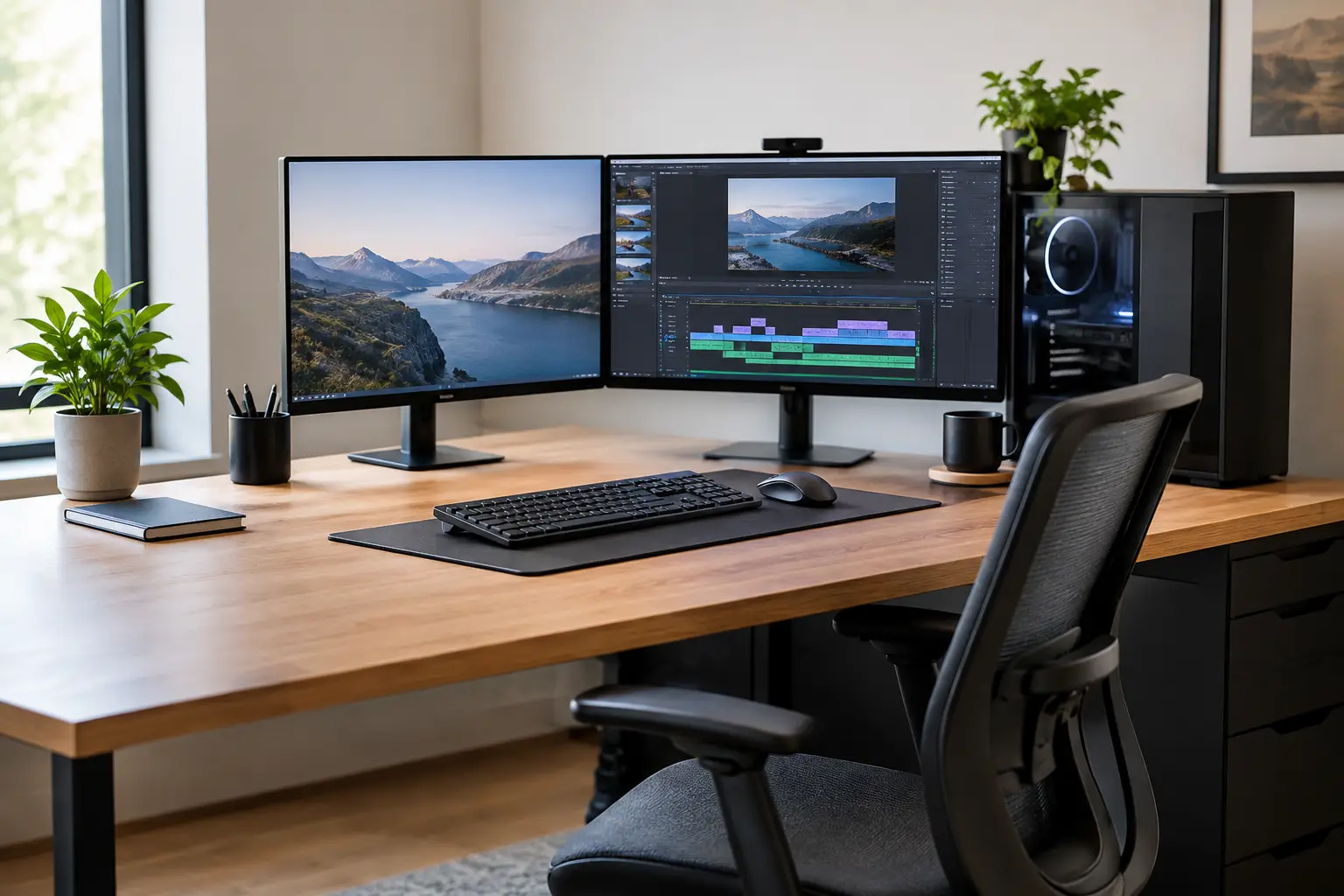
A balanced build might include a current-generation midrange processor with integrated graphics, 32 GB of memory, a 1 TB solid-state drive, a quality power supply, a well-ventilated desktop case, and Windows 11 Pro. Integrated graphics are often enough for ordinary office work and two standard displays. Using them can reduce cost, power use, and unnecessary complexity.
The processor handles the overall workload, but memory is often the reason an office computer feels smooth or strained. With 32 GB of memory, the system has room for a large spreadsheet, a video meeting, a browser with many tabs, email, and business software at the same time. For lighter use, 16 GB can still be appropriate. For demanding design, data analysis, engineering, or virtual-machine workloads, 64 GB or more may make sense.
The 1 TB solid-state drive provides fast startup times and quick access to programs and files. It also gives many users enough room for documents, photos, scanned records, and local working files. If a business regularly handles large databases, video projects, or years of high-resolution images, a 2 TB drive may be the better choice. Storage capacity should not be confused with backup protection, though. A larger drive does not protect files from deletion, ransomware, hardware failure, or fire.
Windows 11 Pro can be worthwhile for offices that need stronger control over user access, disk encryption, remote management, or connection to a business network. A single home office may not need every Pro feature, but it can be a sensible choice when the computer contains client information or business records.
Why This Build Avoids a Separate Graphics Card
A separate graphics card is useful for certain specialized tasks, including advanced design work, 3D rendering, and other workloads that depend on graphics acceleration. It is not automatically necessary for general office work. Adding one when it is not needed can increase the price, heat, noise, and power demands of the system.
This is one area where honest recommendations matter. A workstation should be built for the software it runs, not for a label on the box. If your work involves large architectural drawings, professional media editing, or specialized visualization software, the recommendation changes. In those situations, the software vendor’s requirements should guide the build.
Reliability Comes From More Than Fast Parts
A custom computer is only as dependable as the parts surrounding the processor. A low-quality power supply can create intermittent problems that are difficult to diagnose. Poor airflow can shorten component life. An undersized case can make future service or upgrades harder than they need to be.
For that reason, a good workstation build uses a reputable power supply with enough capacity for the system, efficient cooling, and a case that allows clean cable routing and steady airflow. These details may not be exciting, but they help the computer run consistently during long workdays.
A wired network connection is also worth considering when the computer is stationary. Wi-Fi is convenient, but a wired connection can provide more stable performance for cloud backups, large file transfers, video meetings, and access to shared office resources. If Wi-Fi is the only practical option, the network itself should be checked for weak coverage, outdated equipment, or interference.
Plan Storage and Backup as Separate Jobs
A common mistake is treating the internal drive as the complete file protection plan. Every computer drive can fail, and ransomware can affect files stored on connected drives and shared folders. A workstation needs both fast local storage and a separate backup strategy.
For many home offices and small businesses, the best approach includes automatic cloud backup, a properly configured local backup where appropriate, and periodic testing to make sure files can actually be restored. Important data may also need to be organized so it is not scattered across desktops, downloads folders, and personal accounts.
Security should be included from the first day the computer is set up. That means keeping Windows and business software updated, using strong unique passwords, enabling multi-factor authentication where available, limiting administrative access, and using reputable endpoint protection. A new workstation starts clean, but it still needs ongoing maintenance to stay that way.
Do Not Forget the Setup Work
Building the computer is only part of the job. The setup determines whether the new system is genuinely ready for work. Files need to be transferred carefully. Email accounts, printers, scanners, cloud folders, bookmarks, saved passwords, and business applications need to be configured and tested. If the old computer has problems, transferring everything without review can carry unwanted clutter or malware to the new one.
A careful setup also verifies that backups are running, Windows updates are complete, recovery options are available, and the user understands where important files are saved. For small businesses, it is a good time to review who has access to shared folders and whether former employees still have accounts or passwords that should be removed.
Computer Tech Pro can help local home office users and small businesses plan a workstation around their real needs, assemble it correctly, transfer data, and provide continuing support after setup. That guidance can be especially valuable when downtime would interrupt customer service or daily operations.
When a Custom Build Is the Right Choice
A custom workstation is a strong option when an off-the-shelf computer has too little memory, limited storage, poor upgrade options, or specifications that do not match the work being done. It is also useful when you want known-quality components and a clear plan for future expansion.
However, custom is not always the cheapest or best answer. A straightforward user with basic email, web browsing, and document needs may be better served by a quality prebuilt computer with the right amount of memory and solid-state storage. The best choice depends on the workload, budget, desired lifespan, and need for local support.
The practical test is simple: your computer should help work move forward without becoming another task on the list. If it is slowing down the day, losing files, or making you hesitate before opening one more program, it is time to plan a system that fits the job.


