

Posted On 31 Jul 2026
A deleted folder, failed hard drive, ransomware incident, or damaged office computer can interrupt work far faster than most small businesses expect. The real question is not whether files are backed up somewhere. It is whether you can restore the right files, systems, and settings quickly enough to keep serving customers.
This business backup software review is designed for small offices that need clear answers without sorting through technical sales language. Whether you run a professional office, real estate agency, nonprofit, retail business, or home-based company, the best backup choice is the one that protects your actual work and can be restored when it counts.
What Good Business Backup Software Must Do
Backup software copies business data to a separate location so it can be recovered after an accident, hardware failure, cyberattack, or local disaster. That sounds simple, but the details make a major difference.
A basic file backup may protect documents, spreadsheets, photos, and other selected folders. That can be enough for a small operation with limited data and simple computers. However, businesses that depend on specialized programs, accounting records, email, shared files, or several workstations often need more than a folder copy.
A stronger plan may include full computer image backups. An image backup captures the operating system, installed programs, settings, and files together. If a computer fails, this can reduce the time required to rebuild it from scratch. The trade-off is that image backups usually require more storage and more careful setup.
The right software should also run automatically. If a backup depends on someone remembering to start it every Friday afternoon, it will eventually be missed. Automatic daily backups, or more frequent backups for active files, remove that weak point.
Business Backup Software Review: The Features That Matter
It is easy to compare plans by storage size or monthly price. Those details matter, but they do not tell the whole story. A lower-cost plan is not a bargain if recovering a critical file takes days or if the backup does not include the information your business needs.
Recovery speed and recovery options
The most useful question to ask is: “How long would it take to get back to work?” Some services allow individual files to be restored quickly. Others can restore an entire computer image. Certain backup systems also maintain a local copy at the office, which can make large recoveries much faster than downloading everything over an internet connection.
Cloud-only backup can be a practical option for smaller amounts of data. It keeps a copy away from the office, which is valuable after theft, fire, or storm damage. But restoring a large amount of data through an ordinary internet connection can take a long time. For businesses with large files or several computers, a combination of local and cloud backup is often a better fit.
Protection from ransomware
Ransomware can encrypt files on a computer and, in some cases, reach connected storage or shared folders. Backup software should protect against this by keeping older versions of files and isolating backup data from everyday access.
Look for version history, sometimes called file retention. This lets you restore a version of a document from before it was changed, deleted, or encrypted. The number of versions and the length of retention should match your business needs. A company that discovers an issue weeks later needs more protection than a plan that keeps only a few days of history.
It is also wise to use separate credentials, strong passwords, and multi-factor authentication for the backup account. A backup system is only helpful if an attacker cannot easily erase the backup along with the original files.
Encryption and privacy
Business records can include customer information, financial documents, employee files, contracts, and private correspondence. Good backup software encrypts data while it is being transmitted and while it is stored.
Encryption alone is not the entire answer. You should understand who controls the encryption key and how account recovery works. If only one employee knows the backup password, the business could lose access when that person is unavailable. A documented process, securely stored recovery information, and limited administrative access are safer choices.
Monitoring and alerts
A backup that quietly stops running is not a backup plan. Reliable software should provide clear alerts when a scheduled backup fails, a device has not checked in, storage is full, or an account needs attention.
For a small business owner, those alerts can become another task in an already busy week. That is where managed monitoring can help. Instead of hoping someone notices a warning email, an IT provider can review backup status, address failures, and confirm that protected systems remain covered.
Cloud, Local, or Both?
There is no single best backup method for every business. The right choice depends on the amount of data, internet speed, number of computers, and how quickly operations must resume after a problem.
Cloud backup stores a protected copy off-site. It is a strong defense against a local event affecting the office and does not require staff to rotate external drives. Its main limitation is recovery time for very large data sets.
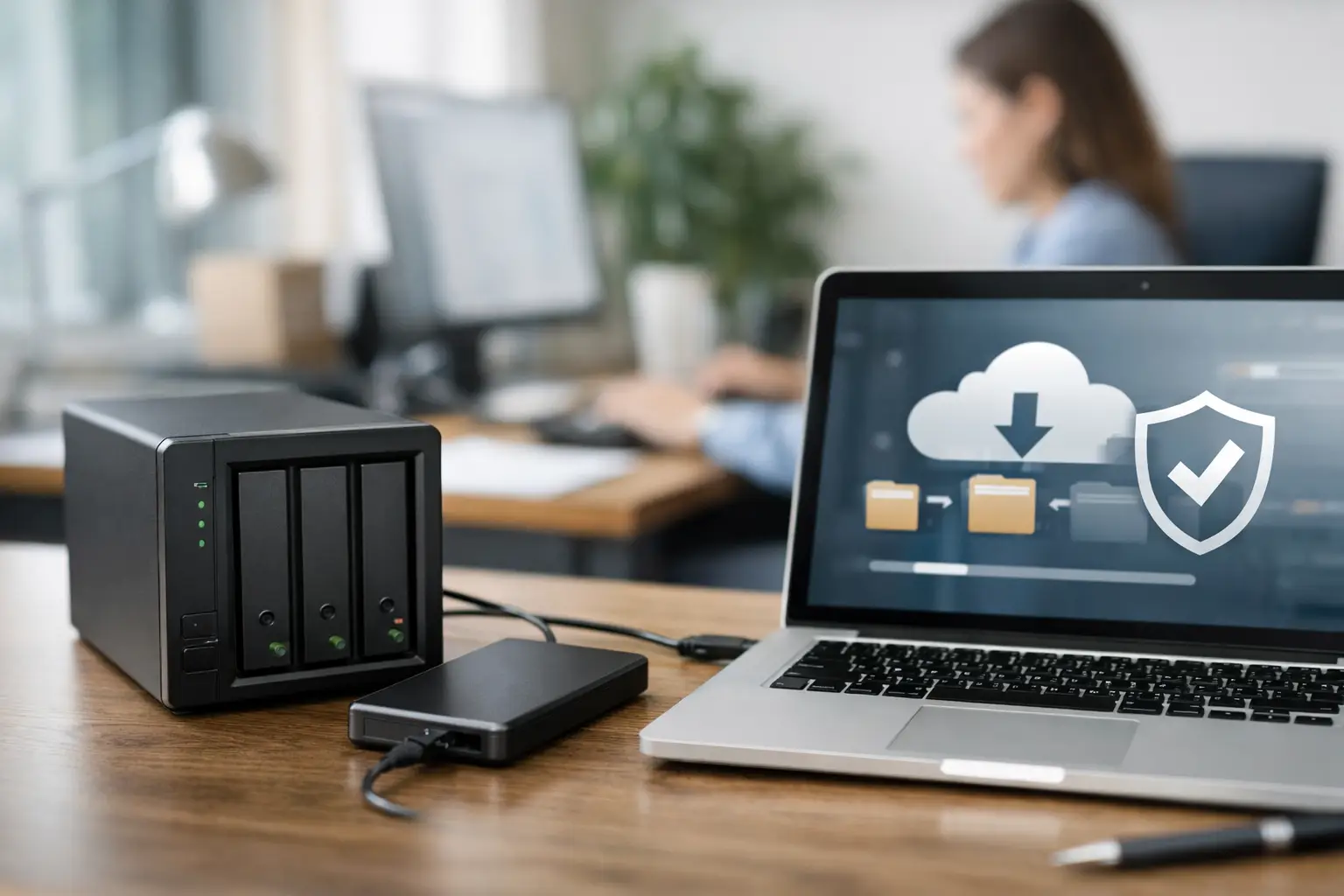
Local backup stores data on equipment at your office, such as a properly configured network storage device. It can support quicker restores, especially when a full computer or large shared folder needs to be recovered. However, a local copy by itself is vulnerable to theft, water damage, power events, and fire.
For many small organizations, the most dependable arrangement follows the 3-2-1 principle: keep three copies of important data, on two different types of storage, with one copy kept off-site. This is not about buying more technology than you need. It is about avoiding one point of failure.
Questions to Ask Before Choosing a Backup Plan
Before comparing software, identify what needs protection. Many businesses remember the shared documents folder but overlook email archives, accounting databases, line-of-business programs, computer settings, and employee work saved outside the usual folders.
Ask whether the software backs up open files and databases correctly. Some programs can copy ordinary documents but need special configuration to protect data that is actively in use. If your office relies on industry-specific software, confirm that its data can be restored in a usable form.
Also ask how often backups occur and how long older versions are kept. An office that updates client records all day may need frequent incremental backups. A business with mostly static files may be well served by a nightly schedule. More frequent backups can use more storage and bandwidth, so the goal is an appropriate balance, not the highest setting by default.
Finally, ask who will handle the restore. A business owner should not have to learn recovery procedures during an emergency. Written recovery steps, designated contacts, and tested backup access reduce confusion when time is limited.
Why Backup Testing Is Non-Negotiable
A successful backup report only proves that data was copied. It does not prove that the data can be opened, that the right version exists, or that a full system can be restored within an acceptable timeframe.
Schedule regular restore tests. Start with a simple test, such as recovering a document to a separate location and confirming it opens correctly. Then periodically test a larger recovery, such as restoring a shared folder or validating that a computer image is complete.
Testing often reveals practical problems: an important folder was excluded, retention is too short, a password is missing, or an internet connection makes cloud recovery slower than expected. Finding those issues during a planned test is far less stressful than finding them after a major failure.
A Practical Recommendation for Small Businesses
The best business backup software is not necessarily the plan with the longest feature list. It is the one that automatically protects the systems you use, keeps recoverable copies away from the office, provides meaningful ransomware protection, and has a recovery process your team can actually follow.
For a one-person office with mostly documents, an encrypted cloud backup with version history may be enough. For a growing office with shared files, several computers, and limited tolerance for downtime, a managed local-and-cloud backup plan is usually the safer investment. Medical practices, legal offices, and businesses handling sensitive customer information may also need additional retention, security, and compliance considerations.
Computer Tech Pro helps small businesses in Central Florida review their backup needs, configure dependable backup systems, and test recovery before an emergency forces the issue. The goal is not to make backup complicated. It is to make sure a computer problem does not become a business-stopping event.
A good backup plan gives you more than another copy of your files. It gives you a clear, tested path back to work when something goes wrong.


