
Posted On 14 Nov 2026
A family photo library, years of tax records, customer files, and work documents can all fit on a single computer until that computer fails. That is when the NAS versus cloud storage question becomes more than a technical choice. It becomes a question of how quickly you can get your information back, who can access it, and how much control you want over it.
The right answer is not the same for every household or small business. A local storage system can be fast and private, while cloud storage can be convenient and easier to access away from home or the office. In many cases, the most dependable plan uses both.
NAS versus cloud storage: what is the difference?
A NAS, short for network-attached storage, is a small storage device that connects to your router or network. Think of it as a dedicated file cabinet for your home or office that multiple authorized computers can use. It usually contains one or more hard drives, and it stays in your building rather than at a distant data center.
Cloud storage keeps your files on servers operated by a service provider and accessed through the internet. Depending on the service and plan, you may be able to automatically sync folders, share files with others, and reach your documents from nearly anywhere with an internet connection.
Both options can protect important files, but neither is automatically a complete backup plan. A NAS can fail, be damaged by a power surge, or be affected by theft, fire, malware, or accidental deletion. Cloud storage can be limited by internet speed, monthly fees, storage limits, account access issues, and the way the service handles deleted or changed files.
Start with how you need to use your files
The best choice starts with your daily habits, not the size of a hard drive. Ask whether you primarily need fast storage in one location, easy access while away, simple file sharing, or a reliable recovery option after a computer problem.
A NAS is often a strong fit when several people in the same home or office need access to large files. For example, a home office may keep scanned records, project folders, and computer backups on a NAS. A small office may use one to hold shared documents that staff need throughout the day. Because the files travel over the local network, access can be much faster than downloading them from the internet.
Cloud storage is often more convenient for remote workers, traveling professionals, and families who need to open or share documents from different locations. It can also reduce the worry of maintaining a storage device yourself. The provider handles the physical servers, while you manage your account, folders, permissions, and subscription.
When a NAS makes sense
A NAS is worth considering if you have a large amount of data, want quick local access, or prefer to keep sensitive information under your direct control. It can be especially useful for regular computer backups because restoring many gigabytes of data over a local network is usually far quicker than restoring it over the internet.
It also gives you more flexibility over storage capacity. Instead of paying for more online space every month as your needs grow, you can often expand or replace drives when appropriate. That can be cost-effective over time, although the upfront equipment cost is higher.
The trade-off is responsibility. A NAS needs proper setup, user accounts, secure passwords, updates, and a backup plan of its own. Simply buying a NAS and placing all your files on it does not guarantee protection.
When cloud storage makes sense
Cloud storage is a practical choice when convenience matters most. If you want current files available when you are away from your home or office, it is usually easier to work with than connecting to a local device remotely.
It can also make collaboration simpler. A real estate office sharing property documents, a nonprofit coordinating event materials, or a family organizing financial records may benefit from controlled file sharing and synchronized folders. Changes made by one authorized user can appear for others without manually copying files to a flash drive or attaching them to emails.
The main trade-off is ongoing cost and dependence on internet access. Uploading a large archive can take a long time, especially on connections with slower upload speeds. If you need to restore a full computer after a hard drive failure, downloading everything from the cloud may take much longer than restoring from a local NAS.
Compare the real costs, not just the purchase price
Cloud storage usually has a low entry cost, but it is a continuing expense. Monthly or annual fees can increase when you need more capacity, more users, longer file history, or business-level security features. Review the plan carefully before assuming all cloud accounts offer the same protection.
A NAS requires an initial investment in the device, storage drives, and sometimes a battery backup to help protect it during power problems. There may also be future costs for replacement drives and professional configuration. However, it can provide years of local storage without a recurring fee for the storage itself.
For a small business, the cost of downtime deserves equal attention. If a staff member cannot open customer records, invoices, or work documents for a full day, the lost time can cost more than the storage solution. The best value is usually the one that helps you recover quickly and keeps daily work moving.
Security depends on configuration and habits
Neither option is automatically safer simply because it is local or online. Security comes from using the right safeguards and maintaining them.
A NAS should have unique, strong passwords, separate user accounts, current software updates, and carefully limited remote access. Avoid using one shared password for everyone. If remote access is needed, it should be configured securely rather than exposed to the internet with default settings. A surge protector or battery backup can also help protect the device from electrical problems.
Cloud storage accounts should use strong passwords and multi-factor authentication. Limit sharing permissions to the people who truly need access, and remove former employees or outdated accounts promptly. Be cautious with unexpected sharing invitations and login messages, as phishing emails can lead to account takeovers.
Ransomware deserves special attention. If infected files automatically sync to a NAS or cloud folder, the damaged versions can spread to your storage. Version history, snapshots, and backups that cannot be altered by an infected computer are valuable protections. The exact features vary by service and NAS model, so they should be checked during setup rather than assumed.
A backup is different from storage
This is where many people get caught off guard. Storage is where you work with files. A backup is a separate copy intended for recovery when something goes wrong.
A good approach follows the basic idea of keeping multiple copies in different places. Your working files may be on your computer or NAS, another copy may be on the NAS or cloud service, and an additional protected copy should be kept away from the main location. That way, one hard drive failure, accidental deletion, or local disaster is less likely to erase everything.
For many homes, a computer backup to a NAS plus an encrypted cloud backup of critical files is a sensible balance. For businesses, the plan may include local backups for faster restoration and an off-site copy for disaster recovery. The right setup depends on how much data you have and how quickly you need it back.
The hybrid option is often the practical answer
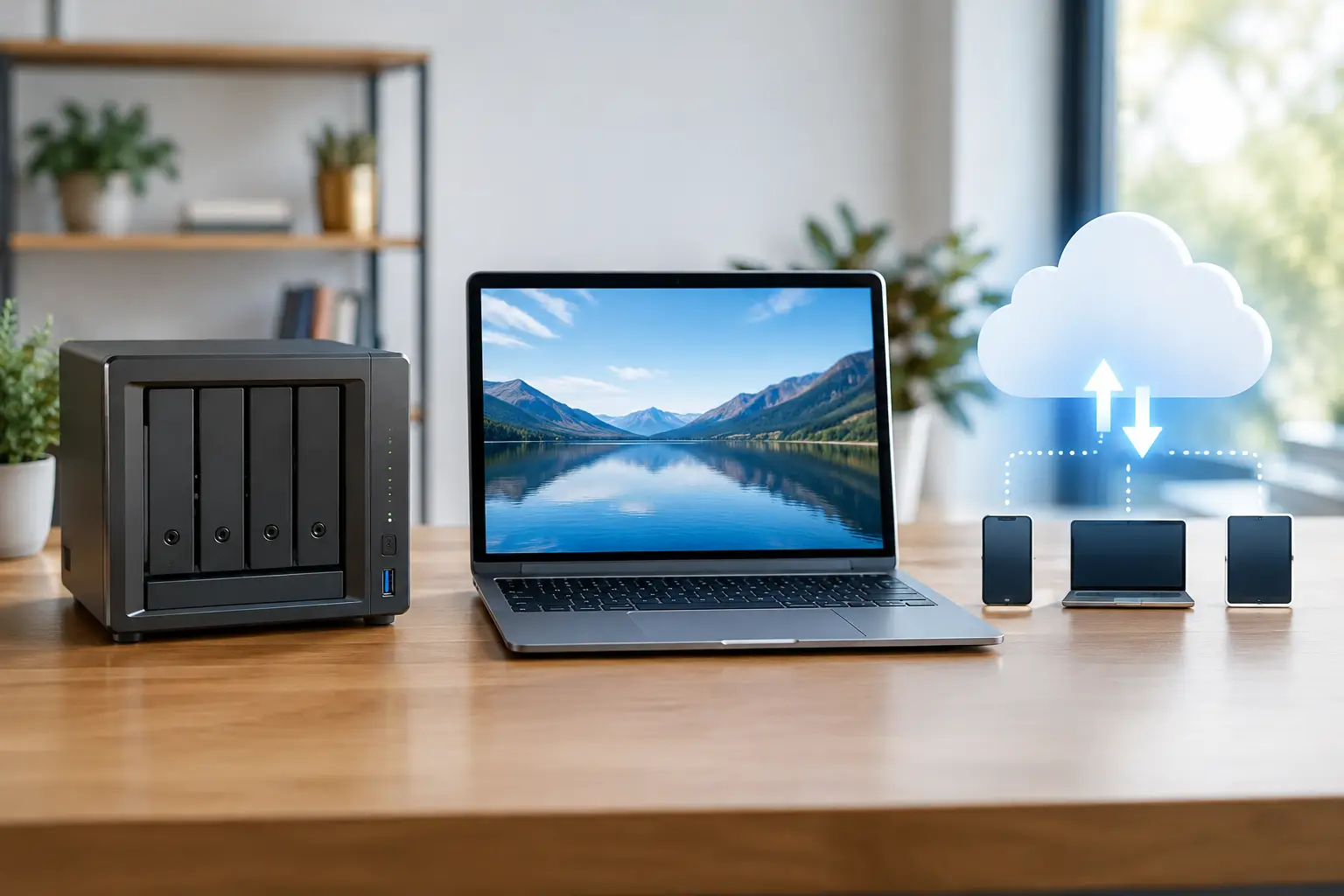
Choosing NAS versus cloud storage does not have to mean choosing only one. A hybrid setup gives you the speed of local storage and the protection of an off-site copy.
For example, a home office could save active files to a NAS for quick access and automatic computer backups. The NAS can then send selected folders or backup data to a cloud service. If the computer fails, local restoration can be fast. If the NAS is damaged or stolen, important data still exists elsewhere.
A small business can take this further by setting up separate user access, scheduled backups, file retention policies, and regular recovery checks. The goal is not to make technology complicated. It is to avoid discovering a gap in protection when the files are already missing.
Make sure your plan can actually restore data
The most overlooked part of any storage decision is testing. A backup that has never been checked is only a promise. Occasionally restore a document, photo folder, or test file to make sure it opens correctly and that the recovery process is understood.
Also consider who will manage the system. If one person handles everything, make sure another trusted person knows where account information, recovery instructions, and passwords are securely stored. This matters for families as much as it does for small offices.
Computer Tech Pro can help Central Florida homes and businesses choose, configure, and secure a NAS, cloud backup, or combined plan based on the files they need to protect. The most helpful storage solution is the one you can use confidently and recover from when life, hardware, or a simple mistake gets in the way.