

Posted On 05 Jul 2026
That moment when you click a program and wait… and wait… is usually the point people start asking how to speed up old computer systems without spending money on a brand-new machine. The good news is that many slow PCs can be improved with the right mix of cleanup, maintenance, and a realistic look at aging hardware. The key is knowing which fixes actually help and which ones just waste time.
An older computer does not always need to be replaced. In many cases, it is being slowed down by years of startup clutter, low free storage, outdated software, failing hard drives, or malware running quietly in the background. Sometimes the problem is simple. Sometimes it points to hardware that has reached its limit. Either way, a methodical approach works better than random tweaks.
How to speed up old computer without making things worse
The safest place to start is with the changes that improve performance without putting your files at risk. Before you delete anything major or replace parts, make sure important documents, photos, and business data are backed up. A slow computer is inconvenient. A slow computer that also loses data is much harder and more expensive to recover from.
Next, restart the computer if you have not done that recently. Many people leave desktops and laptops running for days or weeks, especially in a home office or small business setting. A restart clears temporary processes and can stop background programs that are consuming memory and processor power.
After that, pay attention to startup programs. This is one of the most common causes of a sluggish machine. Many applications install helpers that launch every time Windows starts, even when you rarely use them. Cloud storage tools, chat apps, printer software, update managers, and trial security programs can all pile up over time.
Open the startup settings and disable anything nonessential. That does not uninstall the program. It only stops it from launching automatically. For many older computers, this one change can noticeably reduce boot time and improve general responsiveness.
Remove the clutter that slows everything down
Storage space matters more than many people realize. If your drive is nearly full, Windows has less room to handle temporary files, updates, and virtual memory. Performance can drop fast, especially on older systems with traditional hard drives.
Start by deleting files you no longer need from Downloads and other common storage folders. Empty the Recycle Bin. Remove temporary files with built-in cleanup tools. Then look at installed applications and uninstall the ones you do not use. Old games, expired trial software, duplicate utilities, and manufacturer bloatware often sit untouched while consuming space and background resources.
Be careful, though. Do not remove unfamiliar system components just because the names look technical. If you are not sure what a program does, it is better to check first than accidentally break a printer, accounting software, or a business application you still need.
If your computer still uses a hard disk drive, defragmenting may help. This reorganizes fragmented data so the drive can read files more efficiently. But this only applies to hard drives, not solid-state drives. Running the wrong kind of maintenance on the wrong storage type does not improve speed and can create unnecessary wear.
Check for malware, adware, and browser overload
A system that has become progressively slower may have more than age working against it. Malware, adware, browser extensions, and unwanted background tasks can quietly consume system resources and internet bandwidth.
Run a full security scan with a trusted antivirus or antimalware tool. If the machine is heavily infected, you may notice pop-ups, browser redirects, strange toolbars, or constant disk activity even when nothing is open. In those cases, a basic scan may not be enough. Deeper cleaning may be needed to fully remove threats and repair system damage.
Web browsers are another common source of poor performance. Too many open tabs, old extensions, and accumulated cache files can make an older computer feel much slower than it really is. Close tabs you are not using, remove unnecessary extensions, and clear cached data from time to time. If one browser feels especially heavy, testing another browser can also help.
Update what matters, but do it carefully
If you are trying to figure out how to speed up old computer performance, software updates can help, but only when handled sensibly. Operating system updates, driver updates, and application updates often fix bugs, improve stability, and close security holes that can affect overall speed.
That said, not every update makes an old machine feel faster. Some major operating system upgrades can actually push outdated hardware harder. If a computer is already underpowered, the newest version of everything is not always the best fit. This is especially true for systems with limited RAM or older processors.
A practical approach is to keep Windows security updates current, update critical drivers like graphics and chipset drivers when needed, and avoid piling on unnecessary software. Stability and security matter just as much as raw speed.
Hardware upgrades that make the biggest difference
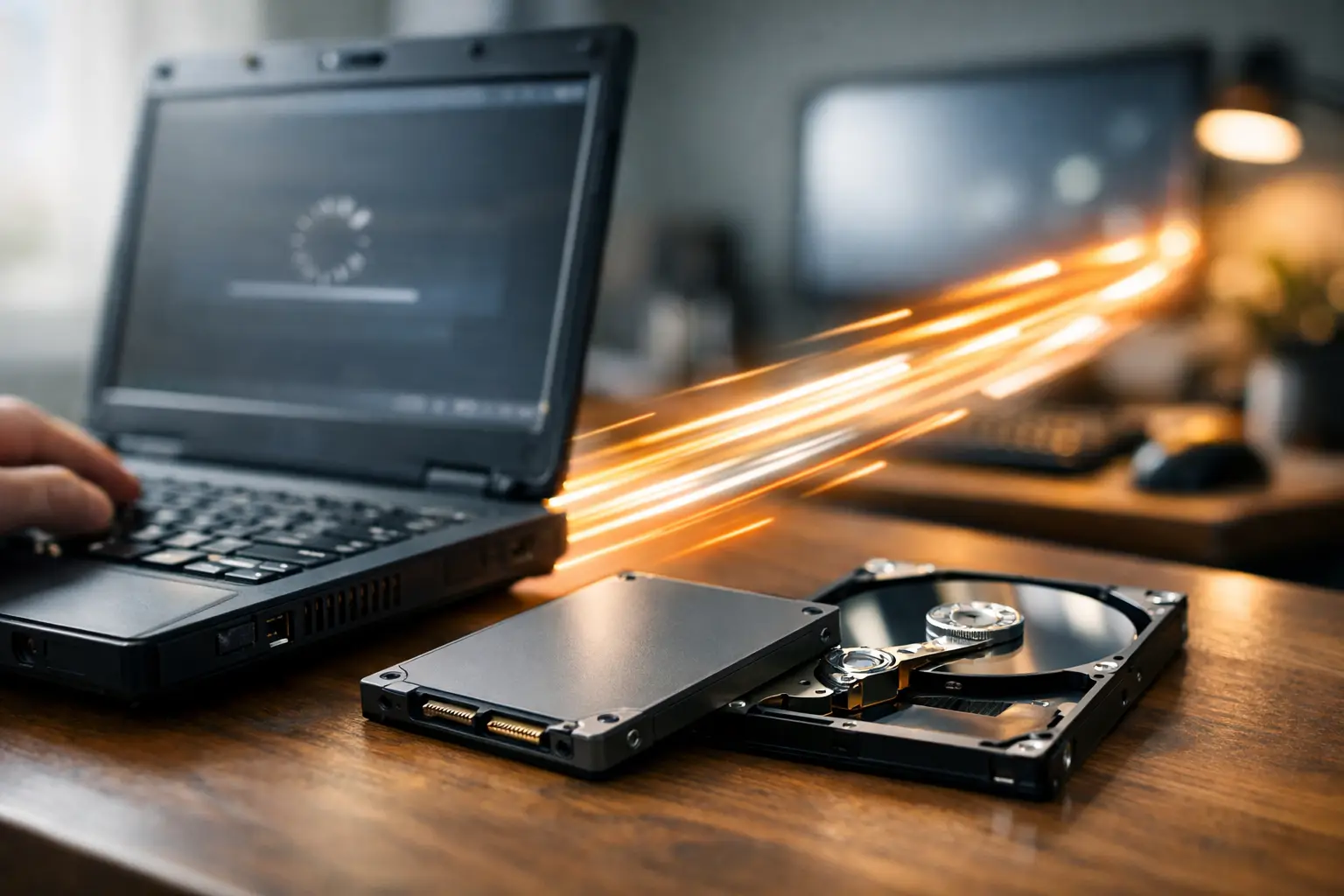
There comes a point where software cleanup is not enough. If your computer is several years old and still has a spinning hard drive, replacing it with a solid-state drive is often the single best upgrade available. An SSD dramatically improves startup times, program loading, and overall system responsiveness. For many users, it makes an old computer feel usable again.
Adding more RAM can also help, especially if the machine slows down when multiple browser tabs, email, office programs, or video calls are open. If the system has only 4GB of memory, moving to 8GB can be a meaningful improvement for everyday use. For business users running heavier applications, more may be appropriate if the hardware supports it.
Still, upgrades have limits. If the processor is very old, the motherboard only supports low memory capacity, or replacement parts cost too much, putting money into the machine may not be the smartest long-term move. This is where honest advice matters. Sometimes a tune-up is the right answer. Sometimes replacement is more cost-effective.
Cooling and physical condition matter too
Older computers often suffer from heat buildup. Dust inside the case, blocked vents, and failing fans can cause a system to throttle performance to protect itself. That means the computer may feel slow not because the software is bad, but because the hardware is running too hot.
If you are comfortable opening the system, carefully clean dust from vents and fans. Laptops need this even more than desktops because their cooling systems are compact and easy to clog. If a fan is making noise, running constantly, or not spinning properly, it may need replacement.
Also pay attention to the age of the hard drive. Mechanical drives wear out over time. If the computer freezes, makes clicking sounds, or takes an unusually long time to open files, the drive may be failing. At that point, speed is only part of the issue. Protecting your data becomes urgent.
When a slow computer affects work, the stakes are higher
For home users, a slow PC is frustrating. For a small business, it can cost time, interrupt communication, and create security risks. If office computers are lagging during email, invoicing, scheduling, or file access, the problem can ripple through the entire day.
That is why business systems should be evaluated a little differently. The question is not only how to speed up old computer hardware, but whether the machine is still reliable enough for daily operations. A short-term fix may buy time, but if the computer is unstable, undersecured, or nearing hardware failure, a more complete plan may be the better investment.
In many cases, a professional tune-up can identify whether the issue is startup overload, malware, storage failure, memory shortage, or something more serious. Computer Tech Pro often sees systems that owners assumed were simply old, when the real problem was a repairable mix of software clutter, security issues, and neglected maintenance.
When to stop troubleshooting and get help
If you have cleaned up startup items, removed junk files, scanned for malware, and the computer is still crawling, the next step should be diagnosis, not guesswork. Reinstalling Windows can help in some situations, but it is not a magic fix. If the drive is failing or the hardware is overheating, reinstalling the operating system will not solve the root issue.
You should also get help if the system crashes, shows blue screens, cannot complete updates, or becomes slow again immediately after cleanup. Those are signs that the problem may be deeper than normal aging.
A good technician will not just try to sell a replacement. They will tell you whether your computer is worth upgrading, whether your files are safe, and whether a repair makes financial sense. That kind of guidance matters, especially for households and small businesses that want dependable performance without overspending.
An old computer does not have to be fast by modern gaming standards to be useful. It just needs to be stable, responsive, and suited to the way you use it. Sometimes that takes a few smart adjustments. Sometimes it takes one meaningful hardware upgrade. And sometimes the best move is getting clear, professional advice before a slow system turns into a bigger problem.


