
Posted On 03 Oct 2026
A computer that takes several minutes to start, freezes when opening email, or struggles with everyday programs often has one common problem: an older hard drive. In the HDD versus SSD decision, the right answer can make a dramatic difference in how a computer feels to use, but the best choice still depends on your budget, storage needs, and the condition of the system.
For many homeowners, remote workers, and small businesses, replacing an aging drive is one of the most worthwhile upgrades available. It can extend the useful life of a dependable computer without the cost and disruption of replacing everything at once.
HDD versus SSD: The basic difference
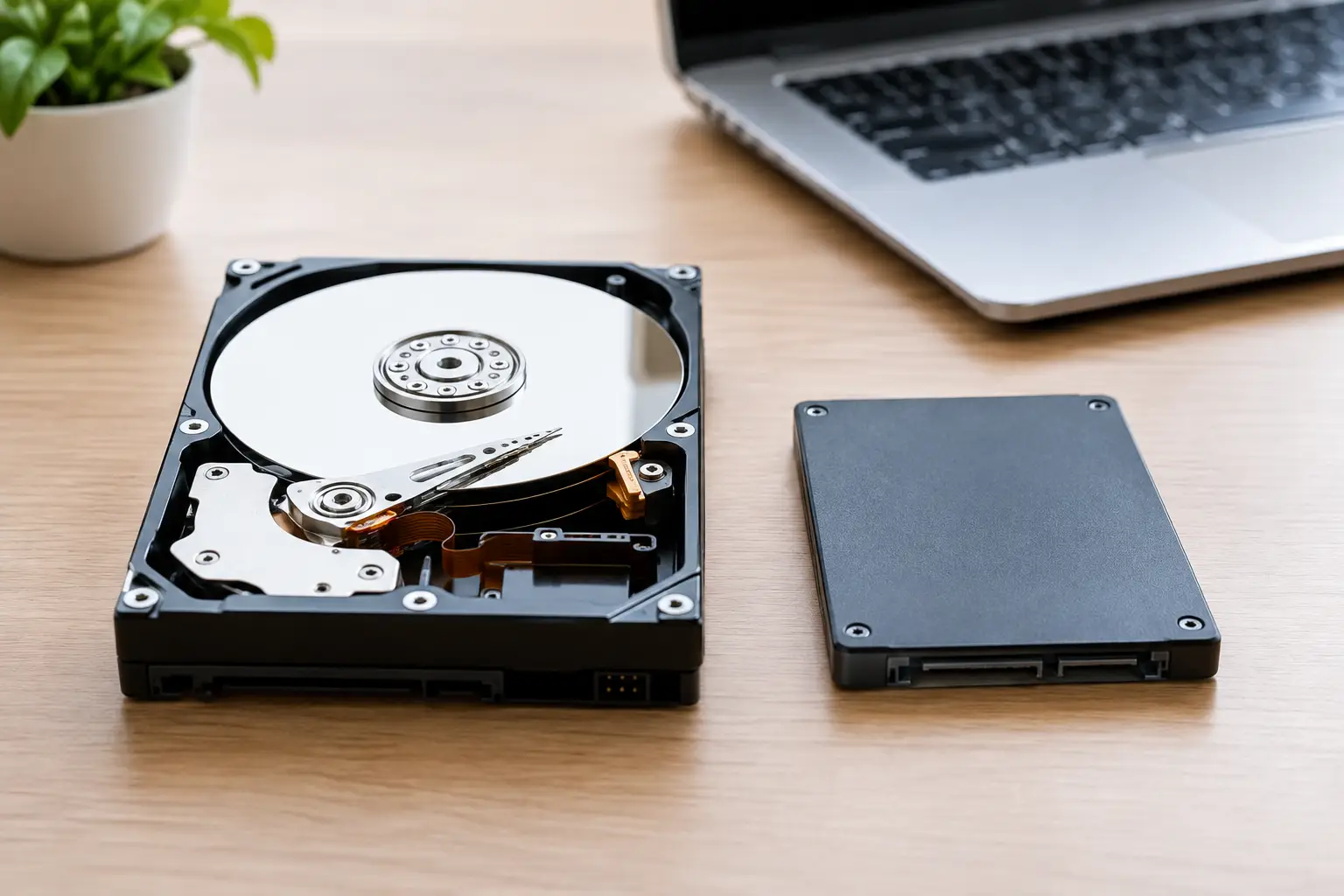
An HDD, or hard disk drive, stores files on spinning magnetic disks inside the computer. A small moving arm reads and writes data as those disks turn. This technology has been used for decades, and it remains popular because it can provide a large amount of storage at a lower cost.
An SSD, or solid-state drive, stores data on memory chips rather than spinning disks. With no moving parts, it can access files much faster and is less vulnerable to damage from bumps or vibration. Think of an HDD as a record player that must move to the right spot before it can play a song. An SSD is more like instantly selecting the file you need.
Both drives can store Windows, photos, documents, email, and business files. The biggest difference is not what they hold. It is how quickly and reliably they get to that information.
Why an SSD usually feels much faster
The benefit most people notice first is speed. A computer with an SSD commonly starts Windows in seconds rather than minutes. Programs open more quickly, updates finish sooner, and switching between several tasks feels less frustrating.
That improvement is especially noticeable on computers that still use an older mechanical hard drive. A slow HDD can make a perfectly capable processor and adequate memory seem outdated. Replacing the drive can reduce the long pauses that occur when opening folders, searching for files, or launching everyday software.
SSDs also handle many small tasks at once better than HDDs. That matters for a home office computer with email, web-based programs, accounting software, video meetings, and cloud backup activity all happening in the background. Small businesses can benefit from faster startup times and less waiting when staff open files or access shared resources.
An HDD is not automatically slow or unusable. A newer, healthy hard drive can still work well for basic storage and light computer use. But when a computer is used daily, an SSD provides a level of responsiveness that most people appreciate immediately.
Cost and storage: Where HDDs still make sense
Hard drives remain attractive when you need a lot of storage for the lowest price. If you have years of family photos, large video collections, archived records, or local backup files, an HDD can offer several terabytes of space without the cost of an equally large SSD.
For this reason, HDDs are often a sensible choice for secondary storage or backup. A desktop computer may use an SSD for Windows and regularly used programs, then use a larger HDD for files that do not need instant access. This setup can balance speed and storage capacity.
SSDs have become much more affordable, and common capacities are enough for many users. A 500GB or 1TB SSD is often a practical fit for a typical household or home office computer, depending on how many files are kept locally. Still, large SSDs cost more than large HDDs, so storage-heavy needs can change the recommendation.
The least expensive option is not always the best value. A smaller SSD that makes a computer fast and pleasant to use may be a better investment than a larger HDD that preserves a slow system. The right choice comes down to what needs to be stored, how the computer is used, and whether a separate backup device is available.
Reliability and lifespan are not identical
People often ask whether SSDs or HDDs last longer. The honest answer is that either type can fail, and neither should be treated as the only copy of important files.
HDDs have moving parts. Over time, the spinning disks and read/write mechanism can wear down. They are also more sensitive to drops, shocks, and overheating. Warning signs may include clicking noises, repeated freezing, files that will not open, or a computer that takes a long time to start.
SSDs have no moving components, which makes them better able to handle normal movement and everyday use. However, their memory cells have a finite number of write cycles. For most residential and office users, a quality SSD should provide years of dependable service, but electronics can still fail without much warning.
The practical lesson is simple: use dependable storage, watch for warning signs, and keep a current backup. Important family documents, business records, financial files, and photos should exist in more than one place. A fast new SSD improves performance, but it does not replace a real backup plan.
Which drive is best for your computer?
For most computers that run Windows every day, an SSD is the strongest overall recommendation. It offers noticeably faster startup and program loading, quiet operation, lower power use, and better resistance to everyday bumps. It is particularly valuable when a computer feels slow but is otherwise in good working condition.
An HDD can be the better fit when maximum storage is the top priority and speed is less important. It may also make sense as an additional drive for archives and local backups. If you need both speed and a large amount of affordable space, using an SSD for the operating system and an HDD for storage can be a practical compromise.
There are also different types of SSDs. Some connect using the same cable style as traditional hard drives, while others install directly onto the computer’s motherboard and can be faster. Compatibility matters. An older laptop or desktop may support one type but not another, and a drive that is physically compatible is not always the best option for the system.
Capacity needs deserve careful thought, too. Moving from a 1TB HDD to a 250GB SSD may improve speed, but it can create a storage problem if the existing drive is nearly full. Before choosing a replacement, check how much space is actually in use and leave room for Windows updates, new files, and normal operation.
Replacing a drive requires more than installing hardware
A drive upgrade is not just a matter of putting a new part into a computer. The files, programs, settings, user accounts, and Windows installation need to be handled correctly. In many cases, the existing drive can be cloned to the new SSD so the computer starts up looking familiar, with the same files and applications in place.
Cloning is convenient when the current drive is healthy enough to read reliably and the new drive has sufficient capacity. If the old drive is failing, infected, severely corrupted, or too full, a clean Windows installation and careful file transfer may be the safer approach.
This is also a good time to check the computer’s overall condition. Limited memory, outdated software, malware, overheating, or battery issues can affect performance even after a storage upgrade. An SSD can solve a major bottleneck, but it cannot fix every cause of a slow computer.
For customers who are not comfortable opening a computer or moving data, professional help reduces the risk of lost files and compatibility mistakes. Computer Tech Pro can assess the current drive, recommend a suitable replacement, transfer data carefully, and make sure the system is working properly before it goes back into regular use.
Signs it may be time for a drive upgrade
A drive does not have to fail completely before it deserves attention. Repeated slow startup, frequent freezing during simple tasks, loud clicking from a desktop or laptop, blue screen errors, and messages about disk problems should be taken seriously. If important files suddenly disappear or will not open, stop using the computer as much as possible and seek help quickly. Continued use can make data recovery more difficult.
Even without a failure warning, an older computer with an HDD may be a good SSD upgrade candidate if it otherwise meets your needs. A technician can check the system’s age, memory, health, and compatibility before you spend money on a drive.
A good storage decision should leave you with a computer that feels dependable, enough space for the files you use, and a backup plan that protects what matters most. That peace of mind is worth more than choosing the cheapest drive on the shelf.